How to send someone WhatsApp notices without giving them Eva access
Add someone to receive WhatsApp notices about customer requests without counting as a user, then choose which requests Eva notifies them about.
You can notify someone on WhatsApp when Eva needs help with a request. That person does not need
to sign in to Eva or count as a user.
What you will get
A Notices only contact receives the notices you choose. They can open the chat from the
message, while the request follows your team’s normal assignment.
Requirements
The Owner or Admin role, with access to Advanced Settings.
The Notices only tab under Settings › Members. If it is missing, this option is not
available in your account yet.
The person’s name and WhatsApp number, including the country code.
Add a contact
Eva sends an invitation from its official WhatsApp number. The person starts receiving notices
after accepting it.
1
Open Notices only
In Settings, open Members and select Notices only.
2
Open the form
Select Add contact. The form for the person’s details appears.
3
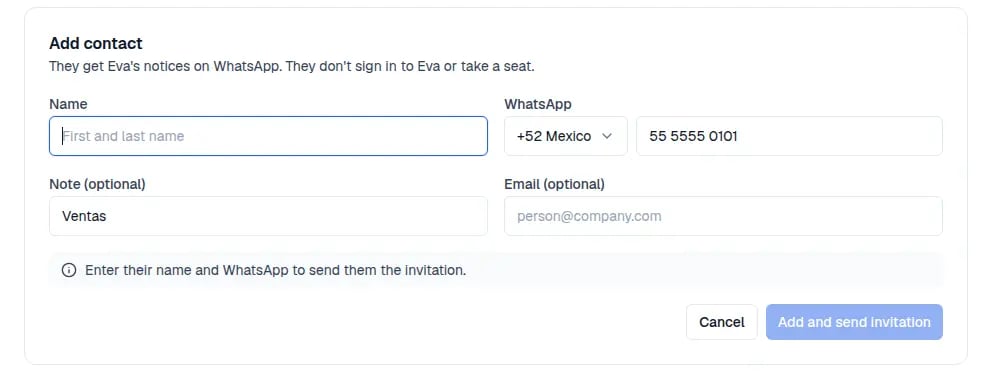
Enter their details
Fill in Name and WhatsApp. Note (optional) and Email (optional) can be left
empty.
The form asks for a name and WhatsApp number; the note and email are optional.
4
Send the invitation
Select Add and send invitation. The contact appears as Waiting to accept.
Choose which requests Eva notifies them about
In the agent’s behavior, you can choose a Notices only contact for each type of request. The
contact receives a notice; they do not become the chat owner.
1
Open the agent's handoff settings
In AI Agents, open the agent and go to Behavior › Human handoff.
2
Open the rules
Under Who handles what, open the rule for the request you want to notify them about.
3
Choose the contact
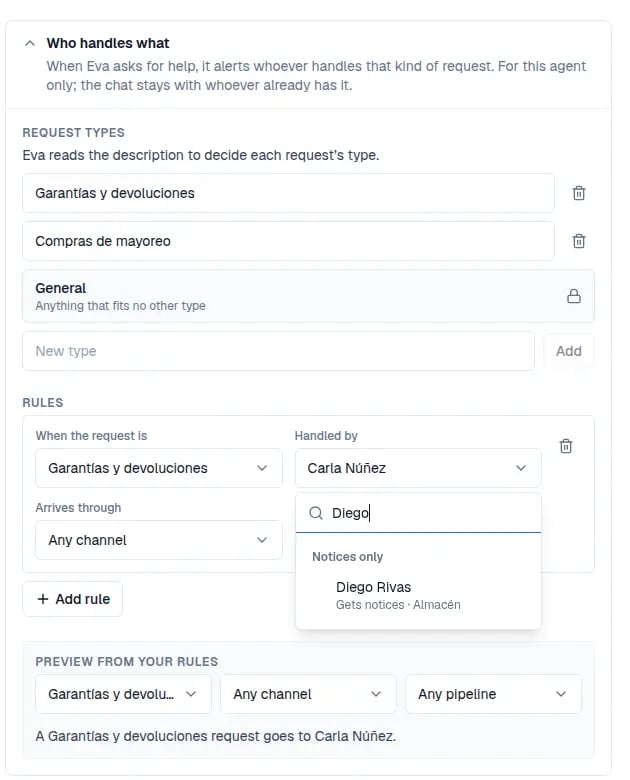
Under Handled by, open the list and choose the person in Notices only. The preview
says the request follows normal assignment.
Searching for a contact shows them under Notices only.
Eva keeps the normal team assignment and email backup. The WhatsApp notice is sent when the
contact has accepted and the customer has a valid phone number.
What the person receives on WhatsApp
After accepting the invitation, the person gets a notice when a request matches their rule. The
message includes a chat link and three options:
Option
What happens
“I’ll take it”
Reminders for that request stop. Eva continues answering the customer.
“Not mine”
The request and reminders follow normal assignment.
Pause notices
The person stops receiving new notices until notices are resumed.
These actions appear in the conversation timeline.
Choose how they answer questions
In the form, or in the How they answer column of the list, choose one of two options. With
Writes directly, the usual option, the notice includes the customer’s number and the person
writes to them on WhatsApp. With Answers Eva, the notice carries the question without the
customer’s number or the options above: the person replies in the same WhatsApp chat, Eva answers
the customer, and the conversation shows who answered and what they wrote.
Pause, remove, or invite as a user
In Settings › Members › Notices only, open the contact’s actions menu. Select
Pause notices or Resume notices as their status allows. Remove stops their notices.To give them Eva access, select Invite as user and enter their email. Once they accept the
email invitation, they count as a user. Their rules and confirmed WhatsApp number move to their user;
those requests are then assigned to them. Until they accept, they remain a notices contact.
People who don’t use Eva and receive appointments
A Notices only contact can also receive appointments without signing in to Eva. The person
shares their Google Calendar with the business’s connected Google account. Then, in their menu,
select Receives appointments…, choose Calendar their appointments land in and, if needed,
their Bookable hours. You can also add them in Calendars › Calendar setup › Team with
Add someone who doesn’t use Eva. They appear in Team below your teammates and are assigned to each
appointment type under Attends. To stop booking for them, choose Stop receiving
appointments; the appointments they already have stay.
How to know it worked
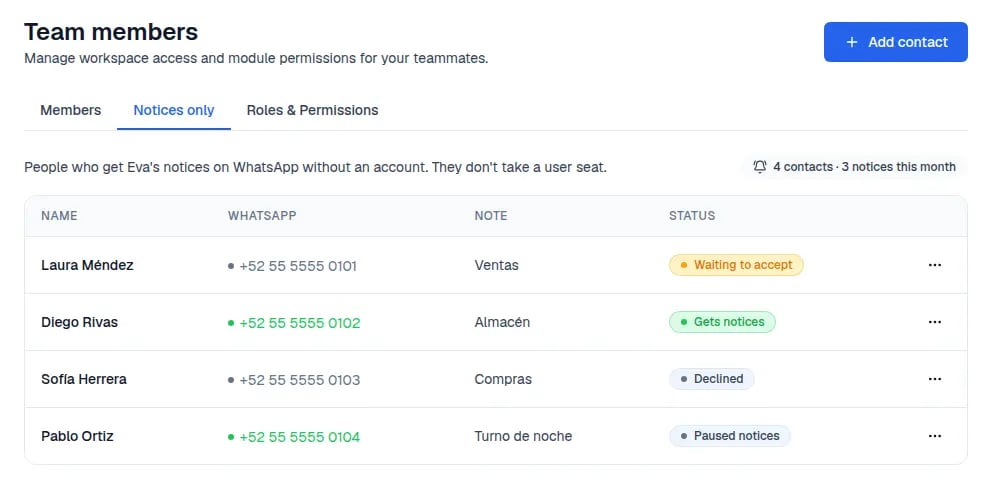
In Notices only, the status changes from Waiting to accept to Gets notices when the
person accepts on WhatsApp. The count above the list shows notices sent this month. When Eva
sends one, the conversation records the notice.
The list shows who accepted, who is still waiting, and notices sent this month.
If something goes wrong
I cannot see the Notices only tab
Check that you signed in as an owner or admin. If the tab is still missing, Notices only is
not available in your account yet.
The person does not receive notices
Check their status in Notices only. It should say Gets notices. Eva sends a notice only
if the customer has a valid phone number.
The person declined or did not answer the invitation
In their menu, select Resend invitation. You can do this 24 hours after the last send.
The person needs to sign in to Eva
In their menu, select Invite as user. They need room for another user and must accept the
email invitation.
Next steps
Add teammates and choose permissions
Set when Eva asks for help
⌘I
{"docsConfig":{"theme":"maple","$schema":"https://mintlify.com/docs.json","name":"Eva AI","colors":{"primary":"#1b3fd8","light":"#93C5FD","dark":"#1D4ED8"},"logo":{"light":"https://mintcdn.com/evaai-85079546/UtT8IQz6tvKOQTNy/logo/eva-light.svg?fit=max\u0026auto=format\u0026n=UtT8IQz6tvKOQTNy\u0026q=85\u0026s=d0fac26b363049523830e39b57aa68a8","dark":"https://mintcdn.com/evaai-85079546/UtT8IQz6tvKOQTNy/logo/eva-dark.svg?fit=max\u0026auto=format\u0026n=UtT8IQz6tvKOQTNy\u0026q=85\u0026s=830014a634f373e57509787a949fcd3c","href":"https://www.goeva.ai"},"favicon":"https://mintcdn.com/evaai-85079546/UtT8IQz6tvKOQTNy/favicon.svg?fit=max\u0026auto=format\u0026n=UtT8IQz6tvKOQTNy\u0026q=85\u0026s=31fb5e3ae8a2705576224cef723e5e61","appearance":{"default":"system"},"fonts":{"family":"Inter"},"icons":{"library":"lucide"},"styling":{"latex":true},"navigation":{"languages":[{"language":"es","default":true,"href":"es"},{"language":"en","href":"en"}]}},"deployment":{"deploymentMetadataValue":{"subdomain":"evaai-85079546","hasAudioNarration":false,"actualSubdomain":"evaai-85079546","customDomains":["docs.goeva.ai"],"gitSource":{"type":"github","owner":"gus1403","repo":"eva","deployBranch":"master","contentDirectory":"help","isPrivate":true,"mountPath":"","label":""},"entitlements":{"AI_CHAT":{"status":"DISABLED"}},"buildId":"6af9f7f4f47e66462e3742d4","clientVersion":"0.0.4143","searchFilterCounts":[{"language":"en","tag":"Channels","count":33},{"language":"es","tag":"Canales","count":33},{"language":"en","tag":"Integrations","count":16},{"language":"es","tag":"Integraciones","count":16},{"language":"en","tag":"Getting started","count":10},{"language":"es","tag":"Empieza aquí","count":10},{"language":"en","tag":"Automations","count":8},{"language":"es","tag":"Automatizaciones","count":8},{"language":"en","tag":"Customers and sales","count":6},{"language":"en","tag":"Team and account","count":6},{"language":"es","tag":"Clientes y ventas","count":6},{"language":"es","tag":"Equipo y cuenta","count":6},{"language":"en","tag":"Subscription and invoices","count":5},{"language":"es","tag":"Suscripción y facturas","count":5},{"language":"en","tag":"Your agent","count":4},{"language":"es","tag":"Tu agente","count":4},{"language":"en","tag":"Calendars and appointments","count":3},{"language":"en","tag":"Inbox","count":3},{"language":"es","tag":"Ayuda","count":3},{"language":"es","tag":"Calendarios y citas","count":3}]},"assistantConfig":{"enableAskAiButton":false,"enableStarterQuestions":false,"enableContextualStarterQuestions":false,"enableAskAiSearchBar":true},"basePath":"","hasChatPermissions":false,"hasWebMcpPermissions":false,"toggles":[{"name":"kill-isr","enabled":true,"variant":{"name":"disabled","enabled":false,"feature_enabled":true},"impressionData":false},{"name":"custom-rbac-roles","enabled":true,"variant":{"name":"disabled","enabled":false,"feature_enabled":true},"impressionData":false},{"name":"agent-mintlify-slack","enabled":true,"variant":{"name":"disabled","enabled":false,"feature_enabled":true},"impressionData":false},{"name":"agent-integrations-settings","enabled":true,"variant":{"name":"disabled","enabled":false,"feature_enabled":true},"impressionData":false},{"name":"rbac-expansion","enabled":true,"variant":{"name":"disabled","enabled":false,"feature_enabled":true},"impressionData":false},{"name":"automations-pr-grouping","enabled":true,"variant":{"name":"disabled","enabled":false,"feature_enabled":true},"impressionData":false},{"name":"custom-prefix","enabled":true,"variant":{"name":"disabled","enabled":false,"feature_enabled":true},"impressionData":false},{"name":"analytics-v7","enabled":true,"variant":{"name":"disabled","enabled":false,"feature_enabled":true},"impressionData":false},{"name":"user-flows-analytics","enabled":true,"variant":{"name":"disabled","enabled":false,"feature_enabled":true},"impressionData":false},{"name":"no-publish-flow","enabled":true,"variant":{"name":"disabled","enabled":false,"feature_enabled":true},"impressionData":false},{"name":"workos-onboarding","enabled":true,"variant":{"name":"disabled","enabled":false,"feature_enabled":true},"impressionData":false},{"name":"snapshot-serving-live","enabled":true,"variant":{"name":"disabled","enabled":false,"feature_enabled":true},"impressionData":false},{"name":"stripTemperatureMiddleware","enabled":true,"variant":{"name":"disabled","enabled":false,"feature_enabled":true},"impressionData":false},{"name":"support-platform-pylon-zendesk","enabled":true,"variant":{"name":"disabled","enabled":false,"feature_enabled":true},"impressionData":false},{"name":"snapshot-serving","enabled":true,"variant":{"name":"disabled","enabled":false,"feature_enabled":true},"impressionData":false},{"name":"instant-rollback","enabled":true,"variant":{"name":"disabled","enabled":false,"feature_enabled":true},"impressionData":false},{"name":"granular-notifications-server","enabled":true,"variant":{"name":"disabled","enabled":false,"feature_enabled":true},"impressionData":false},{"name":"granular-notifications","enabled":true,"variant":{"name":"disabled","enabled":false,"feature_enabled":true},"impressionData":false},{"name":"automations-fable","enabled":true,"variant":{"name":"disabled","enabled":false,"feature_enabled":true},"impressionData":false},{"name":"fixed-ai-action-pricing","enabled":true,"variant":{"name":"disabled","enabled":false,"feature_enabled":true},"impressionData":false},{"name":"automation-resolve-merge-conflict","enabled":true,"variant":{"name":"disabled","enabled":false,"feature_enabled":true},"impressionData":false},{"name":"scoped-publishing","enabled":true,"variant":{"name":"disabled","enabled":false,"feature_enabled":true},"impressionData":false},{"name":"mintql","enabled":true,"variant":{"name":"disabled","enabled":false,"feature_enabled":true},"impressionData":false},{"name":"page-level-analytics","enabled":true,"variant":{"name":"disabled","enabled":false,"feature_enabled":true},"impressionData":false},{"name":"editor-version-history-v2","enabled":true,"variant":{"name":"disabled","enabled":false,"feature_enabled":true},"impressionData":false},{"name":"billing-page-v2","enabled":true,"variant":{"name":"disabled","enabled":false,"feature_enabled":true},"impressionData":false},{"name":"full-page-search","enabled":true,"variant":{"name":"disabled","enabled":false,"feature_enabled":true},"impressionData":false},{"name":"workspace-projects","enabled":true,"variant":{"name":"disabled","enabled":false,"feature_enabled":true},"impressionData":false},{"name":"assistant-v5","enabled":true,"variant":{"name":"disabled","enabled":false,"feature_enabled":true},"impressionData":false},{"name":"fork-pr-previews","enabled":true,"variant":{"name":"disabled","enabled":false,"feature_enabled":true},"impressionData":false},{"name":"revalidation-jwt","enabled":true,"variant":{"name":"disabled","enabled":false,"feature_enabled":true},"impressionData":false},{"name":"workos-sso-scim","enabled":true,"variant":{"name":"disabled","enabled":false,"feature_enabled":true},"impressionData":false},{"name":"hobby-abuse-scan","enabled":true,"variant":{"name":"disabled","enabled":false,"feature_enabled":true},"impressionData":false},{"name":"dashboard-inbox","enabled":true,"variant":{"name":"disabled","enabled":false,"feature_enabled":true},"impressionData":false},{"name":"workos-signup","enabled":true,"variant":{"name":"disabled","enabled":false,"feature_enabled":true},"impressionData":false},{"name":"turbopuffer-dual-write","enabled":true,"variant":{"name":"disabled","enabled":false,"feature_enabled":true},"impressionData":false},{"name":"workos-enabled","enabled":true,"variant":{"name":"disabled","enabled":false,"feature_enabled":true},"impressionData":false},{"name":"approve-review-flow","enabled":true,"variant":{"name":"disabled","enabled":false,"feature_enabled":true},"impressionData":false},{"name":"editor-metadata","enabled":true,"variant":{"name":"disabled","enabled":false,"feature_enabled":true},"impressionData":false},{"name":"sso-setup-deadline-banner","enabled":true,"variant":{"name":"disabled","enabled":false,"feature_enabled":true},"impressionData":false},{"name":"turbopuffer-serve","enabled":true,"variant":{"name":"disabled","enabled":false,"feature_enabled":true},"impressionData":false},{"name":"live-agents","enabled":true,"variant":{"name":"disabled","enabled":false,"feature_enabled":true},"impressionData":false},{"name":"llms-txt-v2","enabled":true,"variant":{"name":"disabled","enabled":false,"feature_enabled":true},"impressionData":false}],"googleFontsInlined":false},"customCss":[{"filePath":"custom.css","content":"body{line-height:1.7}img,figure img{border:1px solid color-mix(in srgb, currentColor 12%, transparent);border-radius:12px;box-shadow:0 8px 24px rgb(15 23 42 / 10%)}#header .api-playground,#navbar .api-playground,#footer .api-playground{display:none}"}],"page":{"pagePath":"en/team/notices-only","slug":"/en/team/notices-only","pageMetadata":{"title":"How to send someone WhatsApp notices without giving them Eva access","description":"Add someone to receive WhatsApp notices about customer requests without counting as a user, then choose which requests Eva notifies them about.","type":"how-to","keywords":["WhatsApp notices","notify someone","not a user","human handoff","requests"],"href":"/en/team/notices-only"},"description":{"compiledSource":"\"use strict\";\nconst {jsx: _jsx} = arguments[0];\nconst {useMDXComponents: _provideComponents} = arguments[0];\nfunction _createMdxContent(props) {\n const _components = {\n p: \"p\",\n ..._provideComponents(),\n ...props.components\n };\n return _jsx(_components.p, {\n children: \"Add someone to receive WhatsApp notices about customer requests without counting as a user, then choose which requests Eva notifies them about.\"\n });\n}\nfunction MDXContent(props = {}) {\n const {wrapper: MDXLayout} = {\n ..._provideComponents(),\n ...props.components\n };\n return MDXLayout ? _jsx(MDXLayout, {\n ...props,\n children: _jsx(_createMdxContent, {\n ...props\n })\n }) : _createMdxContent(props);\n}\nreturn {\n default: MDXContent\n};\n","frontmatter":{},"scope":{}},"pageType":"default","mdx":{"mdxSource":{"compiledSource":"\"use strict\";const{Fragment:_Fragment,jsx:_jsx,jsxs:_jsxs}=arguments[0];const{useMDXComponents:_provideComponents}=arguments[0];function _createMdxContent(props){const _components={li:`li`,p:`p`,strong:`strong`,tbody:`tbody`,td:`td`,th:`th`,thead:`thead`,tr:`tr`,ul:`ul`,..._provideComponents(),...props.components},{Accordion,AccordionGroup,Card,Columns,Frame,Heading,OptimizedImage,Step,Steps,Table}=_components;if(!Accordion)_missingMdxReference(`Accordion`,true);if(!AccordionGroup)_missingMdxReference(`AccordionGroup`,true);if(!Card)_missingMdxReference(`Card`,true);if(!Columns)_missingMdxReference(`Columns`,true);if(!Frame)_missingMdxReference(`Frame`,true);if(!Heading)_missingMdxReference(`Heading`,true);if(!OptimizedImage)_missingMdxReference(`OptimizedImage`,true);if(!Step)_missingMdxReference(`Step`,true);if(!Steps)_missingMdxReference(`Steps`,true);if(!Table)_missingMdxReference(`Table`,true);return _jsxs(_Fragment,{children:[_jsx(_components.p,{children:`You can notify someone on WhatsApp when Eva needs help with a request. That person does not need\nto sign in to Eva or count as a user.`}),`\n`,_jsx(Heading,{level:`2`,id:`what-you-will-get`,children:`What you will get`}),`\n`,_jsxs(_components.p,{children:[`A `,_jsx(_components.strong,{children:`Notices only`}),` contact receives the notices you choose. They can open the chat from the\nmessage, while the request follows your team’s normal assignment.`]}),`\n`,_jsx(Heading,{level:`2`,id:`requirements`,children:`Requirements`}),`\n`,_jsxs(_components.ul,{children:[`\n`,_jsxs(_components.li,{children:[`The `,_jsx(_components.strong,{children:`Owner`}),` or `,_jsx(_components.strong,{children:`Admin`}),` role, with access to `,_jsx(_components.strong,{children:`Advanced Settings`}),`.`]}),`\n`,_jsxs(_components.li,{children:[`The `,_jsx(_components.strong,{children:`Notices only`}),` tab under `,_jsx(_components.strong,{children:`Settings`}),` › `,_jsx(_components.strong,{children:`Members`}),`. If it is missing, this option is not\navailable in your account yet.`]}),`\n`,_jsx(_components.li,{children:`The person’s name and WhatsApp number, including the country code.`}),`\n`]}),`\n`,_jsx(Heading,{level:`2`,id:`add-a-contact`,children:`Add a contact`}),`\n`,_jsx(_components.p,{children:`Eva sends an invitation from its official WhatsApp number. The person starts receiving notices\nafter accepting it.`}),`\n`,_jsxs(Steps,{children:[_jsx(Step,{title:`Open Notices only`,children:_jsxs(_components.p,{children:[`In `,_jsx(_components.strong,{children:`Settings`}),`, open `,_jsx(_components.strong,{children:`Members`}),` and select `,_jsx(_components.strong,{children:`Notices only`}),`.`]})}),_jsx(Step,{title:`Open the form`,children:_jsxs(_components.p,{children:[`Select `,_jsx(_components.strong,{children:`Add contact`}),`. The form for the person’s details appears.`]})}),_jsxs(Step,{title:`Enter their details`,children:[_jsxs(_components.p,{children:[`Fill in `,_jsx(_components.strong,{children:`Name`}),` and `,_jsx(_components.strong,{children:`WhatsApp`}),`. `,_jsx(_components.strong,{children:`Note (optional)`}),` and `,_jsx(_components.strong,{children:`Email (optional)`}),` can be left\nempty.`]}),_jsx(Frame,{caption:`The form asks for a name and WhatsApp number; the note and email are optional.`,children:_jsx(OptimizedImage,{src:`https://mintcdn.com/evaai-85079546/bOtzSrYEqFo1ueOh/images/en/team/team-notices-form-v202610.webp?fit=max\u0026auto=format\u0026n=bOtzSrYEqFo1ueOh\u0026q=85\u0026s=621ec5b8b46954fd5636ae5e09152940`,alt:`Add contact form with Name, WhatsApp, optional Note and optional Email fields.`,\"data-og-width\":`1000`,width:`1000`,\"data-og-height\":`380`,height:`380`,\"data-path\":`images/en/team/team-notices-form-v202610.webp`,\"data-optimize\":`true`,\"data-opv\":`3`,srcset:`https://mintcdn.com/evaai-85079546/bOtzSrYEqFo1ueOh/images/en/team/team-notices-form-v202610.webp?w=280\u0026fit=max\u0026auto=format\u0026n=bOtzSrYEqFo1ueOh\u0026q=85\u0026s=4dce04bdf926a61cde88b837f10c93fb 280w, https://mintcdn.com/evaai-85079546/bOtzSrYEqFo1ueOh/images/en/team/team-notices-form-v202610.webp?w=560\u0026fit=max\u0026auto=format\u0026n=bOtzSrYEqFo1ueOh\u0026q=85\u0026s=86e7f3ef5d7339f92ee92fcdad09c354 560w, https://mintcdn.com/evaai-85079546/bOtzSrYEqFo1ueOh/images/en/team/team-notices-form-v202610.webp?w=840\u0026fit=max\u0026auto=format\u0026n=bOtzSrYEqFo1ueOh\u0026q=85\u0026s=703c83e3ab1e5efebc7c7305e070a3e1 840w, https://mintcdn.com/evaai-85079546/bOtzSrYEqFo1ueOh/images/en/team/team-notices-form-v202610.webp?w=1100\u0026fit=max\u0026auto=format\u0026n=bOtzSrYEqFo1ueOh\u0026q=85\u0026s=47b4abcb26c94ad6f0c5599335d4b66a 1100w, https://mintcdn.com/evaai-85079546/bOtzSrYEqFo1ueOh/images/en/team/team-notices-form-v202610.webp?w=1650\u0026fit=max\u0026auto=format\u0026n=bOtzSrYEqFo1ueOh\u0026q=85\u0026s=e114cb29dacede578376df07dbdfbb2f 1650w, https://mintcdn.com/evaai-85079546/bOtzSrYEqFo1ueOh/images/en/team/team-notices-form-v202610.webp?w=2500\u0026fit=max\u0026auto=format\u0026n=bOtzSrYEqFo1ueOh\u0026q=85\u0026s=d0d3fe4100c5f0d4079288e63ffd939f 2500w`})})]}),_jsx(Step,{title:`Send the invitation`,children:_jsxs(_components.p,{children:[`Select `,_jsx(_components.strong,{children:`Add and send invitation`}),`. The contact appears as `,_jsx(_components.strong,{children:`Waiting to accept`}),`.`]})})]}),`\n`,_jsx(Heading,{level:`2`,id:`choose-which-requests-eva-notifies-them-about`,children:`Choose which requests Eva notifies them about`}),`\n`,_jsxs(_components.p,{children:[`In the agent’s behavior, you can choose a `,_jsx(_components.strong,{children:`Notices only`}),` contact for each type of request. The\ncontact receives a notice; they do not become the chat owner.`]}),`\n`,_jsxs(Steps,{children:[_jsx(Step,{title:`Open the agent's handoff settings`,children:_jsxs(_components.p,{children:[`In `,_jsx(_components.strong,{children:`AI Agents`}),`, open the agent and go to `,_jsx(_components.strong,{children:`Behavior`}),` › `,_jsx(_components.strong,{children:`Human handoff`}),`.`]})}),_jsx(Step,{title:`Open the rules`,children:_jsxs(_components.p,{children:[`Under `,_jsx(_components.strong,{children:`Who handles what`}),`, open the rule for the request you want to notify them about.`]})}),_jsxs(Step,{title:`Choose the contact`,children:[_jsxs(_components.p,{children:[`Under `,_jsx(_components.strong,{children:`Handled by`}),`, open the list and choose the person in `,_jsx(_components.strong,{children:`Notices only`}),`. The preview\nsays the request follows normal assignment.`]}),_jsx(Frame,{caption:`Searching for a contact shows them under Notices only.`,children:_jsx(OptimizedImage,{src:`https://mintcdn.com/evaai-85079546/bOtzSrYEqFo1ueOh/images/en/team/team-notices-routing-v202610.webp?fit=max\u0026auto=format\u0026n=bOtzSrYEqFo1ueOh\u0026q=85\u0026s=fdbecbb8e57ceccc7fe4959ac6fd6a17`,alt:`Handled by selector with one contact in the Notices only group and their status.`,\"data-og-width\":`630`,width:`630`,\"data-og-height\":`780`,height:`780`,\"data-path\":`images/en/team/team-notices-routing-v202610.webp`,\"data-optimize\":`true`,\"data-opv\":`3`,srcset:`https://mintcdn.com/evaai-85079546/bOtzSrYEqFo1ueOh/images/en/team/team-notices-routing-v202610.webp?w=280\u0026fit=max\u0026auto=format\u0026n=bOtzSrYEqFo1ueOh\u0026q=85\u0026s=7687c9a2d72c79ec1afda38c63e405a8 280w, https://mintcdn.com/evaai-85079546/bOtzSrYEqFo1ueOh/images/en/team/team-notices-routing-v202610.webp?w=560\u0026fit=max\u0026auto=format\u0026n=bOtzSrYEqFo1ueOh\u0026q=85\u0026s=36be0c0bab58697737b700f4af72c252 560w, https://mintcdn.com/evaai-85079546/bOtzSrYEqFo1ueOh/images/en/team/team-notices-routing-v202610.webp?w=840\u0026fit=max\u0026auto=format\u0026n=bOtzSrYEqFo1ueOh\u0026q=85\u0026s=29d2a6d1e47b34a602320f18ab4009f2 840w, https://mintcdn.com/evaai-85079546/bOtzSrYEqFo1ueOh/images/en/team/team-notices-routing-v202610.webp?w=1100\u0026fit=max\u0026auto=format\u0026n=bOtzSrYEqFo1ueOh\u0026q=85\u0026s=b64a99f88bd6c162f40c61ddd535e494 1100w, https://mintcdn.com/evaai-85079546/bOtzSrYEqFo1ueOh/images/en/team/team-notices-routing-v202610.webp?w=1650\u0026fit=max\u0026auto=format\u0026n=bOtzSrYEqFo1ueOh\u0026q=85\u0026s=38f84e1414a9ba4416ed8c22a800a2a4 1650w, https://mintcdn.com/evaai-85079546/bOtzSrYEqFo1ueOh/images/en/team/team-notices-routing-v202610.webp?w=2500\u0026fit=max\u0026auto=format\u0026n=bOtzSrYEqFo1ueOh\u0026q=85\u0026s=69bbd7a45220028d38329456fa393bbb 2500w`})})]})]}),`\n`,_jsx(_components.p,{children:`Eva keeps the normal team assignment and email backup. The WhatsApp notice is sent when the\ncontact has accepted and the customer has a valid phone number.`}),`\n`,_jsx(Heading,{level:`2`,id:`what-the-person-receives-on-whatsapp`,children:`What the person receives on WhatsApp`}),`\n`,_jsx(_components.p,{children:`After accepting the invitation, the person gets a notice when a request matches their rule. The\nmessage includes a chat link and three options:`}),`\n`,_jsxs(Table,{children:[_jsx(_components.thead,{children:_jsxs(_components.tr,{children:[_jsx(_components.th,{children:`Option`}),_jsx(_components.th,{children:`What happens`})]})}),_jsxs(_components.tbody,{children:[_jsxs(_components.tr,{children:[_jsx(_components.td,{children:`“I’ll take it”`}),_jsx(_components.td,{children:`Reminders for that request stop. Eva continues answering the customer.`})]}),_jsxs(_components.tr,{children:[_jsx(_components.td,{children:`“Not mine”`}),_jsx(_components.td,{children:`The request and reminders follow normal assignment.`})]}),_jsxs(_components.tr,{children:[_jsx(_components.td,{children:_jsx(_components.strong,{children:`Pause notices`})}),_jsx(_components.td,{children:`The person stops receiving new notices until notices are resumed.`})]})]})]}),`\n`,_jsx(_components.p,{children:`These actions appear in the conversation timeline.`}),`\n`,_jsx(Heading,{level:`2`,id:`choose-how-they-answer-questions`,children:`Choose how they answer questions`}),`\n`,_jsxs(_components.p,{children:[`In the form, or in the `,_jsx(_components.strong,{children:`How they answer`}),` column of the list, choose one of two options. With\n`,_jsx(_components.strong,{children:`Writes directly`}),`, the usual option, the notice includes the customer’s number and the person\nwrites to them on WhatsApp. With `,_jsx(_components.strong,{children:`Answers Eva`}),`, the notice carries the question without the\ncustomer’s number or the options above: the person replies in the same WhatsApp chat, Eva answers\nthe customer, and the conversation shows who answered and what they wrote.`]}),`\n`,_jsx(Heading,{level:`2`,id:`pause-remove-or-invite-as-a-user`,children:`Pause, remove, or invite as a user`}),`\n`,_jsxs(_components.p,{children:[`In `,_jsx(_components.strong,{children:`Settings`}),` › `,_jsx(_components.strong,{children:`Members`}),` › `,_jsx(_components.strong,{children:`Notices only`}),`, open the contact’s actions menu. Select\n`,_jsx(_components.strong,{children:`Pause notices`}),` or `,_jsx(_components.strong,{children:`Resume notices`}),` as their status allows. `,_jsx(_components.strong,{children:`Remove`}),` stops their notices.`]}),`\n`,_jsxs(_components.p,{children:[`To give them Eva access, select `,_jsx(_components.strong,{children:`Invite as user`}),` and enter their email. Once they accept the\nemail invitation, they count as a user. Their rules and confirmed WhatsApp number move to their user;\nthose requests are then assigned to them. Until they accept, they remain a notices contact.`]}),`\n`,_jsx(Heading,{level:`2`,id:`people-who-don’t-use-eva-and-receive-appointments`,children:`People who don’t use Eva and receive appointments`}),`\n`,_jsxs(_components.p,{children:[`A `,_jsx(_components.strong,{children:`Notices only`}),` contact can also receive appointments without signing in to Eva. The person\nshares their Google Calendar with the business’s connected Google account. Then, in their menu,\nselect `,_jsx(_components.strong,{children:`Receives appointments…`}),`, choose `,_jsx(_components.strong,{children:`Calendar their appointments land in`}),` and, if needed,\ntheir `,_jsx(_components.strong,{children:`Bookable hours`}),`. You can also add them in `,_jsx(_components.strong,{children:`Calendars`}),` › `,_jsx(_components.strong,{children:`Calendar setup`}),` › `,_jsx(_components.strong,{children:`Team`}),` with\n`,_jsx(_components.strong,{children:`Add someone who doesn’t use Eva`}),`. They appear in `,_jsx(_components.strong,{children:`Team`}),` below your teammates and are assigned to each\nappointment type under `,_jsx(_components.strong,{children:`Attends`}),`. To stop booking for them, choose `,_jsx(_components.strong,{children:`Stop receiving\nappointments`}),`; the appointments they already have stay.`]}),`\n`,_jsx(Heading,{level:`2`,id:`how-to-know-it-worked`,children:`How to know it worked`}),`\n`,_jsxs(_components.p,{children:[`In `,_jsx(_components.strong,{children:`Notices only`}),`, the status changes from `,_jsx(_components.strong,{children:`Waiting to accept`}),` to `,_jsx(_components.strong,{children:`Gets notices`}),` when the\nperson accepts on WhatsApp. The count above the list shows notices sent this month. When Eva\nsends one, the conversation records the notice.`]}),`\n`,_jsx(Frame,{caption:`The list shows who accepted, who is still waiting, and notices sent this month.`,children:_jsx(OptimizedImage,{src:`https://mintcdn.com/evaai-85079546/bOtzSrYEqFo1ueOh/images/en/team/team-notices-states-v202610.webp?fit=max\u0026auto=format\u0026n=bOtzSrYEqFo1ueOh\u0026q=85\u0026s=f44512bdacfe021de6622feebd396aeb`,alt:`Notices only list with waiting, active, declined, and paused contacts and a monthly counter.`,\"data-og-width\":`1000`,width:`1000`,\"data-og-height\":`490`,height:`490`,\"data-path\":`images/en/team/team-notices-states-v202610.webp`,\"data-optimize\":`true`,\"data-opv\":`3`,srcset:`https://mintcdn.com/evaai-85079546/bOtzSrYEqFo1ueOh/images/en/team/team-notices-states-v202610.webp?w=280\u0026fit=max\u0026auto=format\u0026n=bOtzSrYEqFo1ueOh\u0026q=85\u0026s=78a1ad6a93838d9785953b401af74c90 280w, https://mintcdn.com/evaai-85079546/bOtzSrYEqFo1ueOh/images/en/team/team-notices-states-v202610.webp?w=560\u0026fit=max\u0026auto=format\u0026n=bOtzSrYEqFo1ueOh\u0026q=85\u0026s=5a7db8a917aea04d8434cf59d1135184 560w, https://mintcdn.com/evaai-85079546/bOtzSrYEqFo1ueOh/images/en/team/team-notices-states-v202610.webp?w=840\u0026fit=max\u0026auto=format\u0026n=bOtzSrYEqFo1ueOh\u0026q=85\u0026s=551a0897cc83150c1941c126c729422b 840w, https://mintcdn.com/evaai-85079546/bOtzSrYEqFo1ueOh/images/en/team/team-notices-states-v202610.webp?w=1100\u0026fit=max\u0026auto=format\u0026n=bOtzSrYEqFo1ueOh\u0026q=85\u0026s=d1ae27379cd90f8fed225c7942a58a56 1100w, https://mintcdn.com/evaai-85079546/bOtzSrYEqFo1ueOh/images/en/team/team-notices-states-v202610.webp?w=1650\u0026fit=max\u0026auto=format\u0026n=bOtzSrYEqFo1ueOh\u0026q=85\u0026s=cdcb9c526c4afa638b01d067de1d60f5 1650w, https://mintcdn.com/evaai-85079546/bOtzSrYEqFo1ueOh/images/en/team/team-notices-states-v202610.webp?w=2500\u0026fit=max\u0026auto=format\u0026n=bOtzSrYEqFo1ueOh\u0026q=85\u0026s=810327baa30efbac4d1a8bd14cb5fbc0 2500w`})}),`\n`,_jsx(Heading,{level:`2`,id:`if-something-goes-wrong`,children:`If something goes wrong`}),`\n`,_jsxs(AccordionGroup,{children:[_jsx(Accordion,{title:`I cannot see the Notices only tab`,id:`i-cannot-see-the-notices-only-tab`,children:_jsx(_components.p,{children:`Check that you signed in as an owner or admin. If the tab is still missing, Notices only is\nnot available in your account yet.`})}),_jsx(Accordion,{title:`The person does not receive notices`,id:`the-person-does-not-receive-notices`,children:_jsxs(_components.p,{children:[`Check their status in `,_jsx(_components.strong,{children:`Notices only`}),`. It should say `,_jsx(_components.strong,{children:`Gets notices`}),`. Eva sends a notice only\nif the customer has a valid phone number.`]})}),_jsx(Accordion,{title:`The person declined or did not answer the invitation`,id:`the-person-declined-or-did-not-answer-the-invitation`,children:_jsxs(_components.p,{children:[`In their menu, select `,_jsx(_components.strong,{children:`Resend invitation`}),`. You can do this 24 hours after the last send.`]})}),_jsx(Accordion,{title:`The person needs to sign in to Eva`,id:`the-person-needs-to-sign-in-to-eva`,children:_jsxs(_components.p,{children:[`In their menu, select `,_jsx(_components.strong,{children:`Invite as user`}),`. They need room for another user and must accept the\nemail invitation.`]})})]}),`\n`,_jsx(Heading,{level:`2`,id:`next-steps`,children:`Next steps`}),`\n`,_jsxs(Columns,{cols:2,children:[_jsx(Card,{title:`Add teammates and choose permissions`,href:`/en/team/members-and-roles`}),_jsx(Card,{title:`Set when Eva asks for help`,href:`/en/your-agent/behavior`})]})]})}function MDXContent(props={}){const{wrapper:MDXLayout}={..._provideComponents(),...props.components};return MDXLayout?_jsx(MDXLayout,{...props,children:_jsx(_createMdxContent,{...props})}):_createMdxContent(props)}return{default:MDXContent};function _missingMdxReference(id,component){throw new Error(`Expected `+(component?`component`:`object`)+\" `\"+id+\"` to be defined: you likely forgot to import, pass, or provide it.\")}","frontmatter":{},"scope":{"config":{},"pageMetadata":{"title":"How to send someone WhatsApp notices without giving them Eva access","description":"Add someone to receive WhatsApp notices about customer requests without counting as a user, then choose which requests Eva notifies them about.","type":"how-to","keywords":["WhatsApp notices","notify someone","not a user","human handoff","requests"],"href":"/en/team/notices-only"}}},"mdxSourceWithNoJs":null},"mdxExtracts":{"tableOfContents":[{"title":"What you will get","slug":"what-you-will-get","depth":2,"children":[]},{"title":"Requirements","slug":"requirements","depth":2,"children":[]},{"title":"Add a contact","slug":"add-a-contact","depth":2,"children":[]},{"title":"Choose which requests Eva notifies them about","slug":"choose-which-requests-eva-notifies-them-about","depth":2,"children":[]},{"title":"What the person receives on WhatsApp","slug":"what-the-person-receives-on-whatsapp","depth":2,"children":[]},{"title":"Choose how they answer questions","slug":"choose-how-they-answer-questions","depth":2,"children":[]},{"title":"Pause, remove, or invite as a user","slug":"pause-remove-or-invite-as-a-user","depth":2,"children":[]},{"title":"People who don’t use Eva and receive appointments","slug":"people-who-don’t-use-eva-and-receive-appointments","depth":2,"children":[]},{"title":"How to know it worked","slug":"how-to-know-it-worked","depth":2,"children":[]},{"title":"If something goes wrong","slug":"if-something-goes-wrong","depth":2,"children":[]},{"title":"Next steps","slug":"next-steps","depth":2,"children":[]}],"codeExamples":{}},"jsLinks":[],"subdomain":"evaai-85079546","siteName":"Eva AI","title":"How to send someone WhatsApp notices without giving them Eva access - Eva AI","navMaps":{"firstHrefInVersion":{},"firstHrefInLanguage":{"es":{"href":"/es","matchLevel":3},"en":{"href":"/en/team/notices-only","matchLevel":0}}},"lastModified":"2026-11-08T23:27:03.041Z","originalFileLocation":"en/team/notices-only.mdx","locale":"en"},"headHtml":"\u003cscript data-mint-head>(function(){var d=document.documentElement,p=null;if(!p){try{p=localStorage.getItem(\"isDarkMode\")}catch(e){}if(p==='true')p='dark';else if(p==='false')p='light';if(p!=='light'\u0026\u0026p!=='dark'\u0026\u0026p!=='system')p=\"system\"}var r=p==='system'?(matchMedia(\"(prefers-color-scheme: dark)\").matches?'dark':'light'):p;d.classList.remove(r==='dark'?'light':'dark');d.classList.add(r);d.setAttribute(\"data-theme-preference\",p)})();\u003c/script>\u003cmeta data-mint-head name=\"description\" content=\"Add someone to receive WhatsApp notices about customer requests without counting as a user, then choose which requests Eva notifies them about.\">\u003cmeta data-mint-head name=\"application-name\" content=\"Eva AI\">\u003cmeta data-mint-head name=\"generator\" content=\"Mintlify\">\u003clink data-mint-head rel=\"icon\" type=\"image/png\" sizes=\"192x192\" href=\"/mintlify-assets/_mintlify/favicons/evaai-85079546/QdejDYPPg_pMib-z/_generated/favicon/android-chrome-192x192.png\" media=\"(prefers-color-scheme: light)\">\u003clink data-mint-head rel=\"apple-touch-icon\" type=\"image/png\" sizes=\"180x180\" href=\"/mintlify-assets/_mintlify/favicons/evaai-85079546/QdejDYPPg_pMib-z/_generated/favicon/apple-touch-icon.png\">\u003clink data-mint-head rel=\"icon\" type=\"image/png\" sizes=\"16x16\" href=\"/mintlify-assets/_mintlify/favicons/evaai-85079546/QdejDYPPg_pMib-z/_generated/favicon/favicon-16x16.png\" media=\"(prefers-color-scheme: light)\">\u003clink data-mint-head rel=\"icon\" type=\"image/png\" sizes=\"32x32\" href=\"/mintlify-assets/_mintlify/favicons/evaai-85079546/QdejDYPPg_pMib-z/_generated/favicon/favicon-32x32.png\" media=\"(prefers-color-scheme: light)\">\u003clink data-mint-head rel=\"shortcut icon\" type=\"image/x-icon\" href=\"/mintlify-assets/_mintlify/favicons/evaai-85079546/QdejDYPPg_pMib-z/_generated/favicon/favicon.ico\" media=\"(prefers-color-scheme: light)\">\u003clink data-mint-head rel=\"icon\" type=\"image/png\" sizes=\"192x192\" href=\"/mintlify-assets/_mintlify/favicons/evaai-85079546/QdejDYPPg_pMib-z/_generated/favicon-dark/android-chrome-192x192.png\" media=\"(prefers-color-scheme: dark)\">\u003clink data-mint-head rel=\"icon\" type=\"image/png\" sizes=\"16x16\" href=\"/mintlify-assets/_mintlify/favicons/evaai-85079546/QdejDYPPg_pMib-z/_generated/favicon-dark/favicon-16x16.png\" media=\"(prefers-color-scheme: dark)\">\u003clink data-mint-head rel=\"icon\" type=\"image/png\" sizes=\"32x32\" href=\"/mintlify-assets/_mintlify/favicons/evaai-85079546/QdejDYPPg_pMib-z/_generated/favicon-dark/favicon-32x32.png\" media=\"(prefers-color-scheme: dark)\">\u003clink data-mint-head rel=\"shortcut icon\" type=\"image/x-icon\" href=\"/mintlify-assets/_mintlify/favicons/evaai-85079546/QdejDYPPg_pMib-z/_generated/favicon-dark/favicon.ico\" media=\"(prefers-color-scheme: dark)\">\u003cmeta data-mint-head property=\"og:title\" content=\"How to send someone WhatsApp notices without giving them Eva access - Eva AI\">\u003cmeta data-mint-head property=\"og:description\" content=\"Add someone to receive WhatsApp notices about customer requests without counting as a user, then choose which requests Eva notifies them about.\">\u003cmeta data-mint-head property=\"og:site_name\" content=\"Eva AI\">\u003cmeta data-mint-head property=\"og:url\" content=\"https://docs.goeva.ai/en/team/notices-only\">\u003cmeta data-mint-head property=\"og:type\" content=\"website\">\u003cmeta data-mint-head property=\"og:image\" content=\"https://evaai-85079546.mintlify.site/_mintlify/api/og/v2?division=Team+and+account\u0026amp;title=How+to+send+someone+WhatsApp+notices+without+giving+them+Eva+access\u0026amp;description=Add+someone+to+receive+WhatsApp+notices+about+customer+requests+without+counting+as+a+user%2C+then+choose+which+requests+Eva+notifies+them+about.\u0026amp;theme=cc689c91f8ff1525f08a95c9\u0026amp;signature=feb04ae5b376d9ef4844f5ae6ff41b38cde7de96483c46050a5c5e3c66d792ee\">\u003cmeta data-mint-head property=\"og:image:width\" content=\"1200\">\u003cmeta data-mint-head property=\"og:image:height\" content=\"630\">\u003cmeta data-mint-head name=\"twitter:card\" content=\"summary_large_image\">\u003cmeta data-mint-head name=\"twitter:title\" content=\"How to send someone WhatsApp notices without giving them Eva access - Eva AI\">\u003cmeta data-mint-head name=\"twitter:description\" content=\"Add someone to receive WhatsApp notices about customer requests without counting as a user, then choose which requests Eva notifies them about.\">\u003cmeta data-mint-head name=\"twitter:image\" content=\"https://evaai-85079546.mintlify.site/_mintlify/api/og/v2?division=Team+and+account\u0026amp;title=How+to+send+someone+WhatsApp+notices+without+giving+them+Eva+access\u0026amp;description=Add+someone+to+receive+WhatsApp+notices+about+customer+requests+without+counting+as+a+user%2C+then+choose+which+requests+Eva+notifies+them+about.\u0026amp;theme=cc689c91f8ff1525f08a95c9\u0026amp;signature=feb04ae5b376d9ef4844f5ae6ff41b38cde7de96483c46050a5c5e3c66d792ee\">\u003cmeta data-mint-head name=\"twitter:image:width\" content=\"1200\">\u003cmeta data-mint-head name=\"twitter:image:height\" content=\"630\">\u003cmeta data-mint-head name=\"msapplication-config\" content=\"/mintlify-assets/_mintlify/favicons/evaai-85079546/QdejDYPPg_pMib-z/_generated/favicon/browserconfig.xml\">\u003cmeta data-mint-head name=\"apple-mobile-web-app-title\" content=\"Eva AI\">\u003cmeta data-mint-head name=\"msapplication-TileColor\" content=\"#1b3fd8\">\u003clink data-mint-head rel=\"canonical\" href=\"https://docs.goeva.ai/en/team/notices-only\">\u003clink data-mint-head rel=\"alternate\" type=\"application/xml\" href=\"/sitemap.xml\">\u003clink data-mint-head rel=\"alternate\" type=\"text/markdown\" href=\"/en/team/notices-only.md\">\u003cscript data-mint-head type=\"application/ld+json\">{\"@context\":\"https://schema.org\",\"@graph\":[{\"@type\":\"Organization\",\"@id\":\"https://docs.goeva.ai/#organization\",\"name\":\"Eva AI\",\"url\":\"https://docs.goeva.ai\",\"logo\":{\"@type\":\"ImageObject\",\"url\":\"https://mintcdn.com/evaai-85079546/UtT8IQz6tvKOQTNy/logo/eva-light.svg?fit=max\u0026auto=format\u0026n=UtT8IQz6tvKOQTNy\u0026q=85\u0026s=d0fac26b363049523830e39b57aa68a8\"}},{\"@type\":\"WebSite\",\"@id\":\"https://docs.goeva.ai#website\",\"name\":\"Eva AI\",\"url\":\"https://docs.goeva.ai\",\"publisher\":{\"@id\":\"https://docs.goeva.ai/#organization\"}},{\"@type\":\"WebPage\",\"@id\":\"https://docs.goeva.ai/en/team/notices-only#webpage\",\"url\":\"https://docs.goeva.ai/en/team/notices-only\",\"name\":\"How to send someone WhatsApp notices without giving them Eva access\",\"description\":\"Add someone to receive WhatsApp notices about customer requests without counting as a user, then choose which requests Eva notifies them about.\",\"dateModified\":\"2026-11-08T23:27:03.041Z\",\"isPartOf\":{\"@id\":\"https://docs.goeva.ai#website\"},\"breadcrumb\":{\"@id\":\"https://docs.goeva.ai/en/team/notices-only#breadcrumb\"}},{\"@type\":\"BreadcrumbList\",\"@id\":\"https://docs.goeva.ai/en/team/notices-only#breadcrumb\",\"itemListElement\":[{\"@type\":\"ListItem\",\"position\":1,\"name\":\"Team and account\",\"item\":\"https://docs.goeva.ai/en/team/members-and-roles\"},{\"@type\":\"ListItem\",\"position\":2,\"name\":\"How to send someone WhatsApp notices without giving them Eva access\",\"item\":\"https://docs.goeva.ai/en/team/notices-only\"}]},{\"@type\":[\"Article\",\"TechArticle\"],\"@id\":\"https://docs.goeva.ai/en/team/notices-only#article\",\"headline\":\"How to send someone WhatsApp notices without giving them Eva access\",\"name\":\"How to send someone WhatsApp notices without giving them Eva access\",\"description\":\"Add someone to receive WhatsApp notices about customer requests without counting as a user, then choose which requests Eva notifies them about.\",\"url\":\"https://docs.goeva.ai/en/team/notices-only\",\"mainEntityOfPage\":{\"@id\":\"https://docs.goeva.ai/en/team/notices-only#webpage\"},\"dateModified\":\"2026-11-08T23:27:03.041Z\",\"keywords\":\"WhatsApp notices, notify someone, not a user, human handoff, requests\",\"publisher\":{\"@id\":\"https://docs.goeva.ai/#organization\"},\"isPartOf\":{\"@id\":\"https://docs.goeva.ai#website\"}}]}\u003c/script>\u003cscript data-mint-head type=\"application/ld+json\">{\"@context\":\"https://schema.org\",\"@type\":\"WebSite\",\"name\":\"Eva AI\",\"publisher\":{\"@type\":\"Organization\",\"name\":\"Eva AI\"},\"provider\":{\"@type\":\"Organization\",\"name\":\"Mintlify\",\"url\":\"https://mintlify.com\"}}\u003c/script>","agentPointerHref":"/en/team/notices-only.md","siteName":"Eva AI","nav":{"global":null,"languages":[{"language":"es","default":true,"pages":[{"title":"es","href":"/es"}]},{"language":"en","groups":[{"group":"Getting started","icon":"rocket","pages":[{"title":"Eva AI Help Center","href":"/en"},{"title":"What Eva AI is","href":"/en/getting-started/introduction"},{"title":"Sign up and try Eva for 14 days","href":"/en/getting-started/signup"},{"title":"Write to Eva to get your agent ready","href":"/en/getting-started/write-to-eva"},{"title":"How to create your first agent","href":"/en/getting-started/first-agent"},{"title":"Where to find everything in Eva","href":"/en/getting-started/dashboard"},{"title":"How to install Eva on your phone or computer","href":"/en/install-the-app/index"},{"title":"How to install Eva on your computer","href":"/en/install-the-app/computer"},{"title":"How to install the Eva app on iPhone","href":"/en/install-the-app/iphone"},{"title":"How to install the Eva app on Android","href":"/en/install-the-app/android"}]},{"group":"Your agent","icon":"bot","pages":[{"title":"How to teach your agent about your business","href":"/en/your-agent/knowledge"},{"title":"How to set up your agent's behavior","href":"/en/your-agent/behavior"},{"title":"How to load your products so Eva can use them","href":"/en/your-agent/catalog"},{"title":"How to test your agent before publishing it","href":"/en/your-agent/testing"}]},{"group":"Channels","icon":"plug","pages":[{"title":"Connect WhatsApp","href":"/en/channels/whatsapp/index"},{"title":"How to turn on WhatsApp calls","href":"/en/channels/whatsapp/whatsapp-calls"},{"title":"How to move your number to WhatsApp Business","href":"/en/channels/whatsapp/move-to-whatsapp-business"},{"title":"How to use your Eva voice number on WhatsApp","href":"/en/channels/whatsapp/eva-voice-number"},{"title":"How to buy a number for WhatsApp","href":"/en/channels/whatsapp/buy-a-number"},{"title":"Keep using your WhatsApp Business app","href":"/en/channels/whatsapp/keep-using-whatsapp-business"},{"title":"Meta will not let me connect my WhatsApp Business app","href":"/en/channels/whatsapp/meta-wont-connect-whatsapp-business-app"},{"title":"How to import your contacts and history","href":"/en/channels/whatsapp/import-contacts-and-history"},{"title":"Connect a number already on the API","href":"/en/channels/whatsapp/use-number-only-in-eva"},{"title":"After you connect WhatsApp","href":"/en/channels/whatsapp/after-connecting"},{"title":"How to add WhatsApp payment or verify your business in Meta","href":"/en/channels/whatsapp/payment-or-verification"},{"title":"How to change the name customers see on WhatsApp","href":"/en/channels/whatsapp/display-name"},{"title":"How to edit your WhatsApp business photo and details","href":"/en/channels/whatsapp/business-profile"},{"title":"Keep WhatsApp connected and recover it","href":"/en/channels/whatsapp/maintain-and-recover"},{"title":"Connect several numbers in one agent","href":"/en/channels/whatsapp/multiple-numbers-in-one-agent"},{"title":"How to buy a US or Canada number","href":"/en/channels/sms/buy-a-number"},{"title":"How to activate SMS","href":"/en/channels/sms/activate-sms"},{"title":"Your business page and SMS consent","href":"/en/channels/sms/business-page-and-consent"},{"title":"How to use the SMS inbox","href":"/en/channels/sms/sms-inbox"},{"title":"How to send an SMS campaign","href":"/en/channels/sms/sms-campaigns"},{"title":"How to connect Facebook and Instagram","href":"/en/channels/facebook-instagram"},{"title":"How to connect TikTok","href":"/en/channels/tiktok"},{"title":"How to change an automatic Instagram or Messenger reply","href":"/en/channels/meta-automatic-reply"},{"title":"How to allow replies to Instagram or Facebook comments","href":"/en/channels/meta-comment-permissions"},{"title":"My Page belongs to another portfolio or I lost access to Meta Business","href":"/en/channels/recover-meta-business-portfolio-access"},{"title":"How to connect Gmail or Google Workspace","href":"/en/channels/connect-google"},{"title":"How to add another email address to a team member","href":"/en/channels/add-another-email"},{"title":"How to connect Outlook or Microsoft 365","href":"/en/channels/connect-microsoft"},{"title":"How to connect a Zoho email account","href":"/en/channels/connect-zoho"},{"title":"How to connect another email provider","href":"/en/channels/connect-other-provider"},{"title":"Troubleshoot email","href":"/en/channels/troubleshoot-email"},{"title":"Understand email health","href":"/en/channels/email-health"},{"title":"Connect your Shopify store","href":"/en/channels/shopify"},{"title":"How to install the chat widget on your website","href":"/en/channels/widget"}]},{"group":"Inbox","icon":"inbox","pages":[{"title":"How to find a conversation in your Inbox","href":"/en/crm/inbox"},{"title":"How to reply to a customer yourself","href":"/en/crm/take-over"},{"title":"How to move a conversation to the right contact","href":"/en/crm/move-conversation"}]},{"group":"Customers and sales","icon":"users","pages":[{"title":"How to manage your contacts","href":"/en/crm/contacts"},{"title":"How to merge two contacts of the same person","href":"/en/crm/merge-contacts"},{"title":"How to track your sales in the pipeline","href":"/en/crm/pipeline"},{"title":"How to add a note to an opportunity","href":"/en/crm/opportunity-notes"},{"title":"How leads are created","href":"/en/crm/how-leads-are-created"},{"title":"How to create prospects from your email","href":"/en/crm/create-prospects-from-email"}]},{"group":"Automations","icon":"zap","pages":[{"title":"How to create an automation that writes on its own","href":"/en/automations/automations"},{"title":"How to send one message to a list of people","href":"/en/automations/campaigns"},{"title":"Recover abandoned carts","href":"/en/automations/abandoned-cart"},{"title":"What Meta charges for WhatsApp messages","href":"/en/automations/what-sending-campaigns-costs"},{"title":"Broadcast lists and campaigns","href":"/en/automations/broadcast-lists"},{"title":"Why your send reaches fewer people than you have","href":"/en/automations/who-receives-it"},{"title":"How to create a WhatsApp template","href":"/en/automations/whatsapp-templates"},{"title":"How to make Eva message a customer who stopped replying","href":"/en/automations/follow-ups"},{"title":"How to send an opportunity's products to your system","href":"/en/automations/send-products-to-your-system"},{"title":"How to tell Eva where a customer's purchases are in your system","href":"/en/automations/customer-purchases-in-your-system"},{"title":"How to bring a list of people from your system into Contacts","href":"/en/automations/contacts-from-your-system"}]},{"group":"Calendars and appointments","icon":"calendar","pages":[{"title":"How to create and organize events in your calendar","href":"/en/calendars/events-and-appointments"},{"title":"How to organize your day by room","href":"/en/calendars/day-by-room"},{"title":"How to let customers book an appointment with you","href":"/en/calendars/bookings"},{"title":"How to connect Google Calendar to Eva","href":"/en/calendars/google-calendar"},{"title":"How to connect Microsoft Calendar to Eva","href":"/en/calendars/microsoft-calendar"}]},{"group":"Integrations","icon":"plug-zap","pages":[{"title":"Connect Agenda Pro to Eva","href":"/en/integrations/agendapro"},{"title":"Connect Mercado Libre to Eva","href":"/en/integrations/mercado-libre"},{"title":"Register Tokko inquiries from Review","href":"/en/integrations/tokko-inquiries"},{"title":"How to connect a Windows computer to Eva (beta)","href":"/en/integrations/connect-computer"},{"title":"How to approve Eva's action on a computer (beta)","href":"/en/integrations/approve-computer"},{"title":"How to review what Eva did on a computer (beta)","href":"/en/integrations/review-computer"},{"title":"How to turn on an Eva route on a computer (beta)","href":"/en/integrations/computer-routes"},{"title":"How to connect SAP Business One to Eva","href":"/en/integrations/sap-business-one"},{"title":"Eva API for your CRM","href":"/en/integrations/eva-api"},{"title":"Connect to Claude","href":"/en/integrations/connect-to-claude"},{"title":"How to connect Google Calendar to Eva","href":"/en/calendars/google-calendar"},{"title":"How to connect Microsoft Calendar to Eva","href":"/en/calendars/microsoft-calendar"},{"title":"Connect your Shopify store","href":"/en/channels/shopify"},{"title":"How to send an opportunity's products to your system","href":"/en/automations/send-products-to-your-system"},{"title":"How to tell Eva where a customer's purchases are in your system","href":"/en/automations/customer-purchases-in-your-system"},{"title":"How to bring a list of people from your system into Contacts","href":"/en/automations/contacts-from-your-system"}]},{"group":"Team and account","icon":"user-cog","pages":[{"title":"How to add your team and set what each person can do","description":"Invite teammates with the Admin or Sales Rep role, learn which modules each role opens, and remove or restore someone without losing their work.","href":"/en/team/members-and-roles"},{"title":"How to send someone WhatsApp notices without giving them Eva access","href":"/en/team/notices-only"},{"title":"How to limit what each sales rep can see","description":"Switch workspace data visibility between Shared and Personal, or restrict a teammate to certain agents, without touching their permissions.","href":"/en/team/who-sees-what"},{"title":"How to change your name, email, password, and alerts","href":"/en/team/my-account"},{"title":"How to check how many credits your account is using","href":"/en/team/usage"},{"title":"How to change your business name, currency, and time zone","href":"/en/team/business-details"}]},{"group":"Subscription and invoices","icon":"credit-card","pages":[{"title":"How to manage your subscription","href":"/en/billing/plans-and-payments"},{"title":"What your 14-day trial includes","href":"/en/billing/14-day-trial"},{"title":"Cancel, pause, or reactivate your trial","href":"/en/billing/cancel-trial"},{"title":"How to get an invoice for your subscription","href":"/en/billing/invoices"},{"title":"Invoices, receipts and taxes","href":"/en/billing/invoices-and-receipts"}]},{"group":"Help","icon":"life-buoy","pages":[{"title":"What to do when something is not working","href":"/en/help/common-issues"},{"title":"Frequently asked questions","href":"/en/help/faq"},{"title":"How to contact support","href":"/en/help/contact"}]}]}]},"basePath":"","title":"How to send someone WhatsApp notices without giving them Eva access - Eva AI","buildId":"dpl_Fyv1NbzwP68g2bEH2Roy98uY1zmE","deploymentId":"dpl_Fyv1NbzwP68g2bEH2Roy98uY1zmE","dynamics":["07c022d89b","a74be98ba7"],"chunks":["Frame-D2acuaLg.js","DynamicMarkdown-Co5nikxh.js","zoom-image-lightbox-BbK2OBGL.js","lightbox-handle-r17bVUz3.js"]}