

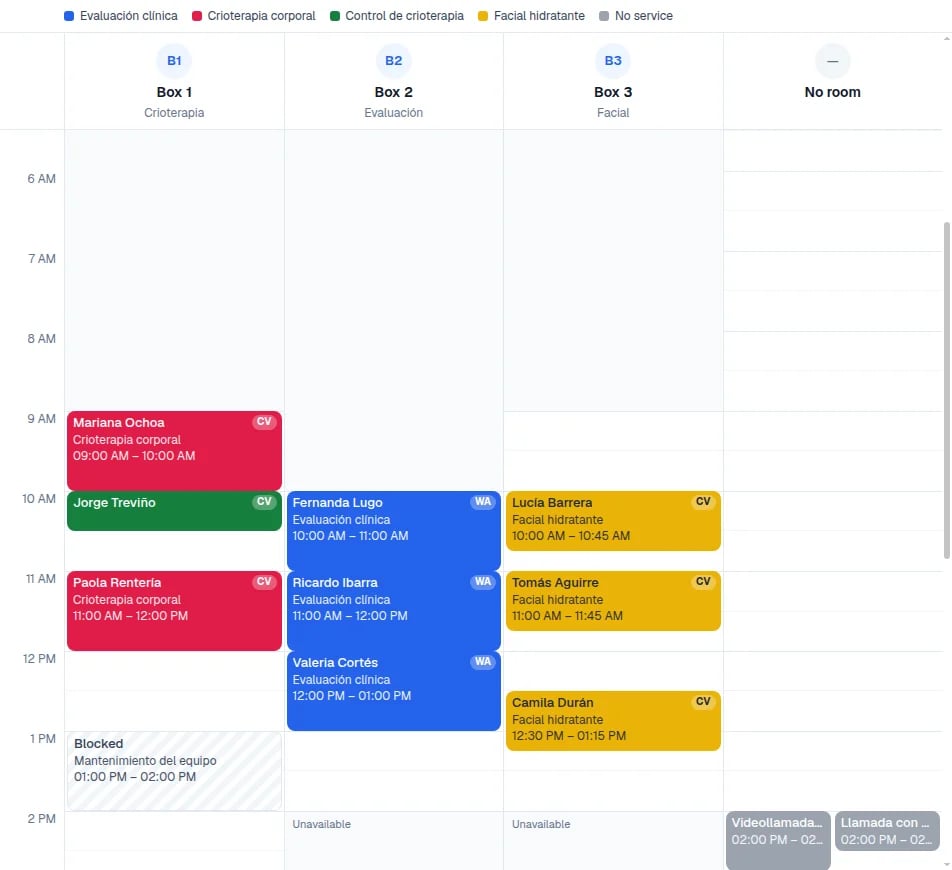
The day by room: one column per room, colors by service, and unavailable hours in grey.
What you will get
You see the day with one column for each active room, choose which rooms to show, and switch to one column per person when you need it. You also know how to read the colors, the grey hours, and the blocks.Requirements
- Access to the Calendars module.
- At least one room. The first one is created in Calendar setup →, inside Appointment types: when you create a type with New type, check Needs a room or fitting room and type the Room name.
- To add more rooms, open More settings in Calendar setup → and use Rooms and equipment.
See the day by room
1
Open Calendars
In the side menu, select Calendars.
2
Switch to Day
At the top, choose Day. A switch with Rooms and Team appears.
3
Choose Rooms
Select Rooms. The day splits into one column for each active room.
4
Check what has no room
The No room column gathers appointments with no room assigned. It only appears when
there is one.
Show or hide rooms
In the left column, the Rooms list has a checkbox per room. Unchecking it hides that room’s column and its appointments; they do not move to No room. If you hide them all, the day says so and Show rooms turns them back on. To see people instead of rooms, select Team in the same switch. Each person in the Team list gets a column, and what has nobody assigned goes to Unassigned. Eva remembers your choice in this browser. If your workspace has no rooms, the switch says All and Team.How to read each column
- The color is the service. Each service has its color, and the services of the day are listed above the columns. An appointment with no service is grey.
- Grey hours say Unavailable. They are outside that room’s hours. If the room has no hours of its own, the Business hours apply.
- A striped block says Blocked. It is an appointment in a room with no customer and no service, such as maintenance.
- Each card shows the customer, the service, and the time, with the initials of who attends.
On your phone
On a phone, the day shows one room at a time. A button per room appears at the top; select one or swipe sideways to change rooms. On a wider screen, all the columns show side by side.How to know it worked
- In Day, with Rooms chosen, you see one column for each room you left checked.
- Each appointment appears in its room’s column, with its service’s color.
- Appointments without a room appear in No room.
If something goes wrong
Rooms does not appear in the switch
Rooms does not appear in the switch
Your workspace has no active rooms yet. Create the first one from Appointment types with
Needs a room or fitting room.
A room's column is missing
A room's column is missing
That room is hidden. In the Rooms list of the left column, check its box again.
An appointment shows in No room
An appointment shows in No room
The appointment has no room assigned. Open it to review its details.
The whole column is grey
The whole column is grey
The room does not open that day, or the room’s hours do not cover those hours. Check the
Business hours in Calendar setup →.