

What you will get
Customers can call your WhatsApp number. You choose whether your team or Eva answers and what happens if nobody picks up.Requirements
- A WhatsApp number handled in Eva. If you still use the number in WhatsApp Business, its calls stay in that phone app.
- Owner or admin access to turn calls on or off.
- Meta must allow calls on the number. Eva shows the reason when it cannot yet be enabled.
Turn on calls
1
Open Calls
In AI Agents, open your agent. Under Behavior, open Calls.
2
Choose who answers
Under Who answers, choose Your team or Eva. For your team, choose Eva answers the call, Voicemail, or It just stays a missed call under If nobody answers. You can also turn on Eva messages on WhatsApp whoever couldn’t get through. Then select Save behavior.
3
Turn on the number
Under Customers can call you at, find the WhatsApp number and select Turn on. Review who answers and the price in the window, then select Turn on. Turn on each number separately.
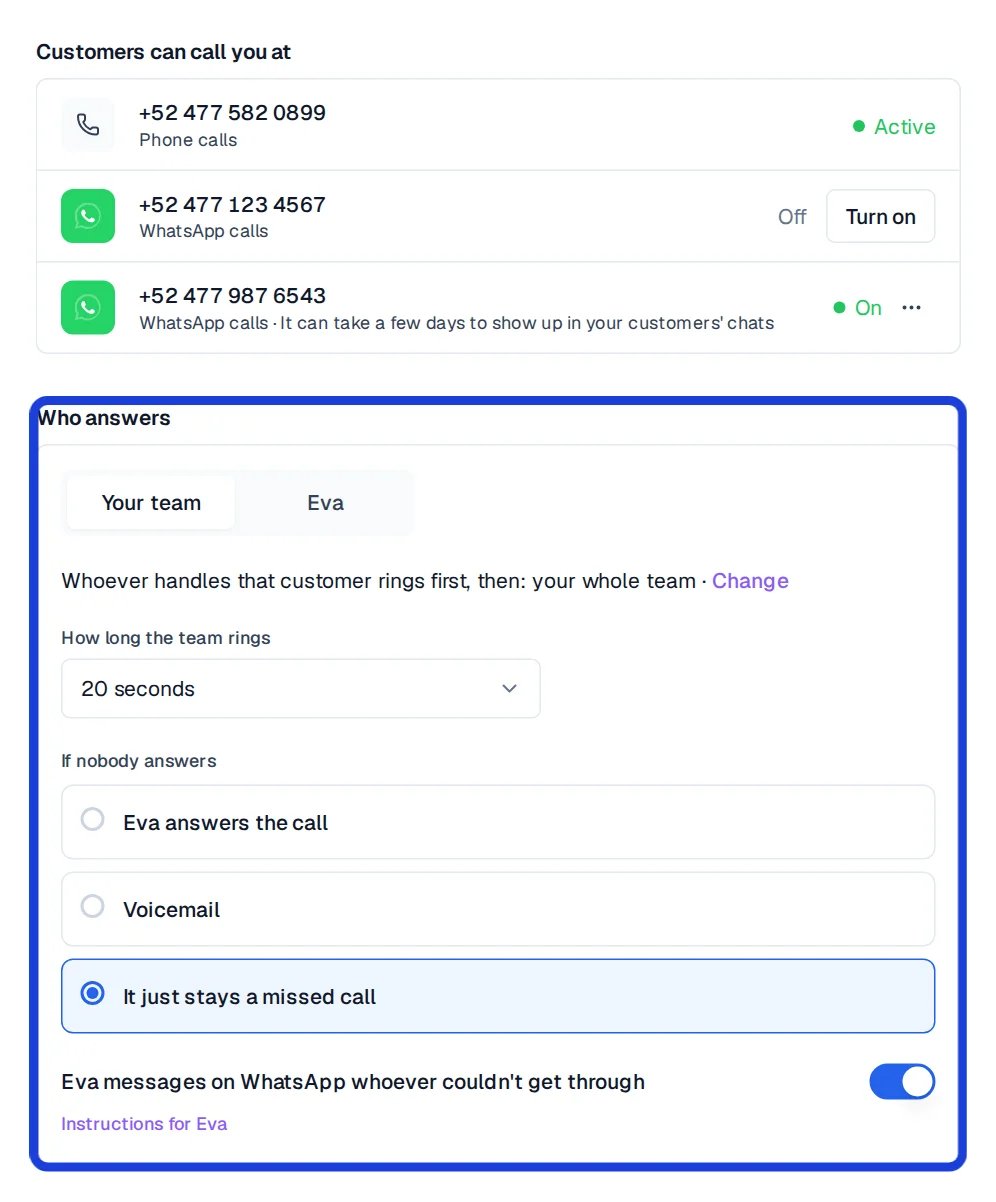
Calls shows the three decisions: where customers call, who answers, and what happens if nobody answers.
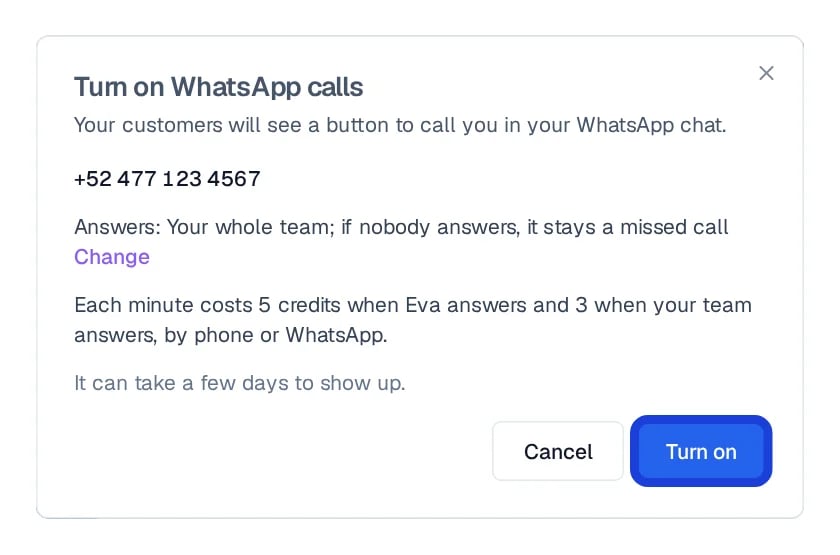
The window confirms who answers and the price before you turn calls on.
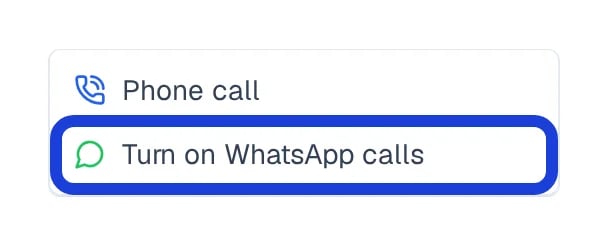
The call menu in a WhatsApp conversation offers to turn calls on.
How to know it worked
Under Calls, the number says On. The call button can take a few days to appear in customers’ chats.
The WhatsApp number shows On.
If you cannot turn calls on yet
- Number limit: Meta requires a number that can start at least 2,000 conversations per day. Eva shows your current limit. Check Calls again when it rises.
- Meta hid the button: wait until the date Eva shows before trying again.
- Payment method: add one to your WhatsApp account in Meta if Eva asks for it.
- Setup problem: if Eva says it has notified EvaAI, we will look into it.

Eva explains when a number has not reached the 2,000 daily conversation limit.