

The top half of this screen, the profile and security blocks, is still written in Spanish in the
English interface. This page quotes the exact Spanish label and explains it in parentheses.
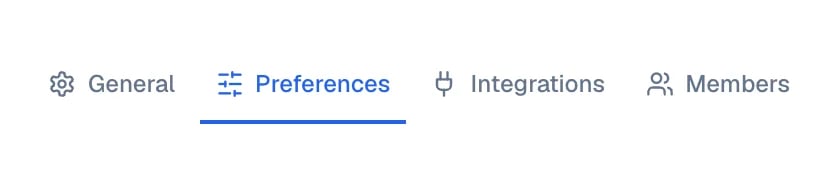
The tab is called Preferences and the screen it opens is titled Mi cuenta.
What you will get
Your sign-in details are up to date and Eva’s alerts arrive where you actually read them.Requirements
- A signed-in Eva session.
- To change the email or the password, your current password.
- To receive WhatsApp alerts, the phone where you use WhatsApp.
Change your name
In the Perfil (profile) section, edit Nombre para mostrar (display name) and select Guardar (save). That name is what the rest of the team sees inside Eva. Your email signature is a separate thing: it is written per mailbox, with Set up signature, from an open email in the Inbox.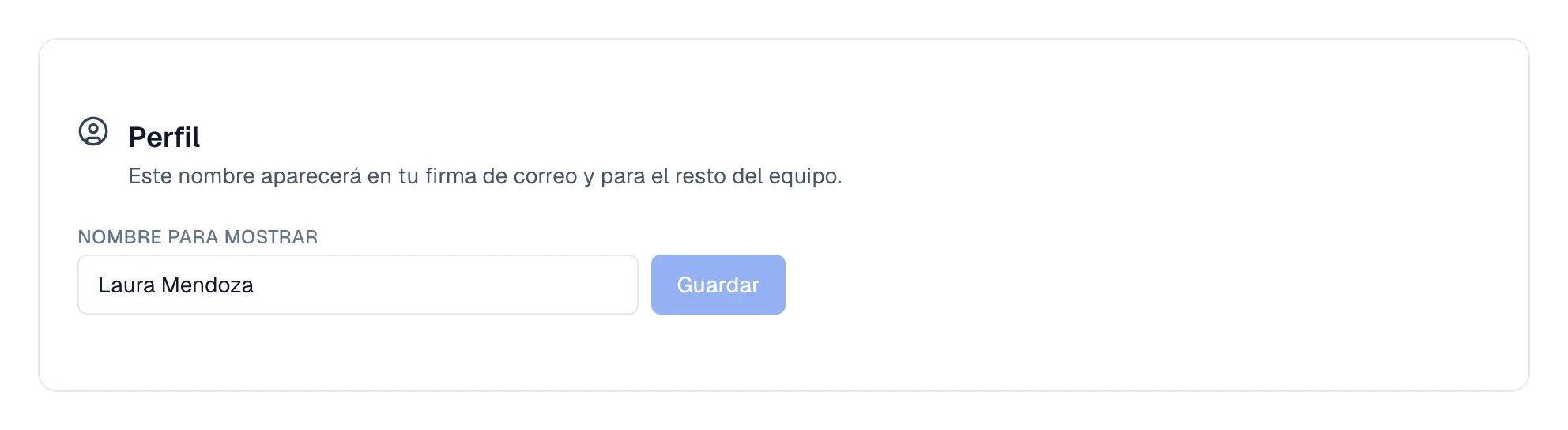
The Perfil (profile) section, with the name field and its save button.
Change the email you sign in with
The email does not change instantly. Eva sends a link to the new address and waits for you to confirm it.1
Open the form
In Seguridad (security), next to Correo electrónico (email), select Cambiar correo
(change email).
2
Enter the new email and your password
Fill in the new email field and the field for your current password.
3
Send the request
Select Solicitar cambio (request change). Eva confirms that it sent you a confirmation
link.
4
Confirm from the new inbox
Open the message in the new email’s inbox and follow the link.
Change your password
1
Open the form
In Seguridad (security), next to Contraseña (password), select Cambiar contraseña
(change password).
2
Fill in the three fields
Type your current password, the new one, and the new one again to confirm it. The new one needs
at least 8 characters.
3
Decide about your other devices
Leave the Cerrar sesión en otros dispositivos (recomendado) checkbox ticked (sign out of
other devices, recommended). Wherever you left a session open, the new password will be
required.
4
Save
Select Cambiar contraseña (change password).
Confirm your phone to get WhatsApp alerts
Saving the phone and turning on the alerts are two separate steps. Saving it does not trigger any message.1
Save the number
In Seguridad (security), next to Número de teléfono (phone number), select
Agregar teléfono (add phone), or Cambiar teléfono (change phone) if you already had
one. Choose the country and type your number without that country’s code: 10 digits in
Mexico, 11 on a Brazilian mobile. Select Guardar teléfono (save phone).
2
Turn on the WhatsApp alert
Scroll down to Notifications and turn on WhatsApp. Eva sends you a 6-digit code over
WhatsApp.
3
Enter the code
Type the code and select Verify. Codes expire after 10 minutes.
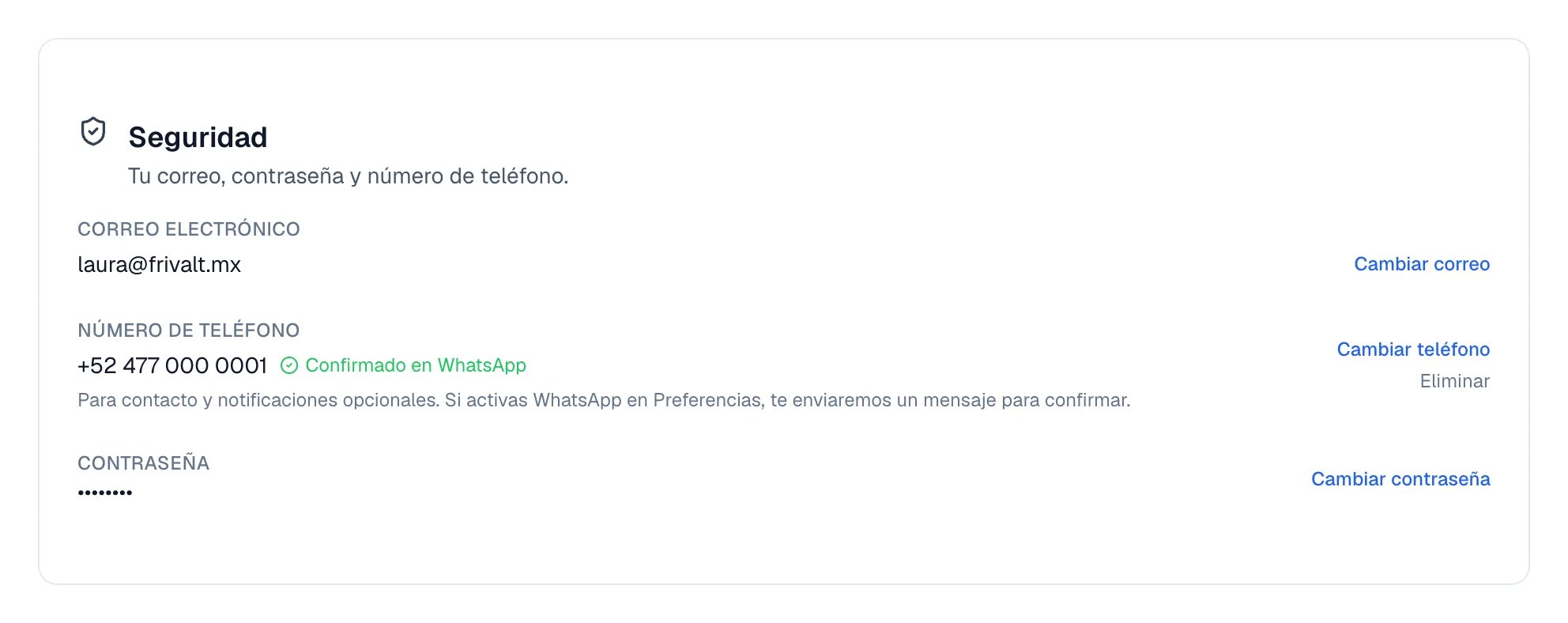
The Seguridad (security) section holds the email, the phone, and the password.
Choose where Eva reaches you
The Notifications section controls where escalations and alerts arrive. Each line is an independent switch:- Push notifications — browser alerts, on the computer or phone where you turn them on. Send test notification tells you whether they really arrive.
- WhatsApp — alerts to the number you confirmed.
- Email — alerts to your account email.
- Morning digest — one WhatsApp at 8:30 with your conversations awaiting a reply. It appears once WhatsApp is on and confirmed.
- CRM automations — alerts generated by your pipeline rules and buttons.
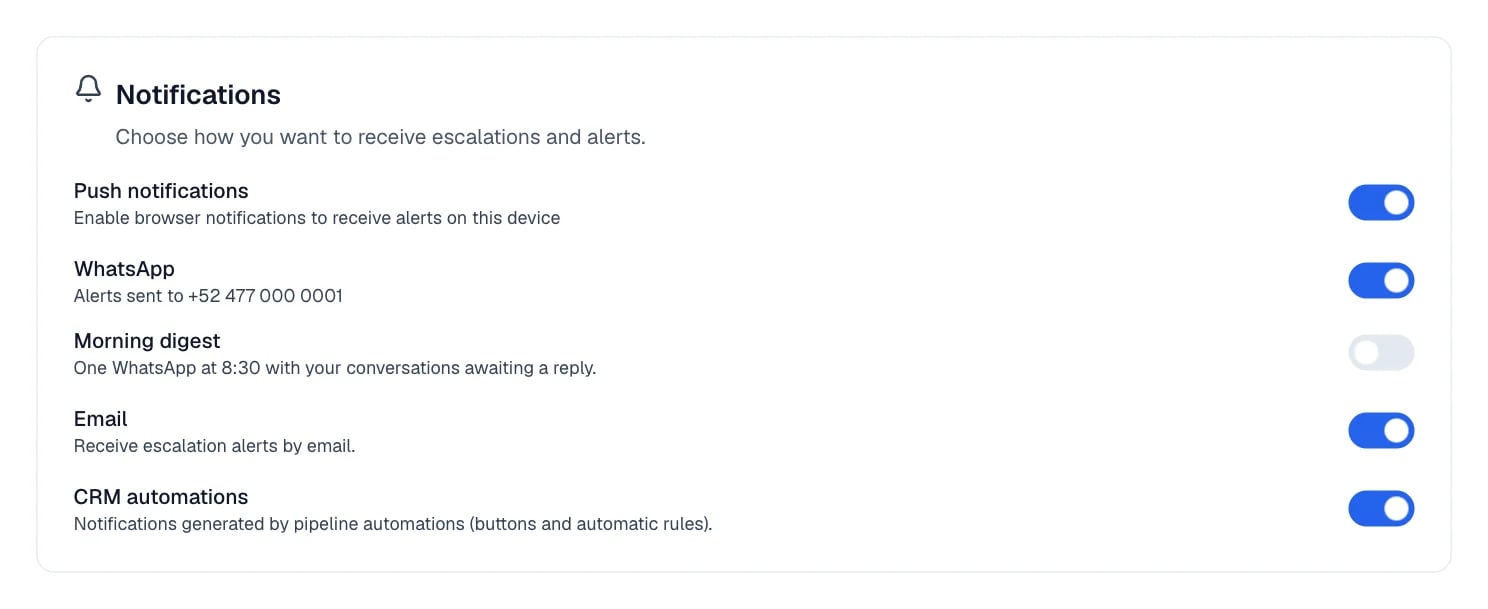
Every alert is an independent switch inside Notifications.
Where you see your profile inside the team
If your role is not Owner or Admin, the team tab is called My profile instead of Members. There you see your own information in this workspace. It is not an error or a missing permission: it is the view that matches your role.How to know it worked
Each change confirms on screen. For the alerts, the real test is Send test notification under Push notifications, which lists the devices it reached and the ones it did not.If something goes wrong
The email to confirm the change never arrives
The email to confirm the change never arrives
The link goes to the new address, not the old one. Check that inbox and its spam folder. If the
link already expired, select Cancelar cambio (cancel change) and request it again.
I turned on WhatsApp and no alert arrives
I turned on WhatsApp and no alert arrives
Check that the label next to your number reads “Confirmado en WhatsApp” (confirmed on
WhatsApp). If it reads Sin confirmar (not confirmed), turn WhatsApp off and on again to
get a new code.
It will not let me turn on WhatsApp
It will not let me turn on WhatsApp
A number has to be saved under Número de teléfono (phone number) first. Without a number
that switch stays disabled.
Push notifications do not reach one computer
Push notifications do not reach one computer
They are enabled per device, not per account. Open Eva on that computer and turn on browser
notifications there. Send test notification shows which devices it reached.