

Where you choose
In AI Agents, open your agent, go to Channels and on the WhatsApp card select Connect. The question appears with four answers and a single button below, whose text changes with the answer you pick. You can also get there from Settings → Members, in the WhatsApp row of each person on your team.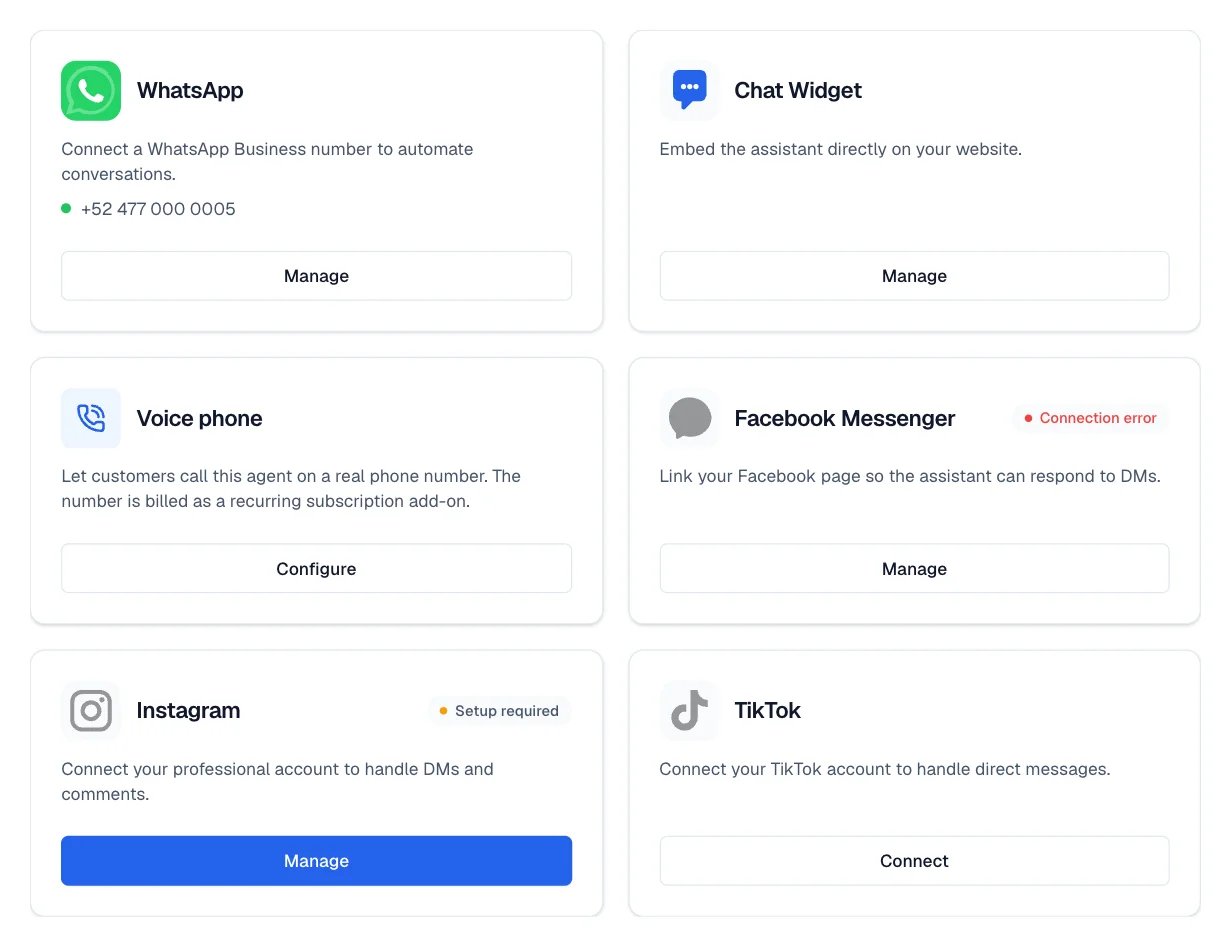
The Channels grid. Each card shows its own state: here WhatsApp is connected and Messenger reads Connection error, which is what a channel looks like when it needs you to authorize it again in Meta.
The four answers
It is in the WhatsApp Business app on my phone
You keep the number and the app. Eva sees your one-to-one chats; groups, calls, status, and catalog stay on the phone.
It is already on the WhatsApp API
The number is already with another provider or in your own Meta account. You bring it to Eva through the same Meta signup.
It is my Eva voice number
You use the number that already answers your calls for WhatsApp too. Meta verifies that number by calling it.
I do not have a number
You buy a number inside Eva. That number receives WhatsApp and can also answer calls.
Not every answer is always there. It is in the WhatsApp Business app on my phone is enabled per account; if you do not see it, write to us. It is my Eva voice number appears only when your agent already has an Eva number, and I do not have a number disappears as soon as it does, because each agent has one number.
If your number is in the regular WhatsApp app
The regular WhatsApp app and WhatsApp Business are two different applications. Eva connects numbers that are in WhatsApp Business. If yours is still in the regular app, move it first: it is an app change on your own phone, and you keep the number, the chats, and the contacts.What each path keeps
Meta charges for the messages that go out from Eva, at its own rates. What you send directly from the WhatsApp Business app does not go through the API and does not carry that cost.
If you already have numbers connected
Once the agent has at least one number, Eva opens the list of your numbers instead of the question. To add another one, select Connect another number: the same question comes back, and the numbers you already had stay in their list, unchanged.Connected is not the same as able to send
A number can be connected and still not be ready to send messages. Depending on the case, Meta asks you to verify the business, register the number, approve the display name, or add a payment method. While any of those is missing, Eva shows Active with limitations or Action Needed instead of WhatsApp ready. Incoming messages do show up in the Inbox during that time. What stops is template sending and campaigns.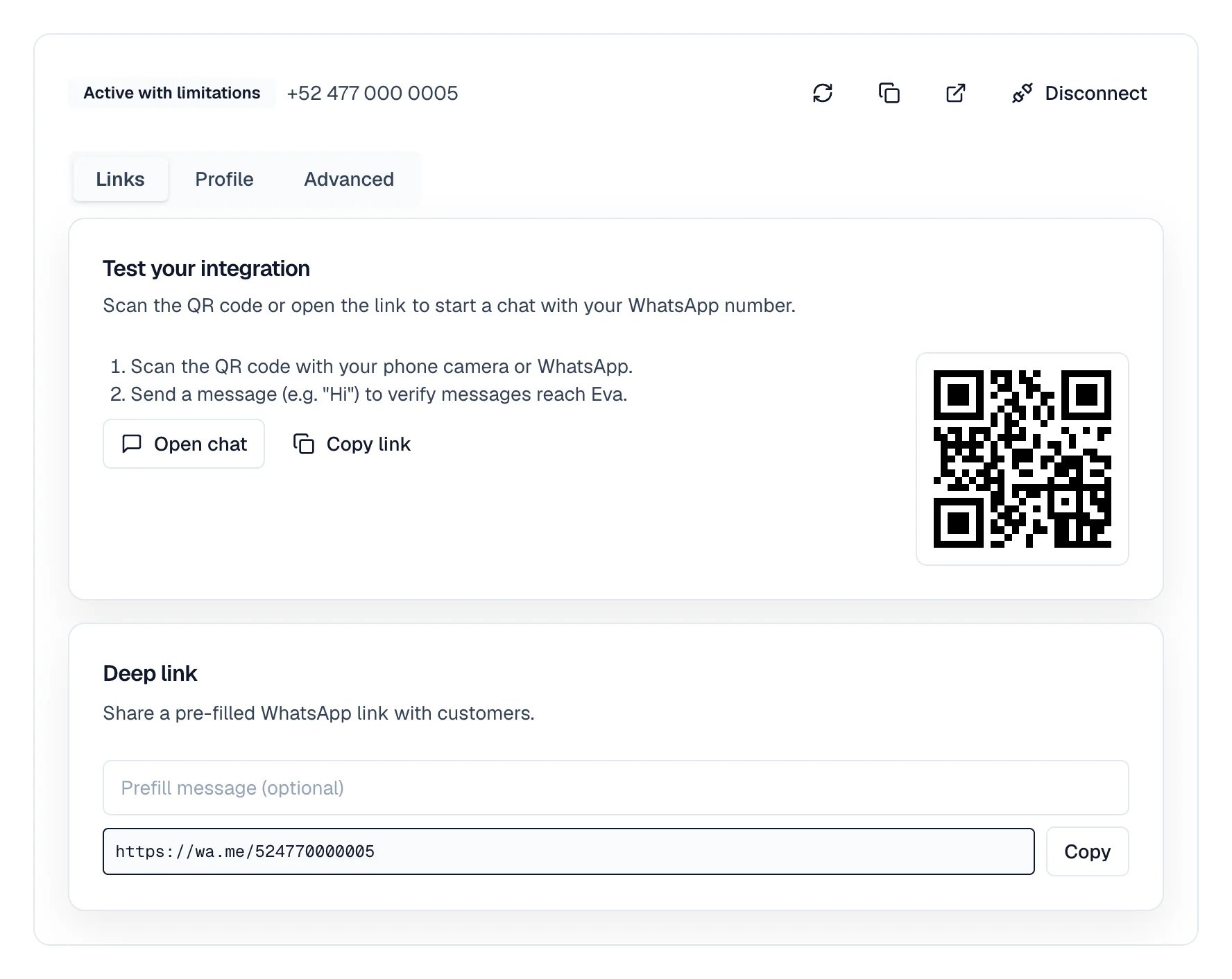
A connected number that cannot send yet: the notice above says what is missing and the label sums it up.