Install Eva on your computer in one click, so it opens from its own icon with no link to look for.
Eva installs on your computer from the browser, with nothing to download from an app store.
What you will get
Eva will have its own icon next to your apps and open in its own window. You no longer need to
look for the link to get in.
Requirements
Chrome or Edge (Windows or Mac), or Safari on a Mac.
Your Eva account, to sign in.
Install in Chrome or Edge
1
Open the install screen
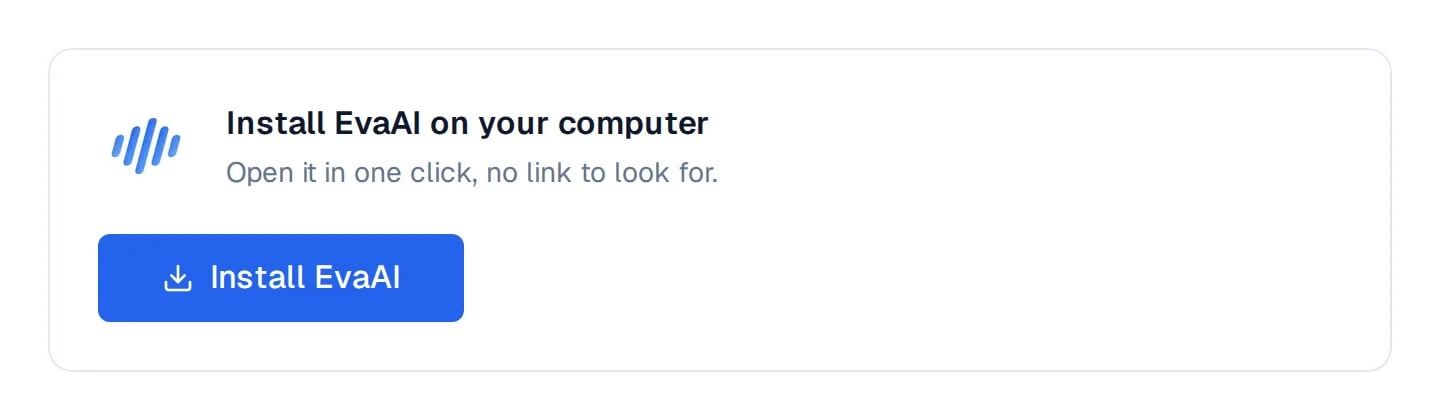
In Eva, go to Settings → Install app. The screen shows a single button.
The install screen in Chrome or Edge.
2
Select Install EvaAI
Select Install EvaAI and confirm in the browser prompt. Eva opens in its own window.
Install in Safari on Mac
1
Open the install screen
In Eva, go to Settings → Install app. The screen shows a single step.
The install screen in Safari on a Mac.
2
Add it to the Dock
In Safari’s File menu, choose Add to Dock and confirm with Add.
How to know it worked
Eva shows up with its icon next to your apps (the Dock on a Mac, the Start menu on Windows) and
opens in its own window. In Settings → Install app, the screen reads EvaAI is already
installed.
If something goes wrong
Chrome or Edge shows no button
Select the install icon at the end of the address bar (a screen with an arrow). Eva points
to it on the same install screen.
My Safari has no Add to Dock
Add to Dock needs macOS Sonoma (14) or later. On an earlier version, press ⌘ D, click
Add to save Eva to Favorites and open it from there, or update macOS to install it.
I use Firefox
Firefox cannot install Eva. Open Eva in Chrome, Edge or Safari and repeat the steps.
Next steps
Install the app on iPhone
Install the app on Android
⌘I
{"docsConfig":{"theme":"maple","$schema":"https://mintlify.com/docs.json","name":"Eva AI","colors":{"primary":"#1b3fd8","light":"#93C5FD","dark":"#1D4ED8"},"logo":{"light":"https://mintcdn.com/evaai-85079546/UtT8IQz6tvKOQTNy/logo/eva-light.svg?fit=max\u0026auto=format\u0026n=UtT8IQz6tvKOQTNy\u0026q=85\u0026s=d0fac26b363049523830e39b57aa68a8","dark":"https://mintcdn.com/evaai-85079546/UtT8IQz6tvKOQTNy/logo/eva-dark.svg?fit=max\u0026auto=format\u0026n=UtT8IQz6tvKOQTNy\u0026q=85\u0026s=830014a634f373e57509787a949fcd3c","href":"https://www.goeva.ai"},"favicon":"https://mintcdn.com/evaai-85079546/UtT8IQz6tvKOQTNy/favicon.svg?fit=max\u0026auto=format\u0026n=UtT8IQz6tvKOQTNy\u0026q=85\u0026s=31fb5e3ae8a2705576224cef723e5e61","appearance":{"default":"system"},"fonts":{"family":"Inter"},"icons":{"library":"lucide"},"styling":{"latex":true},"navigation":{"languages":[{"language":"es","default":true,"href":"es"},{"language":"en","href":"en"}]}},"deployment":{"deploymentMetadataValue":{"subdomain":"evaai-85079546","hasAudioNarration":false,"actualSubdomain":"evaai-85079546","customDomains":["docs.goeva.ai"],"gitSource":{"type":"github","owner":"gus1403","repo":"eva","deployBranch":"master","contentDirectory":"help","isPrivate":true,"mountPath":"","label":""},"entitlements":{"AI_CHAT":{"status":"DISABLED"}},"buildId":"6af9f7f4f47e66462e3742d4","clientVersion":"0.0.4143","searchFilterCounts":[{"language":"en","tag":"Channels","count":33},{"language":"es","tag":"Canales","count":33},{"language":"en","tag":"Integrations","count":16},{"language":"es","tag":"Integraciones","count":16},{"language":"en","tag":"Getting started","count":10},{"language":"es","tag":"Empieza aquí","count":10},{"language":"en","tag":"Automations","count":8},{"language":"es","tag":"Automatizaciones","count":8},{"language":"en","tag":"Customers and sales","count":6},{"language":"en","tag":"Team and account","count":6},{"language":"es","tag":"Clientes y ventas","count":6},{"language":"es","tag":"Equipo y cuenta","count":6},{"language":"en","tag":"Subscription and invoices","count":5},{"language":"es","tag":"Suscripción y facturas","count":5},{"language":"en","tag":"Your agent","count":4},{"language":"es","tag":"Tu agente","count":4},{"language":"en","tag":"Calendars and appointments","count":3},{"language":"en","tag":"Inbox","count":3},{"language":"es","tag":"Ayuda","count":3},{"language":"es","tag":"Calendarios y citas","count":3}]},"assistantConfig":{"enableAskAiButton":false,"enableStarterQuestions":false,"enableContextualStarterQuestions":false,"enableAskAiSearchBar":true},"basePath":"","hasChatPermissions":false,"hasWebMcpPermissions":false,"toggles":[{"name":"kill-isr","enabled":true,"variant":{"name":"disabled","enabled":false,"feature_enabled":true},"impressionData":false},{"name":"custom-rbac-roles","enabled":true,"variant":{"name":"disabled","enabled":false,"feature_enabled":true},"impressionData":false},{"name":"agent-mintlify-slack","enabled":true,"variant":{"name":"disabled","enabled":false,"feature_enabled":true},"impressionData":false},{"name":"agent-integrations-settings","enabled":true,"variant":{"name":"disabled","enabled":false,"feature_enabled":true},"impressionData":false},{"name":"rbac-expansion","enabled":true,"variant":{"name":"disabled","enabled":false,"feature_enabled":true},"impressionData":false},{"name":"automations-pr-grouping","enabled":true,"variant":{"name":"disabled","enabled":false,"feature_enabled":true},"impressionData":false},{"name":"custom-prefix","enabled":true,"variant":{"name":"disabled","enabled":false,"feature_enabled":true},"impressionData":false},{"name":"analytics-v7","enabled":true,"variant":{"name":"disabled","enabled":false,"feature_enabled":true},"impressionData":false},{"name":"user-flows-analytics","enabled":true,"variant":{"name":"disabled","enabled":false,"feature_enabled":true},"impressionData":false},{"name":"no-publish-flow","enabled":true,"variant":{"name":"disabled","enabled":false,"feature_enabled":true},"impressionData":false},{"name":"workos-onboarding","enabled":true,"variant":{"name":"disabled","enabled":false,"feature_enabled":true},"impressionData":false},{"name":"snapshot-serving-live","enabled":true,"variant":{"name":"disabled","enabled":false,"feature_enabled":true},"impressionData":false},{"name":"stripTemperatureMiddleware","enabled":true,"variant":{"name":"disabled","enabled":false,"feature_enabled":true},"impressionData":false},{"name":"support-platform-pylon-zendesk","enabled":true,"variant":{"name":"disabled","enabled":false,"feature_enabled":true},"impressionData":false},{"name":"snapshot-serving","enabled":true,"variant":{"name":"disabled","enabled":false,"feature_enabled":true},"impressionData":false},{"name":"instant-rollback","enabled":true,"variant":{"name":"disabled","enabled":false,"feature_enabled":true},"impressionData":false},{"name":"granular-notifications-server","enabled":true,"variant":{"name":"disabled","enabled":false,"feature_enabled":true},"impressionData":false},{"name":"granular-notifications","enabled":true,"variant":{"name":"disabled","enabled":false,"feature_enabled":true},"impressionData":false},{"name":"automations-fable","enabled":true,"variant":{"name":"disabled","enabled":false,"feature_enabled":true},"impressionData":false},{"name":"fixed-ai-action-pricing","enabled":true,"variant":{"name":"disabled","enabled":false,"feature_enabled":true},"impressionData":false},{"name":"automation-resolve-merge-conflict","enabled":true,"variant":{"name":"disabled","enabled":false,"feature_enabled":true},"impressionData":false},{"name":"scoped-publishing","enabled":true,"variant":{"name":"disabled","enabled":false,"feature_enabled":true},"impressionData":false},{"name":"mintql","enabled":true,"variant":{"name":"disabled","enabled":false,"feature_enabled":true},"impressionData":false},{"name":"page-level-analytics","enabled":true,"variant":{"name":"disabled","enabled":false,"feature_enabled":true},"impressionData":false},{"name":"editor-version-history-v2","enabled":true,"variant":{"name":"disabled","enabled":false,"feature_enabled":true},"impressionData":false},{"name":"billing-page-v2","enabled":true,"variant":{"name":"disabled","enabled":false,"feature_enabled":true},"impressionData":false},{"name":"full-page-search","enabled":true,"variant":{"name":"disabled","enabled":false,"feature_enabled":true},"impressionData":false},{"name":"workspace-projects","enabled":true,"variant":{"name":"disabled","enabled":false,"feature_enabled":true},"impressionData":false},{"name":"assistant-v5","enabled":true,"variant":{"name":"disabled","enabled":false,"feature_enabled":true},"impressionData":false},{"name":"fork-pr-previews","enabled":true,"variant":{"name":"disabled","enabled":false,"feature_enabled":true},"impressionData":false},{"name":"revalidation-jwt","enabled":true,"variant":{"name":"disabled","enabled":false,"feature_enabled":true},"impressionData":false},{"name":"workos-sso-scim","enabled":true,"variant":{"name":"disabled","enabled":false,"feature_enabled":true},"impressionData":false},{"name":"hobby-abuse-scan","enabled":true,"variant":{"name":"disabled","enabled":false,"feature_enabled":true},"impressionData":false},{"name":"dashboard-inbox","enabled":true,"variant":{"name":"disabled","enabled":false,"feature_enabled":true},"impressionData":false},{"name":"workos-signup","enabled":true,"variant":{"name":"disabled","enabled":false,"feature_enabled":true},"impressionData":false},{"name":"turbopuffer-dual-write","enabled":true,"variant":{"name":"disabled","enabled":false,"feature_enabled":true},"impressionData":false},{"name":"workos-enabled","enabled":true,"variant":{"name":"disabled","enabled":false,"feature_enabled":true},"impressionData":false},{"name":"approve-review-flow","enabled":true,"variant":{"name":"disabled","enabled":false,"feature_enabled":true},"impressionData":false},{"name":"editor-metadata","enabled":true,"variant":{"name":"disabled","enabled":false,"feature_enabled":true},"impressionData":false},{"name":"sso-setup-deadline-banner","enabled":true,"variant":{"name":"disabled","enabled":false,"feature_enabled":true},"impressionData":false},{"name":"turbopuffer-serve","enabled":true,"variant":{"name":"disabled","enabled":false,"feature_enabled":true},"impressionData":false},{"name":"live-agents","enabled":true,"variant":{"name":"disabled","enabled":false,"feature_enabled":true},"impressionData":false},{"name":"llms-txt-v2","enabled":true,"variant":{"name":"disabled","enabled":false,"feature_enabled":true},"impressionData":false}],"googleFontsInlined":false},"customCss":[{"filePath":"custom.css","content":"body{line-height:1.7}img,figure img{border:1px solid color-mix(in srgb, currentColor 12%, transparent);border-radius:12px;box-shadow:0 8px 24px rgb(15 23 42 / 10%)}#header .api-playground,#navbar .api-playground,#footer .api-playground{display:none}"}],"page":{"pagePath":"en/install-the-app/computer","slug":"/en/install-the-app/computer","pageMetadata":{"title":"How to install Eva on your computer","description":"Install Eva on your computer in one click, so it opens from its own icon with no link to look for.","type":"how-to","keywords":["install app","computer","chrome","edge","safari","mac","windows","open eva without a link"],"href":"/en/install-the-app/computer"},"description":{"compiledSource":"\"use strict\";\nconst {jsx: _jsx} = arguments[0];\nconst {useMDXComponents: _provideComponents} = arguments[0];\nfunction _createMdxContent(props) {\n const _components = {\n p: \"p\",\n ..._provideComponents(),\n ...props.components\n };\n return _jsx(_components.p, {\n children: \"Install Eva on your computer in one click, so it opens from its own icon with no link to look for.\"\n });\n}\nfunction MDXContent(props = {}) {\n const {wrapper: MDXLayout} = {\n ..._provideComponents(),\n ...props.components\n };\n return MDXLayout ? _jsx(MDXLayout, {\n ...props,\n children: _jsx(_createMdxContent, {\n ...props\n })\n }) : _createMdxContent(props);\n}\nreturn {\n default: MDXContent\n};\n","frontmatter":{},"scope":{}},"pageType":"default","mdx":{"mdxSource":{"compiledSource":"\"use strict\";const{Fragment:_Fragment,jsx:_jsx,jsxs:_jsxs}=arguments[0];const{useMDXComponents:_provideComponents}=arguments[0];function _createMdxContent(props){const _components={li:`li`,p:`p`,strong:`strong`,ul:`ul`,..._provideComponents(),...props.components},{Accordion,AccordionGroup,Card,Columns,Frame,Heading,OptimizedImage,Step,Steps}=_components;if(!Accordion)_missingMdxReference(`Accordion`,true);if(!AccordionGroup)_missingMdxReference(`AccordionGroup`,true);if(!Card)_missingMdxReference(`Card`,true);if(!Columns)_missingMdxReference(`Columns`,true);if(!Frame)_missingMdxReference(`Frame`,true);if(!Heading)_missingMdxReference(`Heading`,true);if(!OptimizedImage)_missingMdxReference(`OptimizedImage`,true);if(!Step)_missingMdxReference(`Step`,true);if(!Steps)_missingMdxReference(`Steps`,true);return _jsxs(_Fragment,{children:[_jsx(_components.p,{children:`Eva installs on your computer from the browser, with nothing to download from an app store.`}),`\n`,_jsx(Heading,{level:`2`,id:`what-you-will-get`,children:`What you will get`}),`\n`,_jsx(_components.p,{children:`Eva will have its own icon next to your apps and open in its own window. You no longer need to\nlook for the link to get in.`}),`\n`,_jsx(Heading,{level:`2`,id:`requirements`,children:`Requirements`}),`\n`,_jsxs(_components.ul,{children:[`\n`,_jsx(_components.li,{children:`Chrome or Edge (Windows or Mac), or Safari on a Mac.`}),`\n`,_jsx(_components.li,{children:`Your Eva account, to sign in.`}),`\n`]}),`\n`,_jsx(Heading,{level:`2`,id:`install-in-chrome-or-edge`,children:`Install in Chrome or Edge`}),`\n`,_jsxs(Steps,{children:[_jsxs(Step,{title:`Open the install screen`,children:[_jsxs(_components.p,{children:[`In Eva, go to `,_jsx(_components.strong,{children:`Settings`}),` → `,_jsx(_components.strong,{children:`Install app`}),`. The screen shows a single button.`]}),_jsx(Frame,{caption:`The install screen in Chrome or Edge.`,children:_jsx(OptimizedImage,{src:`https://mintcdn.com/evaai-85079546/6-AX2DNfLtfBSyWi/images/en/install/install-settings-computer-v202607.webp?fit=max\u0026auto=format\u0026n=6-AX2DNfLtfBSyWi\u0026q=85\u0026s=fbf52c08eb5b9fb8ecd8c5c345d5e944`,alt:`The Install the app screen on a computer, with the Install EvaAI button.`,\"data-og-width\":`1440`,width:`1440`,\"data-og-height\":`420`,height:`420`,\"data-path\":`images/en/install/install-settings-computer-v202607.webp`,\"data-optimize\":`true`,\"data-opv\":`3`,srcset:`https://mintcdn.com/evaai-85079546/6-AX2DNfLtfBSyWi/images/en/install/install-settings-computer-v202607.webp?w=280\u0026fit=max\u0026auto=format\u0026n=6-AX2DNfLtfBSyWi\u0026q=85\u0026s=f30dfa0b159e7f4072cc8240999c0d58 280w, https://mintcdn.com/evaai-85079546/6-AX2DNfLtfBSyWi/images/en/install/install-settings-computer-v202607.webp?w=560\u0026fit=max\u0026auto=format\u0026n=6-AX2DNfLtfBSyWi\u0026q=85\u0026s=081c1f21ca40d64404123d818c19a5b5 560w, https://mintcdn.com/evaai-85079546/6-AX2DNfLtfBSyWi/images/en/install/install-settings-computer-v202607.webp?w=840\u0026fit=max\u0026auto=format\u0026n=6-AX2DNfLtfBSyWi\u0026q=85\u0026s=4a728a18231eda12c6651167c3679e60 840w, https://mintcdn.com/evaai-85079546/6-AX2DNfLtfBSyWi/images/en/install/install-settings-computer-v202607.webp?w=1100\u0026fit=max\u0026auto=format\u0026n=6-AX2DNfLtfBSyWi\u0026q=85\u0026s=87188355914a182ceccc78a06500c8f8 1100w, https://mintcdn.com/evaai-85079546/6-AX2DNfLtfBSyWi/images/en/install/install-settings-computer-v202607.webp?w=1650\u0026fit=max\u0026auto=format\u0026n=6-AX2DNfLtfBSyWi\u0026q=85\u0026s=a64b81fda4884ea6eeb4ebe891b420ba 1650w, https://mintcdn.com/evaai-85079546/6-AX2DNfLtfBSyWi/images/en/install/install-settings-computer-v202607.webp?w=2500\u0026fit=max\u0026auto=format\u0026n=6-AX2DNfLtfBSyWi\u0026q=85\u0026s=e62259f77712af1d5b4de8e08581be2f 2500w`})})]}),_jsx(Step,{title:`Select Install EvaAI`,children:_jsxs(_components.p,{children:[`Select `,_jsx(_components.strong,{children:`Install EvaAI`}),` and confirm in the browser prompt. Eva opens in its own window.`]})})]}),`\n`,_jsx(Heading,{level:`2`,id:`install-in-safari-on-mac`,children:`Install in Safari on Mac`}),`\n`,_jsxs(Steps,{children:[_jsxs(Step,{title:`Open the install screen`,children:[_jsxs(_components.p,{children:[`In Eva, go to `,_jsx(_components.strong,{children:`Settings`}),` → `,_jsx(_components.strong,{children:`Install app`}),`. The screen shows a single step.`]}),_jsx(Frame,{caption:`The install screen in Safari on a Mac.`,children:_jsx(OptimizedImage,{src:`https://mintcdn.com/evaai-85079546/6-AX2DNfLtfBSyWi/images/en/install/install-screen-mac-v202609.webp?fit=max\u0026auto=format\u0026n=6-AX2DNfLtfBSyWi\u0026q=85\u0026s=305c320698d8c139c9bab88ccf685f62`,alt:`The install screen in Safari on a Mac, with the File and Add to Dock step.`,\"data-og-width\":`1440`,width:`1440`,\"data-og-height\":`576`,height:`576`,\"data-path\":`images/en/install/install-screen-mac-v202609.webp`,\"data-optimize\":`true`,\"data-opv\":`3`,srcset:`https://mintcdn.com/evaai-85079546/6-AX2DNfLtfBSyWi/images/en/install/install-screen-mac-v202609.webp?w=280\u0026fit=max\u0026auto=format\u0026n=6-AX2DNfLtfBSyWi\u0026q=85\u0026s=f830f1705b99860b97b2e2120b18b72b 280w, https://mintcdn.com/evaai-85079546/6-AX2DNfLtfBSyWi/images/en/install/install-screen-mac-v202609.webp?w=560\u0026fit=max\u0026auto=format\u0026n=6-AX2DNfLtfBSyWi\u0026q=85\u0026s=22e1326e86d16dcb0b49871d698f0158 560w, https://mintcdn.com/evaai-85079546/6-AX2DNfLtfBSyWi/images/en/install/install-screen-mac-v202609.webp?w=840\u0026fit=max\u0026auto=format\u0026n=6-AX2DNfLtfBSyWi\u0026q=85\u0026s=ee52c78c13b24c06b12be6472e30d8ee 840w, https://mintcdn.com/evaai-85079546/6-AX2DNfLtfBSyWi/images/en/install/install-screen-mac-v202609.webp?w=1100\u0026fit=max\u0026auto=format\u0026n=6-AX2DNfLtfBSyWi\u0026q=85\u0026s=cc094bc9018b4df7cd9ce4a8091da6e2 1100w, https://mintcdn.com/evaai-85079546/6-AX2DNfLtfBSyWi/images/en/install/install-screen-mac-v202609.webp?w=1650\u0026fit=max\u0026auto=format\u0026n=6-AX2DNfLtfBSyWi\u0026q=85\u0026s=7b46cd00c9c58c0caa568733c761a191 1650w, https://mintcdn.com/evaai-85079546/6-AX2DNfLtfBSyWi/images/en/install/install-screen-mac-v202609.webp?w=2500\u0026fit=max\u0026auto=format\u0026n=6-AX2DNfLtfBSyWi\u0026q=85\u0026s=d4d6742ce3c16778b9daa60c1960f361 2500w`})})]}),_jsx(Step,{title:`Add it to the Dock`,children:_jsxs(_components.p,{children:[`In Safari’s `,_jsx(_components.strong,{children:`File`}),` menu, choose `,_jsx(_components.strong,{children:`Add to Dock`}),` and confirm with `,_jsx(_components.strong,{children:`Add`}),`.`]})})]}),`\n`,_jsx(Heading,{level:`2`,id:`how-to-know-it-worked`,children:`How to know it worked`}),`\n`,_jsxs(_components.p,{children:[`Eva shows up with its icon next to your apps (the Dock on a Mac, the Start menu on Windows) and\nopens in its own window. In `,_jsx(_components.strong,{children:`Settings`}),` → `,_jsx(_components.strong,{children:`Install app`}),`, the screen reads `,_jsx(_components.strong,{children:`EvaAI is already\ninstalled`}),`.`]}),`\n`,_jsx(Heading,{level:`2`,id:`if-something-goes-wrong`,children:`If something goes wrong`}),`\n`,_jsxs(AccordionGroup,{children:[_jsx(Accordion,{title:`Chrome or Edge shows no button`,id:`chrome-or-edge-shows-no-button`,children:_jsx(_components.p,{children:`Select the install icon at the end of the address bar (a screen with an arrow). Eva points\nto it on the same install screen.`})}),_jsx(Accordion,{title:`My Safari has no Add to Dock`,id:`my-safari-has-no-add-to-dock`,children:_jsxs(_components.p,{children:[`Add to Dock needs macOS Sonoma (14) or later. On an earlier version, press `,_jsx(_components.strong,{children:`⌘ D`}),`, click\n`,_jsx(_components.strong,{children:`Add`}),` to save Eva to Favorites and open it from there, or update macOS to install it.`]})}),_jsx(Accordion,{title:`I use Firefox`,id:`i-use-firefox`,children:_jsx(_components.p,{children:`Firefox cannot install Eva. Open Eva in Chrome, Edge or Safari and repeat the steps.`})})]}),`\n`,_jsx(Heading,{level:`2`,id:`next-steps`,children:`Next steps`}),`\n`,_jsxs(Columns,{cols:2,children:[_jsx(Card,{title:`Install the app on iPhone`,href:`/en/install-the-app/iphone`}),_jsx(Card,{title:`Install the app on Android`,href:`/en/install-the-app/android`})]})]})}function MDXContent(props={}){const{wrapper:MDXLayout}={..._provideComponents(),...props.components};return MDXLayout?_jsx(MDXLayout,{...props,children:_jsx(_createMdxContent,{...props})}):_createMdxContent(props)}return{default:MDXContent};function _missingMdxReference(id,component){throw new Error(`Expected `+(component?`component`:`object`)+\" `\"+id+\"` to be defined: you likely forgot to import, pass, or provide it.\")}","frontmatter":{},"scope":{"config":{},"pageMetadata":{"title":"How to install Eva on your computer","description":"Install Eva on your computer in one click, so it opens from its own icon with no link to look for.","type":"how-to","keywords":["install app","computer","chrome","edge","safari","mac","windows","open eva without a link"],"href":"/en/install-the-app/computer"}}},"mdxSourceWithNoJs":null},"mdxExtracts":{"tableOfContents":[{"title":"What you will get","slug":"what-you-will-get","depth":2,"children":[]},{"title":"Requirements","slug":"requirements","depth":2,"children":[]},{"title":"Install in Chrome or Edge","slug":"install-in-chrome-or-edge","depth":2,"children":[]},{"title":"Install in Safari on Mac","slug":"install-in-safari-on-mac","depth":2,"children":[]},{"title":"How to know it worked","slug":"how-to-know-it-worked","depth":2,"children":[]},{"title":"If something goes wrong","slug":"if-something-goes-wrong","depth":2,"children":[]},{"title":"Next steps","slug":"next-steps","depth":2,"children":[]}],"codeExamples":{}},"jsLinks":[],"subdomain":"evaai-85079546","siteName":"Eva AI","title":"How to install Eva on your computer - Eva AI","navMaps":{"firstHrefInVersion":{},"firstHrefInLanguage":{"es":{"href":"/es","matchLevel":3},"en":{"href":"/en/install-the-app/computer","matchLevel":0}}},"lastModified":"2026-10-29T11:21:18.515Z","originalFileLocation":"en/install-the-app/computer.mdx","locale":"en"},"headHtml":"\u003cscript data-mint-head>(function(){var d=document.documentElement,p=null;if(!p){try{p=localStorage.getItem(\"isDarkMode\")}catch(e){}if(p==='true')p='dark';else if(p==='false')p='light';if(p!=='light'\u0026\u0026p!=='dark'\u0026\u0026p!=='system')p=\"system\"}var r=p==='system'?(matchMedia(\"(prefers-color-scheme: dark)\").matches?'dark':'light'):p;d.classList.remove(r==='dark'?'light':'dark');d.classList.add(r);d.setAttribute(\"data-theme-preference\",p)})();\u003c/script>\u003cmeta data-mint-head name=\"description\" content=\"Install Eva on your computer in one click, so it opens from its own icon with no link to look for.\">\u003cmeta data-mint-head name=\"application-name\" content=\"Eva AI\">\u003cmeta data-mint-head name=\"generator\" content=\"Mintlify\">\u003clink data-mint-head rel=\"icon\" type=\"image/png\" sizes=\"192x192\" href=\"/mintlify-assets/_mintlify/favicons/evaai-85079546/QdejDYPPg_pMib-z/_generated/favicon/android-chrome-192x192.png\" media=\"(prefers-color-scheme: light)\">\u003clink data-mint-head rel=\"apple-touch-icon\" type=\"image/png\" sizes=\"180x180\" href=\"/mintlify-assets/_mintlify/favicons/evaai-85079546/QdejDYPPg_pMib-z/_generated/favicon/apple-touch-icon.png\">\u003clink data-mint-head rel=\"icon\" type=\"image/png\" sizes=\"16x16\" href=\"/mintlify-assets/_mintlify/favicons/evaai-85079546/QdejDYPPg_pMib-z/_generated/favicon/favicon-16x16.png\" media=\"(prefers-color-scheme: light)\">\u003clink data-mint-head rel=\"icon\" type=\"image/png\" sizes=\"32x32\" href=\"/mintlify-assets/_mintlify/favicons/evaai-85079546/QdejDYPPg_pMib-z/_generated/favicon/favicon-32x32.png\" media=\"(prefers-color-scheme: light)\">\u003clink data-mint-head rel=\"shortcut icon\" type=\"image/x-icon\" href=\"/mintlify-assets/_mintlify/favicons/evaai-85079546/QdejDYPPg_pMib-z/_generated/favicon/favicon.ico\" media=\"(prefers-color-scheme: light)\">\u003clink data-mint-head rel=\"icon\" type=\"image/png\" sizes=\"192x192\" href=\"/mintlify-assets/_mintlify/favicons/evaai-85079546/QdejDYPPg_pMib-z/_generated/favicon-dark/android-chrome-192x192.png\" media=\"(prefers-color-scheme: dark)\">\u003clink data-mint-head rel=\"icon\" type=\"image/png\" sizes=\"16x16\" href=\"/mintlify-assets/_mintlify/favicons/evaai-85079546/QdejDYPPg_pMib-z/_generated/favicon-dark/favicon-16x16.png\" media=\"(prefers-color-scheme: dark)\">\u003clink data-mint-head rel=\"icon\" type=\"image/png\" sizes=\"32x32\" href=\"/mintlify-assets/_mintlify/favicons/evaai-85079546/QdejDYPPg_pMib-z/_generated/favicon-dark/favicon-32x32.png\" media=\"(prefers-color-scheme: dark)\">\u003clink data-mint-head rel=\"shortcut icon\" type=\"image/x-icon\" href=\"/mintlify-assets/_mintlify/favicons/evaai-85079546/QdejDYPPg_pMib-z/_generated/favicon-dark/favicon.ico\" media=\"(prefers-color-scheme: dark)\">\u003cmeta data-mint-head property=\"og:title\" content=\"How to install Eva on your computer - Eva AI\">\u003cmeta data-mint-head property=\"og:description\" content=\"Install Eva on your computer in one click, so it opens from its own icon with no link to look for.\">\u003cmeta data-mint-head property=\"og:site_name\" content=\"Eva AI\">\u003cmeta data-mint-head property=\"og:url\" content=\"https://docs.goeva.ai/en/install-the-app/computer\">\u003cmeta data-mint-head property=\"og:type\" content=\"website\">\u003cmeta data-mint-head property=\"og:image\" content=\"https://evaai-85079546.mintlify.site/_mintlify/api/og/v2?division=Getting+started\u0026amp;title=How+to+install+Eva+on+your+computer\u0026amp;description=Install+Eva+on+your+computer+in+one+click%2C+so+it+opens+from+its+own+icon+with+no+link+to+look+for.\u0026amp;theme=cc689c91f8ff1525f08a95c9\u0026amp;signature=6613bcd6274f8ebba60c42faf924f5fe6a02d46dbee22eca949c0ee497315088\">\u003cmeta data-mint-head property=\"og:image:width\" content=\"1200\">\u003cmeta data-mint-head property=\"og:image:height\" content=\"630\">\u003cmeta data-mint-head name=\"twitter:card\" content=\"summary_large_image\">\u003cmeta data-mint-head name=\"twitter:title\" content=\"How to install Eva on your computer - Eva AI\">\u003cmeta data-mint-head name=\"twitter:description\" content=\"Install Eva on your computer in one click, so it opens from its own icon with no link to look for.\">\u003cmeta data-mint-head name=\"twitter:image\" content=\"https://evaai-85079546.mintlify.site/_mintlify/api/og/v2?division=Getting+started\u0026amp;title=How+to+install+Eva+on+your+computer\u0026amp;description=Install+Eva+on+your+computer+in+one+click%2C+so+it+opens+from+its+own+icon+with+no+link+to+look+for.\u0026amp;theme=cc689c91f8ff1525f08a95c9\u0026amp;signature=6613bcd6274f8ebba60c42faf924f5fe6a02d46dbee22eca949c0ee497315088\">\u003cmeta data-mint-head name=\"twitter:image:width\" content=\"1200\">\u003cmeta data-mint-head name=\"twitter:image:height\" content=\"630\">\u003cmeta data-mint-head name=\"msapplication-config\" content=\"/mintlify-assets/_mintlify/favicons/evaai-85079546/QdejDYPPg_pMib-z/_generated/favicon/browserconfig.xml\">\u003cmeta data-mint-head name=\"apple-mobile-web-app-title\" content=\"Eva AI\">\u003cmeta data-mint-head name=\"msapplication-TileColor\" content=\"#1b3fd8\">\u003clink data-mint-head rel=\"canonical\" href=\"https://docs.goeva.ai/en/install-the-app/computer\">\u003clink data-mint-head rel=\"alternate\" type=\"application/xml\" href=\"/sitemap.xml\">\u003clink data-mint-head rel=\"alternate\" type=\"text/markdown\" href=\"/en/install-the-app/computer.md\">\u003cscript data-mint-head type=\"application/ld+json\">{\"@context\":\"https://schema.org\",\"@graph\":[{\"@type\":\"Organization\",\"@id\":\"https://docs.goeva.ai/#organization\",\"name\":\"Eva AI\",\"url\":\"https://docs.goeva.ai\",\"logo\":{\"@type\":\"ImageObject\",\"url\":\"https://mintcdn.com/evaai-85079546/UtT8IQz6tvKOQTNy/logo/eva-light.svg?fit=max\u0026auto=format\u0026n=UtT8IQz6tvKOQTNy\u0026q=85\u0026s=d0fac26b363049523830e39b57aa68a8\"}},{\"@type\":\"WebSite\",\"@id\":\"https://docs.goeva.ai#website\",\"name\":\"Eva AI\",\"url\":\"https://docs.goeva.ai\",\"publisher\":{\"@id\":\"https://docs.goeva.ai/#organization\"}},{\"@type\":\"WebPage\",\"@id\":\"https://docs.goeva.ai/en/install-the-app/computer#webpage\",\"url\":\"https://docs.goeva.ai/en/install-the-app/computer\",\"name\":\"How to install Eva on your computer\",\"description\":\"Install Eva on your computer in one click, so it opens from its own icon with no link to look for.\",\"dateModified\":\"2026-10-29T11:21:18.515Z\",\"isPartOf\":{\"@id\":\"https://docs.goeva.ai#website\"},\"breadcrumb\":{\"@id\":\"https://docs.goeva.ai/en/install-the-app/computer#breadcrumb\"}},{\"@type\":\"BreadcrumbList\",\"@id\":\"https://docs.goeva.ai/en/install-the-app/computer#breadcrumb\",\"itemListElement\":[{\"@type\":\"ListItem\",\"position\":1,\"name\":\"Getting started\",\"item\":\"https://docs.goeva.ai/en\"},{\"@type\":\"ListItem\",\"position\":2,\"name\":\"How to install Eva on your computer\",\"item\":\"https://docs.goeva.ai/en/install-the-app/computer\"}]},{\"@type\":[\"Article\",\"TechArticle\"],\"@id\":\"https://docs.goeva.ai/en/install-the-app/computer#article\",\"headline\":\"How to install Eva on your computer\",\"name\":\"How to install Eva on your computer\",\"description\":\"Install Eva on your computer in one click, so it opens from its own icon with no link to look for.\",\"url\":\"https://docs.goeva.ai/en/install-the-app/computer\",\"mainEntityOfPage\":{\"@id\":\"https://docs.goeva.ai/en/install-the-app/computer#webpage\"},\"dateModified\":\"2026-10-29T11:21:18.515Z\",\"keywords\":\"install app, computer, chrome, edge, safari, mac, windows, open eva without a link\",\"publisher\":{\"@id\":\"https://docs.goeva.ai/#organization\"},\"isPartOf\":{\"@id\":\"https://docs.goeva.ai#website\"}}]}\u003c/script>\u003cscript data-mint-head type=\"application/ld+json\">{\"@context\":\"https://schema.org\",\"@type\":\"WebSite\",\"name\":\"Eva AI\",\"publisher\":{\"@type\":\"Organization\",\"name\":\"Eva AI\"},\"provider\":{\"@type\":\"Organization\",\"name\":\"Mintlify\",\"url\":\"https://mintlify.com\"}}\u003c/script>","agentPointerHref":"/en/install-the-app/computer.md","siteName":"Eva AI","nav":{"global":null,"languages":[{"language":"es","default":true,"pages":[{"title":"es","href":"/es"}]},{"language":"en","groups":[{"group":"Getting started","icon":"rocket","pages":[{"title":"Eva AI Help Center","href":"/en"},{"title":"What Eva AI is","href":"/en/getting-started/introduction"},{"title":"Sign up and try Eva for 14 days","href":"/en/getting-started/signup"},{"title":"Write to Eva to get your agent ready","href":"/en/getting-started/write-to-eva"},{"title":"How to create your first agent","href":"/en/getting-started/first-agent"},{"title":"Where to find everything in Eva","href":"/en/getting-started/dashboard"},{"title":"How to install Eva on your phone or computer","description":"Install Eva as an app on your phone or computer, with its own icon, so you get in without looking for the link.","href":"/en/install-the-app/index"},{"title":"How to install Eva on your computer","href":"/en/install-the-app/computer"},{"title":"How to install the Eva app on iPhone","description":"Add Eva AI to your iPhone home screen from Safari, so it opens full screen like any other app and your conversations are always at hand.","href":"/en/install-the-app/iphone"},{"title":"How to install the Eva app on Android","href":"/en/install-the-app/android"}]},{"group":"Your agent","icon":"bot","pages":[{"title":"How to teach your agent about your business","href":"/en/your-agent/knowledge"},{"title":"How to set up your agent's behavior","href":"/en/your-agent/behavior"},{"title":"How to load your products so Eva can use them","href":"/en/your-agent/catalog"},{"title":"How to test your agent before publishing it","href":"/en/your-agent/testing"}]},{"group":"Channels","icon":"plug","pages":[{"title":"Connect WhatsApp","href":"/en/channels/whatsapp/index"},{"title":"How to turn on WhatsApp calls","href":"/en/channels/whatsapp/whatsapp-calls"},{"title":"How to move your number to WhatsApp Business","href":"/en/channels/whatsapp/move-to-whatsapp-business"},{"title":"How to use your Eva voice number on WhatsApp","href":"/en/channels/whatsapp/eva-voice-number"},{"title":"How to buy a number for WhatsApp","href":"/en/channels/whatsapp/buy-a-number"},{"title":"Keep using your WhatsApp Business app","href":"/en/channels/whatsapp/keep-using-whatsapp-business"},{"title":"Meta will not let me connect my WhatsApp Business app","href":"/en/channels/whatsapp/meta-wont-connect-whatsapp-business-app"},{"title":"How to import your contacts and history","href":"/en/channels/whatsapp/import-contacts-and-history"},{"title":"Connect a number already on the API","href":"/en/channels/whatsapp/use-number-only-in-eva"},{"title":"After you connect WhatsApp","href":"/en/channels/whatsapp/after-connecting"},{"title":"How to add WhatsApp payment or verify your business in Meta","href":"/en/channels/whatsapp/payment-or-verification"},{"title":"How to change the name customers see on WhatsApp","href":"/en/channels/whatsapp/display-name"},{"title":"How to edit your WhatsApp business photo and details","href":"/en/channels/whatsapp/business-profile"},{"title":"Keep WhatsApp connected and recover it","href":"/en/channels/whatsapp/maintain-and-recover"},{"title":"Connect several numbers in one agent","href":"/en/channels/whatsapp/multiple-numbers-in-one-agent"},{"title":"How to buy a US or Canada number","href":"/en/channels/sms/buy-a-number"},{"title":"How to activate SMS","href":"/en/channels/sms/activate-sms"},{"title":"Your business page and SMS consent","href":"/en/channels/sms/business-page-and-consent"},{"title":"How to use the SMS inbox","href":"/en/channels/sms/sms-inbox"},{"title":"How to send an SMS campaign","href":"/en/channels/sms/sms-campaigns"},{"title":"How to connect Facebook and Instagram","href":"/en/channels/facebook-instagram"},{"title":"How to connect TikTok","href":"/en/channels/tiktok"},{"title":"How to change an automatic Instagram or Messenger reply","href":"/en/channels/meta-automatic-reply"},{"title":"How to allow replies to Instagram or Facebook comments","href":"/en/channels/meta-comment-permissions"},{"title":"My Page belongs to another portfolio or I lost access to Meta Business","href":"/en/channels/recover-meta-business-portfolio-access"},{"title":"How to connect Gmail or Google Workspace","href":"/en/channels/connect-google"},{"title":"How to add another email address to a team member","href":"/en/channels/add-another-email"},{"title":"How to connect Outlook or Microsoft 365","href":"/en/channels/connect-microsoft"},{"title":"How to connect a Zoho email account","href":"/en/channels/connect-zoho"},{"title":"How to connect another email provider","href":"/en/channels/connect-other-provider"},{"title":"Troubleshoot email","href":"/en/channels/troubleshoot-email"},{"title":"Understand email health","href":"/en/channels/email-health"},{"title":"Connect your Shopify store","href":"/en/channels/shopify"},{"title":"How to install the chat widget on your website","href":"/en/channels/widget"}]},{"group":"Inbox","icon":"inbox","pages":[{"title":"How to find a conversation in your Inbox","href":"/en/crm/inbox"},{"title":"How to reply to a customer yourself","href":"/en/crm/take-over"},{"title":"How to move a conversation to the right contact","href":"/en/crm/move-conversation"}]},{"group":"Customers and sales","icon":"users","pages":[{"title":"How to manage your contacts","href":"/en/crm/contacts"},{"title":"How to merge two contacts of the same person","href":"/en/crm/merge-contacts"},{"title":"How to track your sales in the pipeline","href":"/en/crm/pipeline"},{"title":"How to add a note to an opportunity","href":"/en/crm/opportunity-notes"},{"title":"How leads are created","href":"/en/crm/how-leads-are-created"},{"title":"How to create prospects from your email","href":"/en/crm/create-prospects-from-email"}]},{"group":"Automations","icon":"zap","pages":[{"title":"How to create an automation that writes on its own","href":"/en/automations/automations"},{"title":"How to send one message to a list of people","href":"/en/automations/campaigns"},{"title":"Recover abandoned carts","href":"/en/automations/abandoned-cart"},{"title":"What Meta charges for WhatsApp messages","href":"/en/automations/what-sending-campaigns-costs"},{"title":"Broadcast lists and campaigns","href":"/en/automations/broadcast-lists"},{"title":"Why your send reaches fewer people than you have","href":"/en/automations/who-receives-it"},{"title":"How to create a WhatsApp template","href":"/en/automations/whatsapp-templates"},{"title":"How to make Eva message a customer who stopped replying","href":"/en/automations/follow-ups"},{"title":"How to send an opportunity's products to your system","href":"/en/automations/send-products-to-your-system"},{"title":"How to tell Eva where a customer's purchases are in your system","href":"/en/automations/customer-purchases-in-your-system"},{"title":"How to bring a list of people from your system into Contacts","href":"/en/automations/contacts-from-your-system"}]},{"group":"Calendars and appointments","icon":"calendar","pages":[{"title":"How to create and organize events in your calendar","href":"/en/calendars/events-and-appointments"},{"title":"How to organize your day by room","href":"/en/calendars/day-by-room"},{"title":"How to let customers book an appointment with you","href":"/en/calendars/bookings"},{"title":"How to connect Google Calendar to Eva","href":"/en/calendars/google-calendar"},{"title":"How to connect Microsoft Calendar to Eva","href":"/en/calendars/microsoft-calendar"}]},{"group":"Integrations","icon":"plug-zap","pages":[{"title":"Connect Agenda Pro to Eva","href":"/en/integrations/agendapro"},{"title":"Connect Mercado Libre to Eva","href":"/en/integrations/mercado-libre"},{"title":"Register Tokko inquiries from Review","href":"/en/integrations/tokko-inquiries"},{"title":"How to connect a Windows computer to Eva (beta)","href":"/en/integrations/connect-computer"},{"title":"How to approve Eva's action on a computer (beta)","href":"/en/integrations/approve-computer"},{"title":"How to review what Eva did on a computer (beta)","href":"/en/integrations/review-computer"},{"title":"How to turn on an Eva route on a computer (beta)","href":"/en/integrations/computer-routes"},{"title":"How to connect SAP Business One to Eva","href":"/en/integrations/sap-business-one"},{"title":"Eva API for your CRM","href":"/en/integrations/eva-api"},{"title":"Connect to Claude","href":"/en/integrations/connect-to-claude"},{"title":"How to connect Google Calendar to Eva","href":"/en/calendars/google-calendar"},{"title":"How to connect Microsoft Calendar to Eva","href":"/en/calendars/microsoft-calendar"},{"title":"Connect your Shopify store","href":"/en/channels/shopify"},{"title":"How to send an opportunity's products to your system","href":"/en/automations/send-products-to-your-system"},{"title":"How to tell Eva where a customer's purchases are in your system","href":"/en/automations/customer-purchases-in-your-system"},{"title":"How to bring a list of people from your system into Contacts","href":"/en/automations/contacts-from-your-system"}]},{"group":"Team and account","icon":"user-cog","pages":[{"title":"How to add your team and set what each person can do","href":"/en/team/members-and-roles"},{"title":"How to send someone WhatsApp notices without giving them Eva access","href":"/en/team/notices-only"},{"title":"How to limit what each sales rep can see","href":"/en/team/who-sees-what"},{"title":"How to change your name, email, password, and alerts","href":"/en/team/my-account"},{"title":"How to check how many credits your account is using","href":"/en/team/usage"},{"title":"How to change your business name, currency, and time zone","href":"/en/team/business-details"}]},{"group":"Subscription and invoices","icon":"credit-card","pages":[{"title":"How to manage your subscription","href":"/en/billing/plans-and-payments"},{"title":"What your 14-day trial includes","href":"/en/billing/14-day-trial"},{"title":"Cancel, pause, or reactivate your trial","href":"/en/billing/cancel-trial"},{"title":"How to get an invoice for your subscription","href":"/en/billing/invoices"},{"title":"Invoices, receipts and taxes","href":"/en/billing/invoices-and-receipts"}]},{"group":"Help","icon":"life-buoy","pages":[{"title":"What to do when something is not working","href":"/en/help/common-issues"},{"title":"Frequently asked questions","href":"/en/help/faq"},{"title":"How to contact support","href":"/en/help/contact"}]}]}]},"basePath":"","title":"How to install Eva on your computer - Eva AI","buildId":"dpl_Fyv1NbzwP68g2bEH2Roy98uY1zmE","deploymentId":"dpl_Fyv1NbzwP68g2bEH2Roy98uY1zmE","dynamics":["07c022d89b","a74be98ba7"],"chunks":["Frame-D2acuaLg.js","DynamicMarkdown-Co5nikxh.js","zoom-image-lightbox-BbK2OBGL.js","lightbox-handle-r17bVUz3.js"]}