

What Eva knows about your app
Eva does not know when you last opened WhatsApp Business. What it sees is the activity that number reflects into Eva, and from there it works out the margin you have left. In Settings → Members, the Seller numbers panel shows Last activity per number. Opening Details, the Keep active field states how many days remain before 13 days without activity are reached. When there is no recorded activity yet, Eva only recommends opening the app regularly.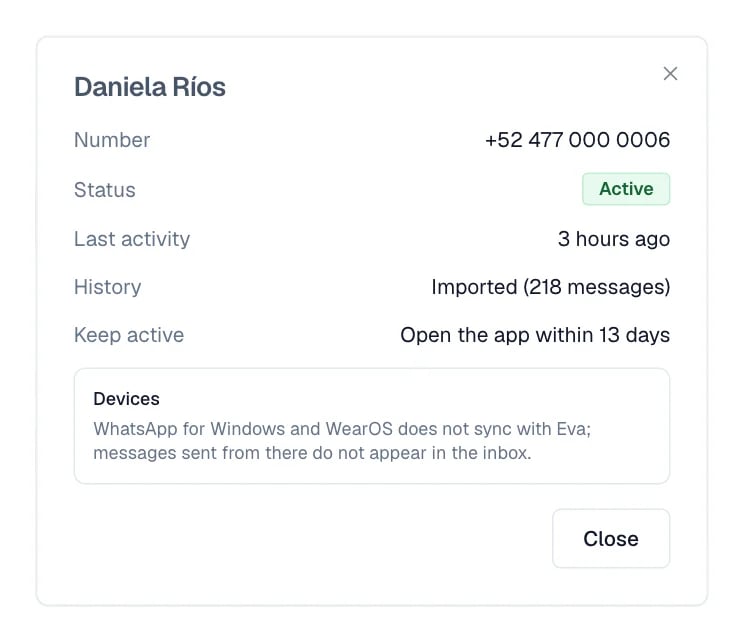
Details of an active number: Keep active states how many days are left.
Read the number status
The Seller numbers panel sums up each number in one label:- Linked: the connection exists, but Eva does not see activity from that number yet.
- Importing history: the initial import is still running.
- Active: Eva is receiving activity from the number. This is the normal state.
- Possible missing message: one or more messages from the phone may not have synced.
- Disconnected: the link went down. Reconnect appears here.
- Restricted: Meta applied a temporary restriction to the number.
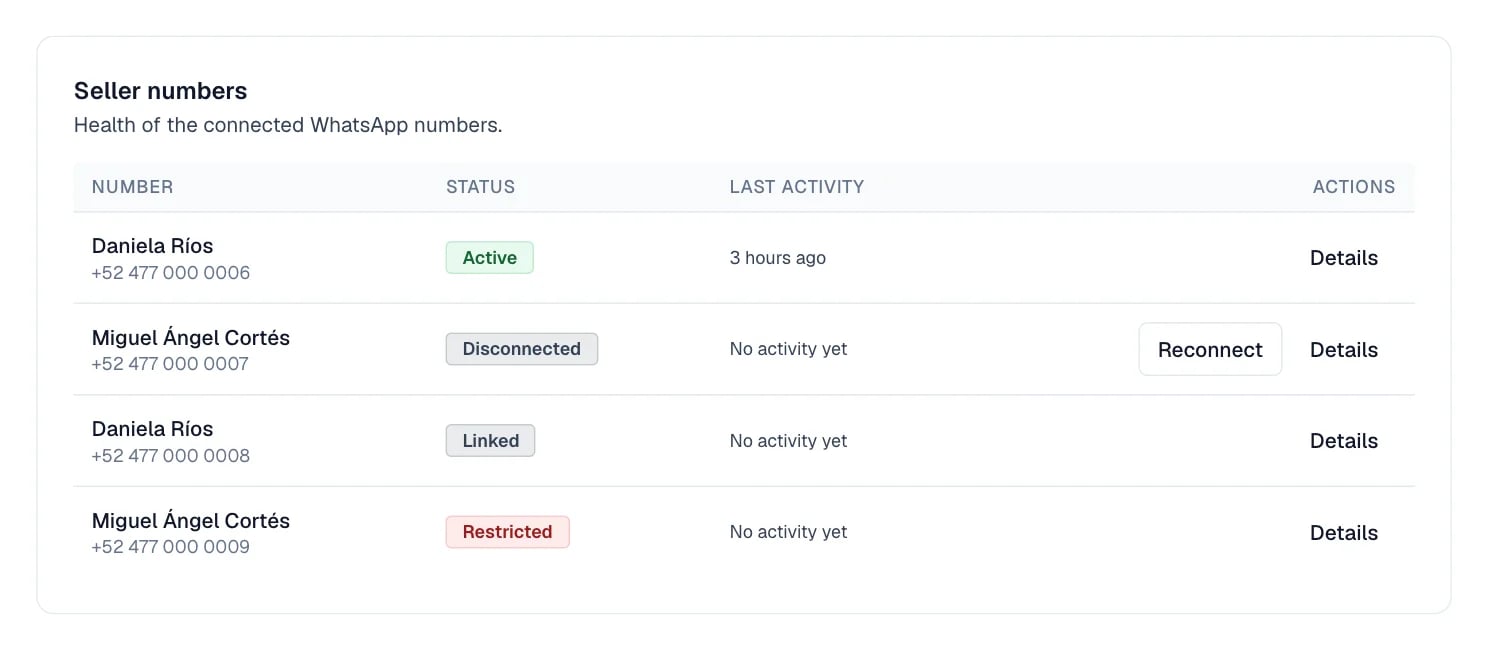
The Seller numbers panel, with one status label per number.
Partial history and missing messages
A partial history notice means the initial import brought only part of it. Eva states the date from which messages exist; older ones stay on the phone. New conversations keep syncing. Possible missing message warns about a gap: review that stretch in the app before continuing the conversation. Both notices are about incomplete visibility, not about a broken connection. If the import fails, Eva offers Retry import on the number’s card. That card sits one level deeper. In Settings → Members, select that member’s number in the WhatsApp column, and open there the number that still lives in the WhatsApp Business app. If the request was declined from the phone at the time, the only way forward is to connect the number again.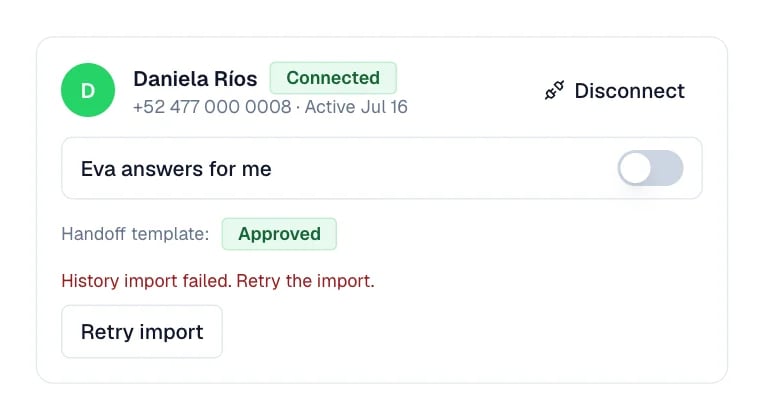
The card of the number whose import failed, with its Retry import action.
Reconnect only when Eva asks
When the status reads Disconnected, select Reconnect in that same row. Approve the link again in Meta and confirm on the phone.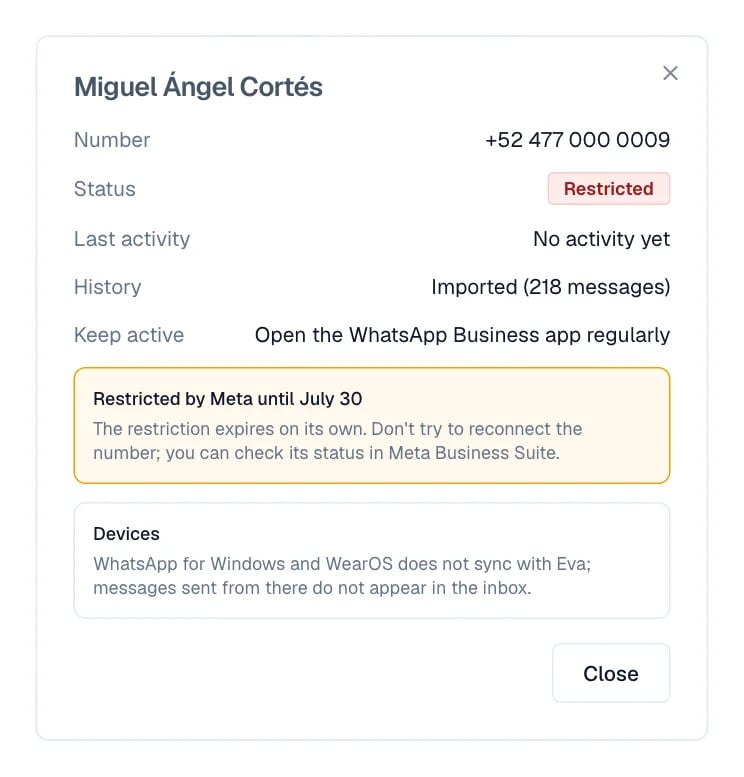
Details of a restricted number: Meta's date and no action to reconnect.
Before disconnecting a number completely, keep this in mind. If you later try to connect it again through this path, Eva asks again, on the first screen, whether that number was already registered on the WhatsApp Business API. Meta locks the numbers that were, for 1 to 2 months. Reconnecting when Eva asks you to does not go through that question.
If messages are missing
- Check the partial history notice or Possible missing message in Eva.
- Open the original conversation on the phone to see what did not arrive.
- Confirm that WhatsApp Business is open and has internet.
- Ask for a test message from another phone.
- If new messages do not arrive either, use Reconnect when the status calls for it, or contact support.
Linked devices
When you connect the number, linked devices are signed out. WhatsApp Web in the browser and WhatsApp for Mac link again without trouble. WhatsApp for Windows and for WearOS cannot be linked again, and that is a Meta rule for this type of connection. If you try it with WhatsApp for Windows, the app accepts the code, stays on Loading your chats and signs you out two minutes later. It happens on every attempt. Use the browser instead. If the browser signs you out too, open WhatsApp Business on the phone, go to Linked devices and remove the ones you no longer use. Then link the browser one again. The limit is four devices. What is sent from WhatsApp for Windows and WearOS is not reflected in Eva. Use the primary phone or the Eva Inbox for the messages you need to see there.Meta errors by code
133005: number already registered or two-step verification
133005: number already registered or two-step verification
This code has two different causes. When connecting a dedicated number, it is almost always the two-step verification of the phone where that number has WhatsApp. Turn it off there and use Retry registration. When connecting with the app, Meta treats it as a number already registered on another API account. It has to be released from the previous account.
131031: account restricted or payment pending
131031: account restricted or payment pending
Eva uses this code for WhatsApp Business accounts restricted by Meta, and it also appears in send failures tied to the payment method. Review both in Meta Business Suite before retrying. While the restriction stays active, repeating the connection does not help.
131049: Meta does not accept the send right now
131049: Meta does not accept the send right now
This code is ambiguous by Meta’s design. Eva uses it for three situations: a number or account that is not eligible, a marketing-send restriction, and a missing payment method. Start with the cheapest one to check, the payment method in Meta; if that is in order, try later or use another number.
133016: too many registration attempts
133016: too many registration attempts
Meta locks the number for up to 72 hours after several attempts in a row. Eva shows the countdown and disables the retry button while it lasts. Waiting is the safest way out; if you cannot wait, connecting another number is the fastest.
There is no code, or the problem continues
There is no code, or the problem continues
Copy the exact message, the affected number, and the approximate time. Then contact support, without disconnecting or deleting the number.
I can’t connect my number (the Meta window closes without connecting)
During Connect WhatsApp, Eva keeps the exact result that Meta returns. If Meta says the connection was cancelled or could not be completed, read the step shown on the card, then open the Meta window again and complete that step before returning to Eva. When Meta provides an error message, Eva shows that message on the same card. If the Meta window closes without a result, reopen it and finish every screen. Confirm that you selected the right business and WhatsApp Business number, keep the WhatsApp Business app open and online, and complete any verification Meta requests. If Meta says the number is not eligible or cannot be used, follow this order:- Update the WhatsApp Business app.
- If the number may be registered with another WhatsApp API provider, have that provider release it first.
- After repeated attempts, wait about one hour.
- Retry the connection.