

What you will get
The individual chats of that number reach the Eva Inbox, and your team sees them there. You keep answering from the app whenever you want. Eva does not answer on its own until you turn that on later, number by number. When you reply in the Inbox, the sender menu beside the message box shows the exact number Eva will use and that number’s reply status with the customer. A different number is always confirmed first because it reaches the customer as a separate chat. If its 24-hour reply period has ended, keep typing normally: Eva handles Meta’s reopen approval without asking you to choose a template.Requirements
- A number that already uses the WhatsApp Business app, not the regular WhatsApp app.
- A number that was not registered before on the WhatsApp Business API with another provider.
- The phone at hand, with the app open and with internet.
- Permission to manage that business in Meta.
1. Enter the number and accept the points
In AI Agents → Channels → WhatsApp, answer It is in the WhatsApp Business app on my phone and select Connect WhatsApp Business. Connect your WhatsApp Business opens, the first of two screens.1
Enter the number
When you leave the field, Eva checks the number and answers right there. If it cannot be connected, This number cannot be connected right now appears with the reason.
2
Answer what Eva does not already know
Eva asks only what it cannot take for granted: whether the number uses the WhatsApp Business app, and whether it was connected to the WhatsApp Business API with another provider before. Anything the previous step already settled appears as a confirmed fact, not a question. Answer carefully: if the number was on the API, Meta blocks it for 1 to 2 months and the connection fails.
3
Read the nine points and accept them
They are grouped under What changes, What you need to do and What can happen, one line each. At the end, check I read and accept these points.
- This is a work number: who can read its conversations depends on your workspace visibility, and Eva says so on screen.
- Groups stay on the phone only, and Eva cannot read them.
- Your linked devices are signed out. Most can be linked again, except WhatsApp for Windows and WearOS.
- Broadcast lists, disappearing messages, view once and live location turn off in individual chats. The broadcast lists you already have become read-only.
- Open the WhatsApp Business app on the phone at least every 13 days.
- During the import: keep the app open, confirm on the phone and stay online.
- Meta may apply temporary limits or blocks to the number.
- The number’s quality can drop and, in extreme cases, Meta may disconnect or suspend it.
- Those decisions are Meta’s. Eva does not control them and cannot reverse them.
This check is resolved with your answers and with what Eva already knows from the flow: at this step Eva does not ask Meta anything. Real eligibility is decided by Meta, at the moment you connect.
2. Connect with Meta and with your phone
Continue with Meta turns on as soon as Eva saves your acceptance.Confirm the name your customers will see
Before Meta opens, Eva asks for the name your customers will see on WhatsApp. It defaults to the name that number already shows; if Eva does not know it, it uses your workspace name. You can change it or keep the current name. After connecting, the summary shows whether Meta is reviewing, accepted, or rejected the name. A rejected name never affects the number’s connection.1
Select Continue with Meta
A Meta window opens, not an Eva one. Sign in with the account that manages your business.
2
Choose your existing WhatsApp Business app
Meta asks you to confirm the business and the number you are connecting. Do not add it as a new number.
3
Confirm on the phone
Meta sends a notice to the app. Open it and follow the on-screen instruction to prove you control the number.
What the step looks like: a Meta window, not an Eva one. It is a drawing, not a capture — the real screens belong to Meta and change without notice.
The screens in that window belong to Meta and change without notice, which is why they are not shown here. When you finish, the window closes on its own and Eva moves to the second screen.
3. Review the Connected screen
The second screen is called Connected and carries two things.- Your history. On the phone, tap Confirm to import your history. The import brings up to 6 months of individual chats, no groups, and happens once during the connection. Full detail in How to import your contacts and history.
- Where the leads land. Eva shows that agent’s default pipeline, already saved. If you administer the account, Change takes you to Routing to pick another one; if not, you pick it right there before closing.
If an administrator connects it from Members
In Settings → Members, an administrator connects someone else’s number. That wizard has six steps, with one checkbox per point, and saves exactly the same confirmation.1
Open the wizard
Select that person’s number in the WhatsApp column and then Connect WhatsApp. The first step is called Before you connect.
2
Answer the preflight
Enter the number and check both boxes. Next turns on once the number is entered.
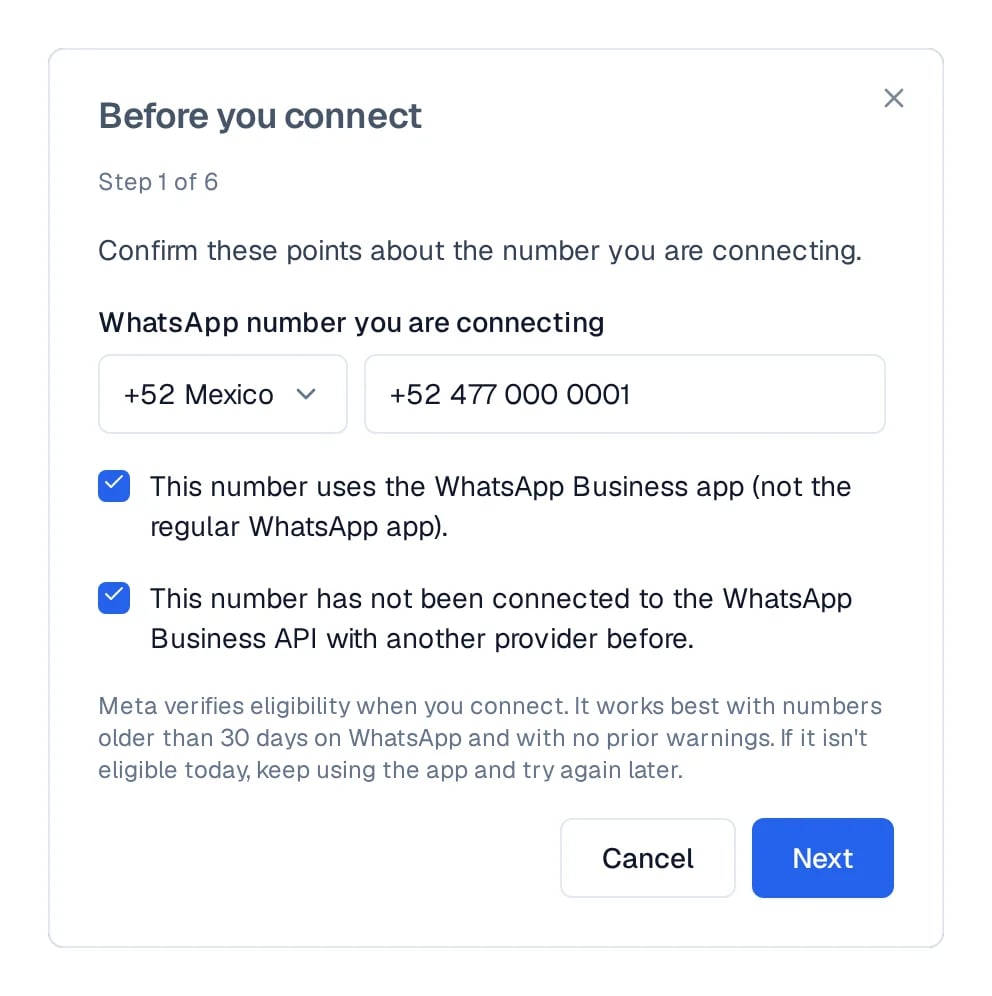
Step 1 of 6: the number entered and both boxes checked.
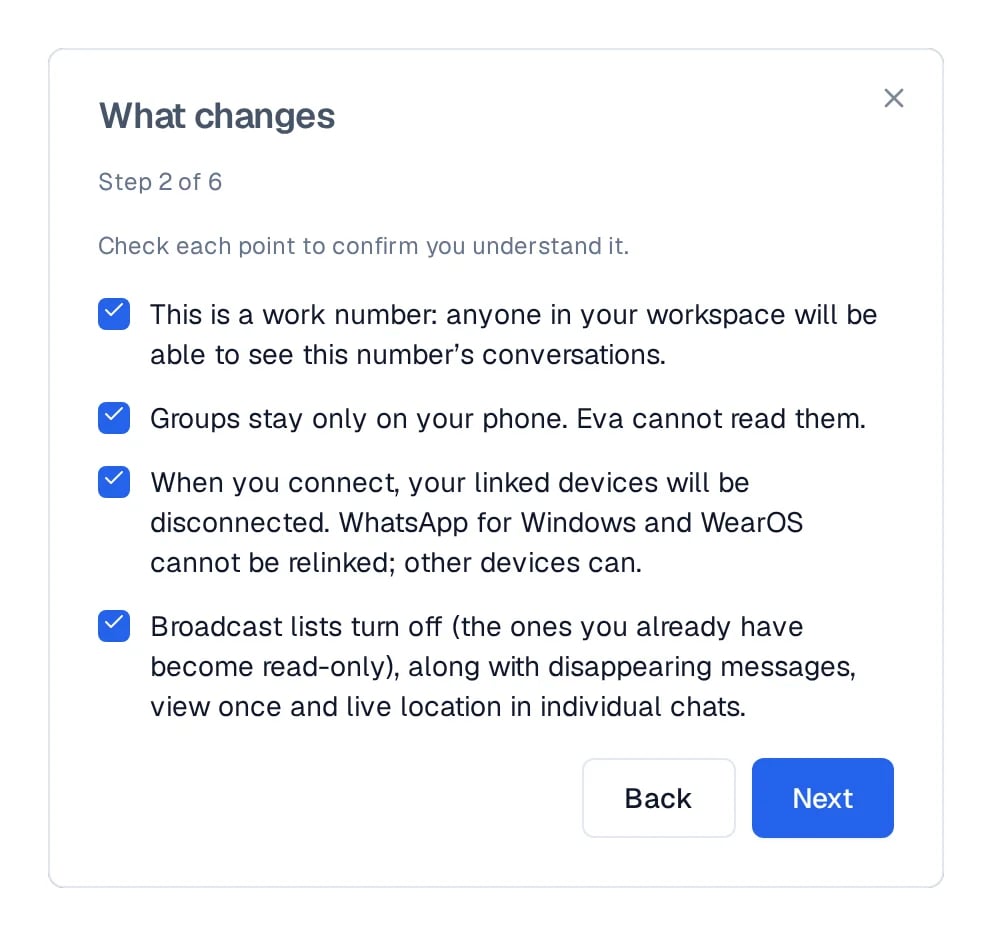
Step 2 of 6: the four What changes boxes, checked.
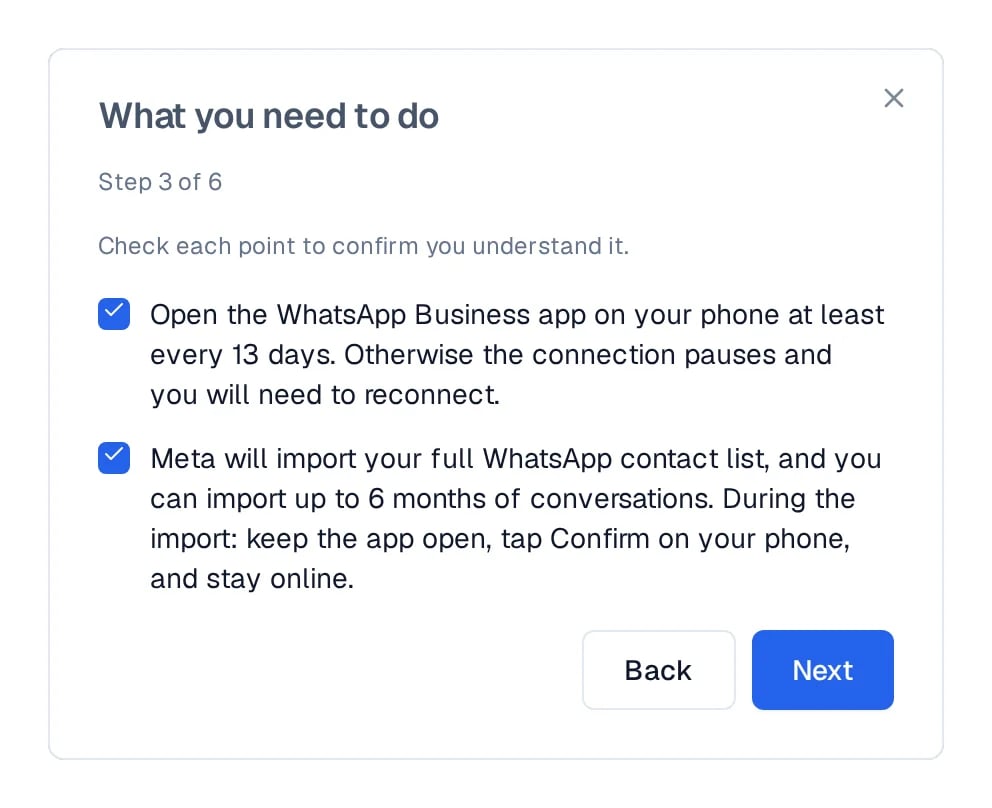
Step 3 of 6: the two What you need to do boxes.
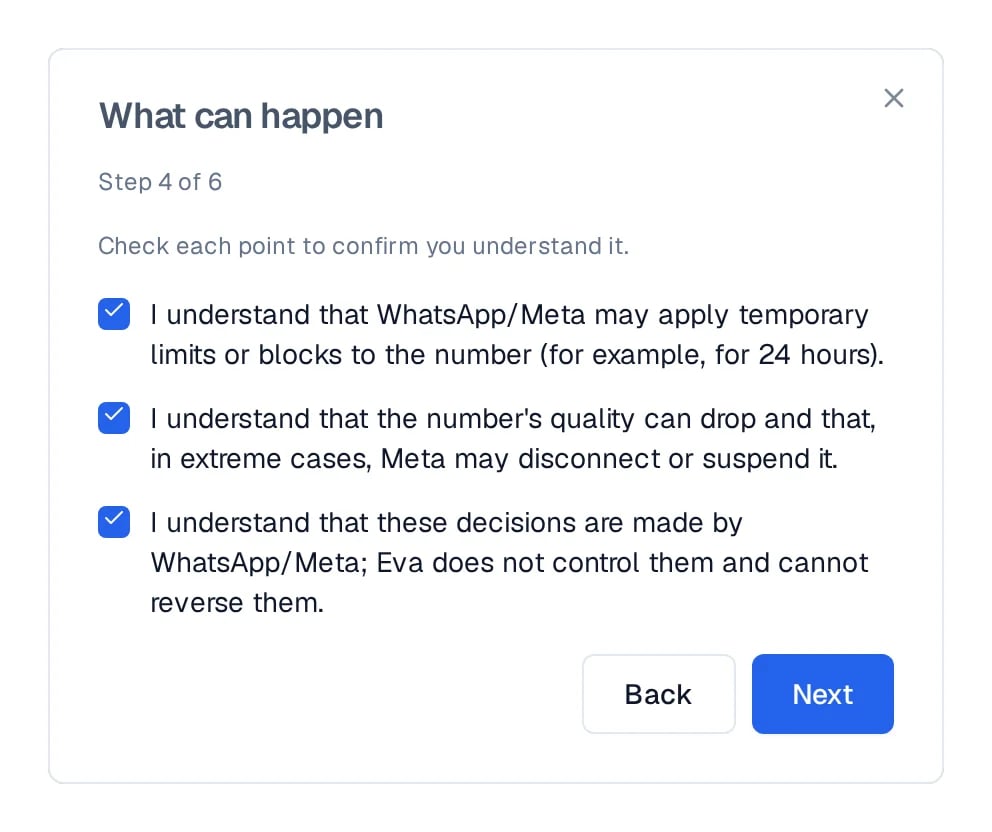
Step 4 of 6: the three risks Meta decides.
How the Members wizard ends
Step 5 is called Ready to connect and sums up the nine confirmed points. The same Meta window from step 2 above opens from there.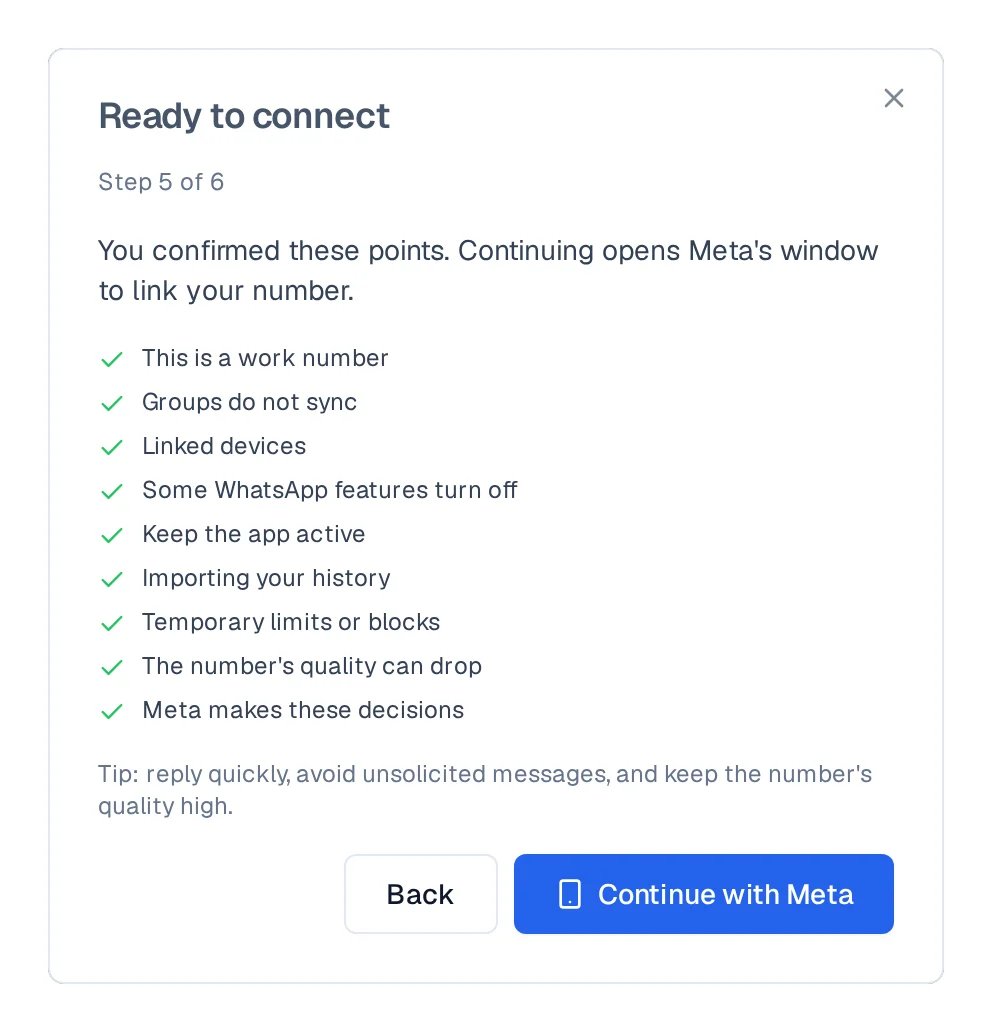
Step 5 of 6: the summary, with Continue with Meta enabled.
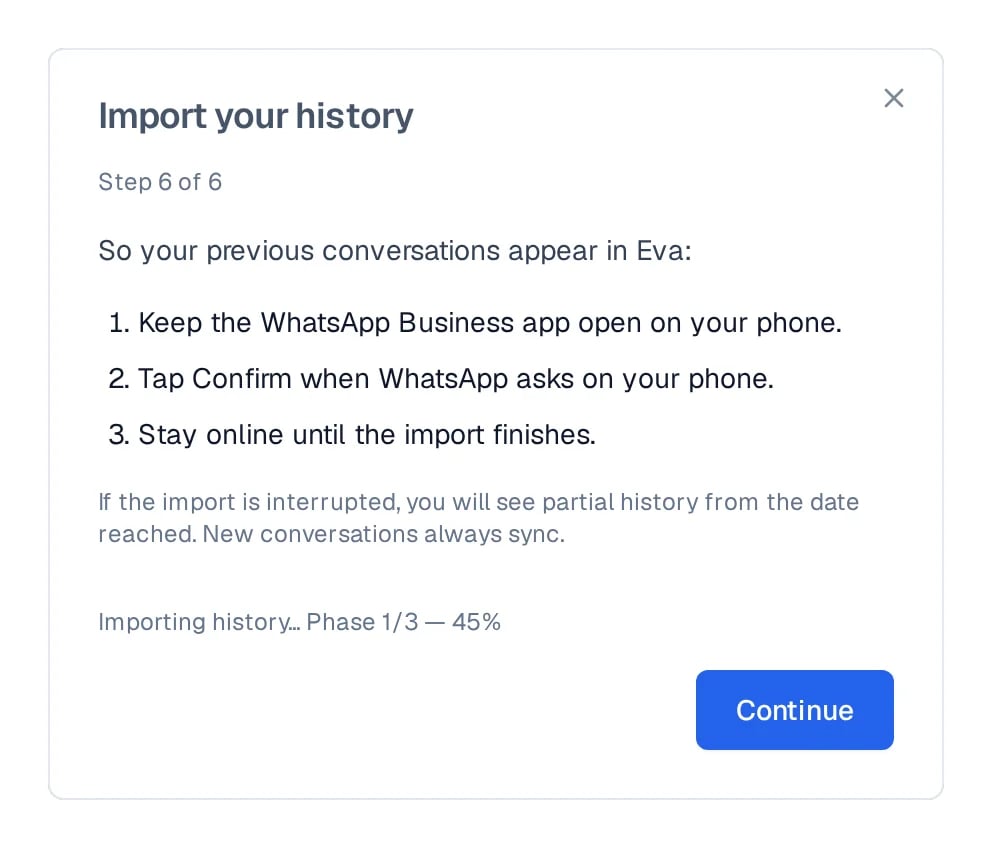
Step 6 of 6: the phone instructions and the import progress.
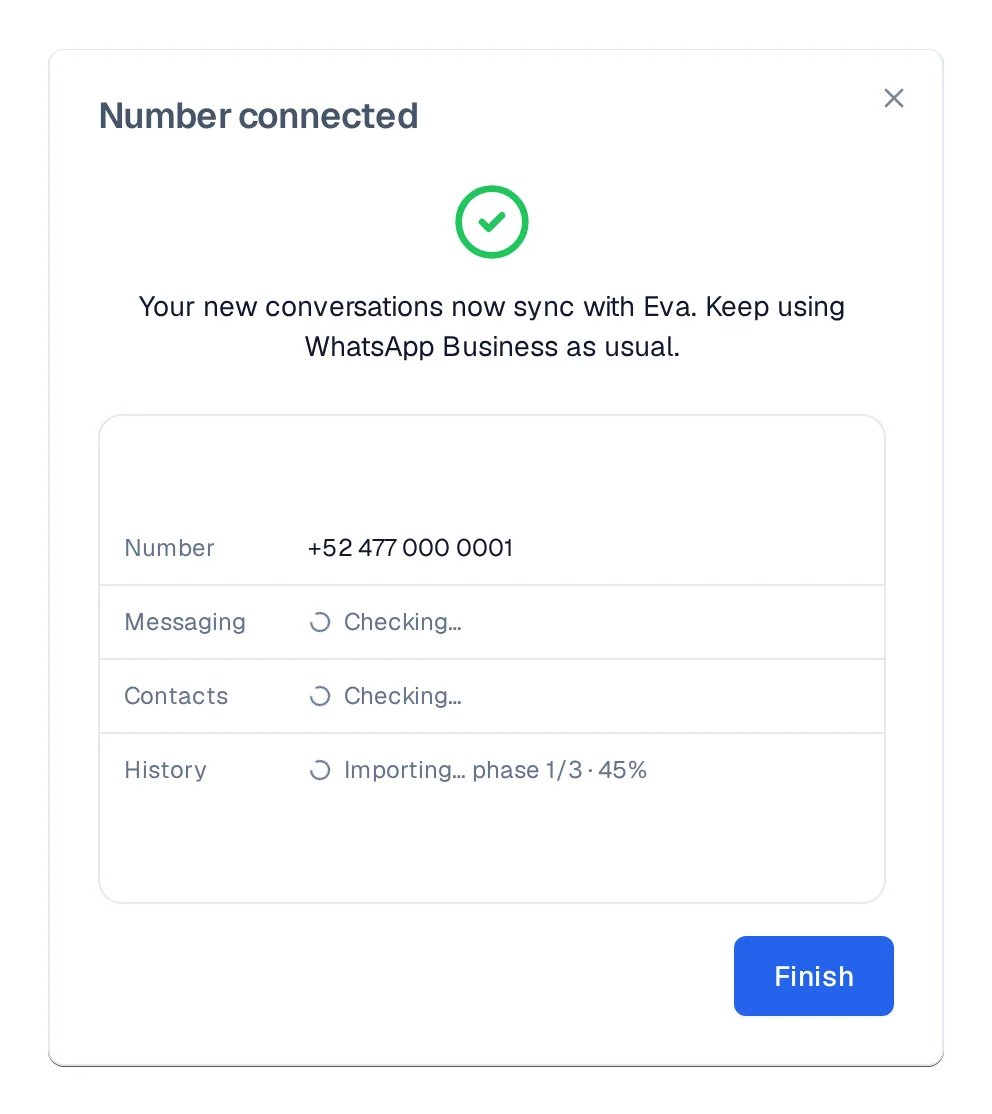
The final screen of the Members wizard.
How to know it worked
In Settings → Members, the Team numbers panel lists the number. It reads Connected once the connection exists, and Active as soon as Eva sees activity from that number. Ask somebody to write to you from another phone and confirm the conversation appears in the Inbox.If something goes wrong
- The Meta window can stay open for up to 30 minutes. If it does not appear, use Can’t see Meta’s window?: allow pop-ups, close earlier Meta windows, and select Open Meta’s window again to retry deliberately. Read every point and check the single checkbox, I have read and accept these points. This number has not been on the WhatsApp API with another provider before. If it was on the API, use My number was on the API with another provider before continuing.
- Before Done, clean retry, close every earlier Meta window yourself. Then update WhatsApp Business, open the app and approve Meta’s notification, and confirm the number is not active with another WhatsApp API provider.
- If two guided retries fail, choose Ask for help. Eva sends the attempt history and the Meta session data it already captured; our team contacts you today.
- This number cannot be connected right now appears: review your answers. A number already registered in another API account is blocked by Meta for 1 to 2 months. For that case the route is Connect a number already on the API.
- Meta rejects the connection at the end: eligibility is decided by Meta when you connect. Keep using the app and try later, or connect another number.
- Meta does not show the option to connect your existing app: see what to do when Meta will not connect your WhatsApp Business app.