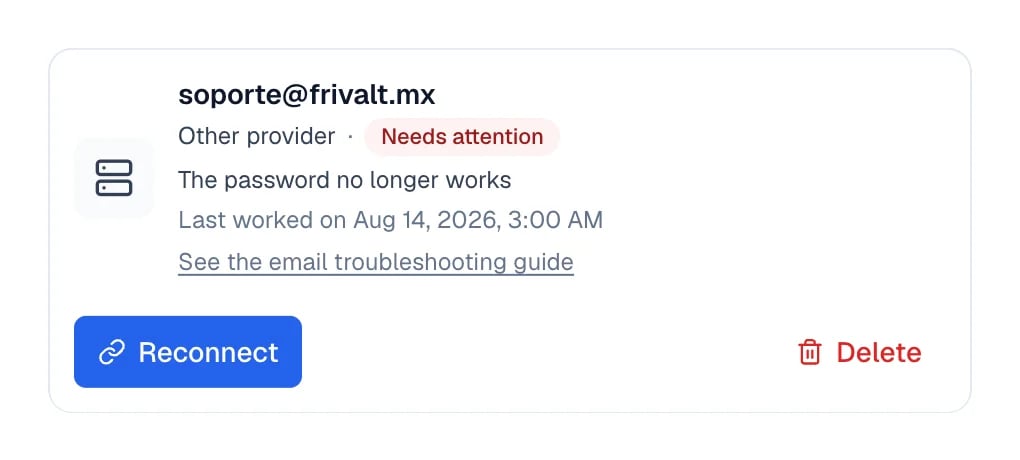
Go to Settings → Members and select the address in the Email column.
2
Select Reconnect
For Google or Microsoft, Eva takes you to the provider to authorize access again. For IMAP,
Eva keeps the email address, usernames, and servers you already had.
3
Enter only the new password
In a normal IMAP reconnection, the form shows New password. You do not need to enter the
servers again.
When reconnecting, Eva keeps the address and only asks for the new password.
4
Confirm
Select Reconnect email. The card changes to Connected once Eva can sign in again.
Never send your password to support. Enter it only on Eva’s connection screen or in Google or
Microsoft’s authorization screen.
The address can stay the same even though its servers changed. Wait until your provider confirms
the migration is complete. In this case, do not use Reconnect with the old configuration. In
the same window, go down to Add another email and choose the new provider:
If it is now hosted by Google Workspace or Microsoft 365, use that provider’s button.
If it still uses IMAP, choose Other provider, enter the same address, and review the new
servers Eva detects before connecting.
Do not reuse the old host’s settings. If you are unsure, ask the new provider for its secure IMAP
and SMTP servers and review Connect another email provider.
Receiving and sending use separate connections. Messages can keep arriving even when Eva shows
The password no longer works for sending or Sending from this email is off for now.Check these in order:
Select Reconnect and authorize again or enter the new password.
For IMAP accounts, ask the provider whether SMTP is enabled and whether it uses the same username
or a separate one.
For Google or Microsoft, confirm that you accepted every permission during reconnection.
Try sending again from Eva. Do not send repeatedly while the card still shows Needs attention.
The Inbox keeps the history, but Eva does not allow sending from a mailbox it knows is not ready.
When you connect, Eva brings in email from the last 5 days. It is not a copy of the entire history.
Older messages remain with your provider, and new messages keep arriving in Eva.If the card says Importing your email stopped, select Retry. If it says New email stopped
arriving, use the action shown on the card.
Contact support when a complete reconnection fails again, your provider confirms that IMAP and SMTP
are enabled, or the state does not change after a retry.Include:
The affected address
The current provider and whether there was a migration