> ## Documentation Index
> Fetch the complete documentation index at: https://docs.goeva.ai/llms.txt
> Use this file to discover all available pages before exploring further.
# Install the App on iPhone
> Download and install Eva AI on your iPhone to work from anywhere.
Install Eva on your iPhone to keep your conversations always at hand, with an icon on your home screen just like any other app.
On iPhone, you install from **Safari**. If you open Eva in another browser, open it in Safari first.
## Add it to your home screen
Go to **app.goeva.ai** in Safari and sign in. You can also go to **Settings → Install the app** to see these instructions inside Eva.
In the Safari bar, tap the **Share** icon (a box with an arrow pointing up).
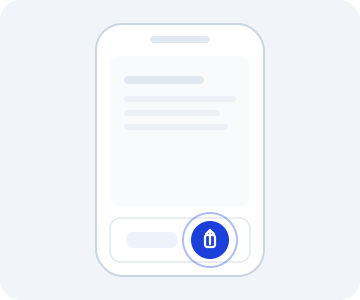 Scroll through the menu and tap **Add to Home Screen**.
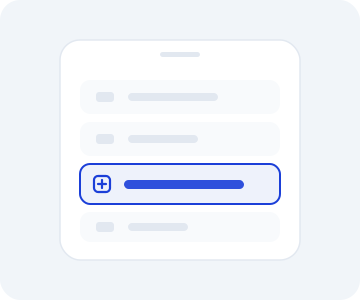 Tap **Add**. The Eva icon will appear on your home screen.
Open Eva from that icon to see it full screen, without the browser bar. It feels like a native app.
Using Android? Follow the guide to [install the app on Android](/en/install-the-app/android).
Tap **Add**. The Eva icon will appear on your home screen.
Open Eva from that icon to see it full screen, without the browser bar. It feels like a native app.
Using Android? Follow the guide to [install the app on Android](/en/install-the-app/android).