> ## Documentation Index
> Fetch the complete documentation index at: https://docs.goeva.ai/llms.txt
> Use this file to discover all available pages before exploring further.
# Connect a number already on the API
> Bring a number that is already on the WhatsApp API, with another provider or in your own Meta account, over to Eva without losing or changing it.
This is the answer **It is already on the WhatsApp API (another provider or my own Meta account)**. The number has already left the WhatsApp Business app and a provider or your own Meta account runs it today; here you bring it to Eva. It is the same Meta signup, so you keep the number.
That number stops working in the WhatsApp Business app. If you need to keep answering from the phone, review [where your number is today](/en/channels/whatsapp) before continuing.
## What you will get
A number connected to Eva that receives and answers messages from the platform, with campaigns available and no dependency on the app.
## Requirements
Eva shows you these three points before it opens the Meta window, because they are what makes the connection fail:
* The number's two-step verification, turned off with your current provider. If it is still on, Meta asks for a PIN that the provider has and you do not.
* Access to the account that manages the Meta business that owns the number.
* The number, still active. A number that has been released can no longer be claimed.
You also need a payment method in Meta: the messages that go out through the API are charged by Meta, at its own rates, separately from your Eva plan.
## Connect the number
In **AI Agents**, open the agent, go to **Channels** and on the WhatsApp card select **Connect**.
Pick **It is already on the WhatsApp API (another provider or my own Meta account)**. The three points above appear underneath; review them and select **Continue with Meta**.
On the **Connect WhatsApp Business** card, select **Connect**. The Meta window opens.
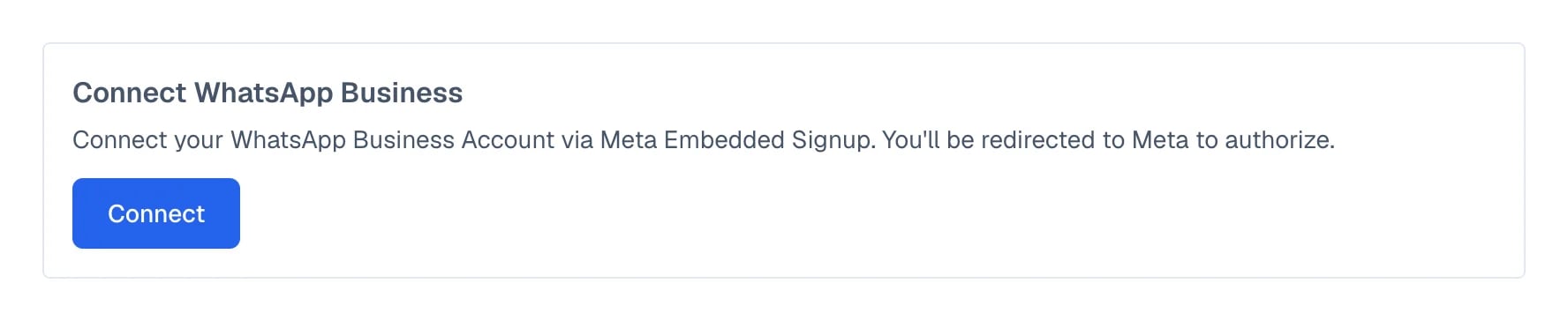 Use the account that manages your business, and check that the portfolio is the right one.
 Review the number and the business name carefully: that is how your customers will see them.
Meta offers a text message or a call. Enter the code, and keep the window open until you are back in Eva.
Review the number and the business name carefully: that is how your customers will see them.
Meta offers a text message or a call. Enter the code, and keep the window open until you are back in Eva.
 Meta can take a while to finish its part. Meanwhile, Eva shows a **Next action** block with what is missing and, when it knows, how long that usually takes.
## How to know it worked
The number appears on the WhatsApp card with the **WhatsApp Ready** label.
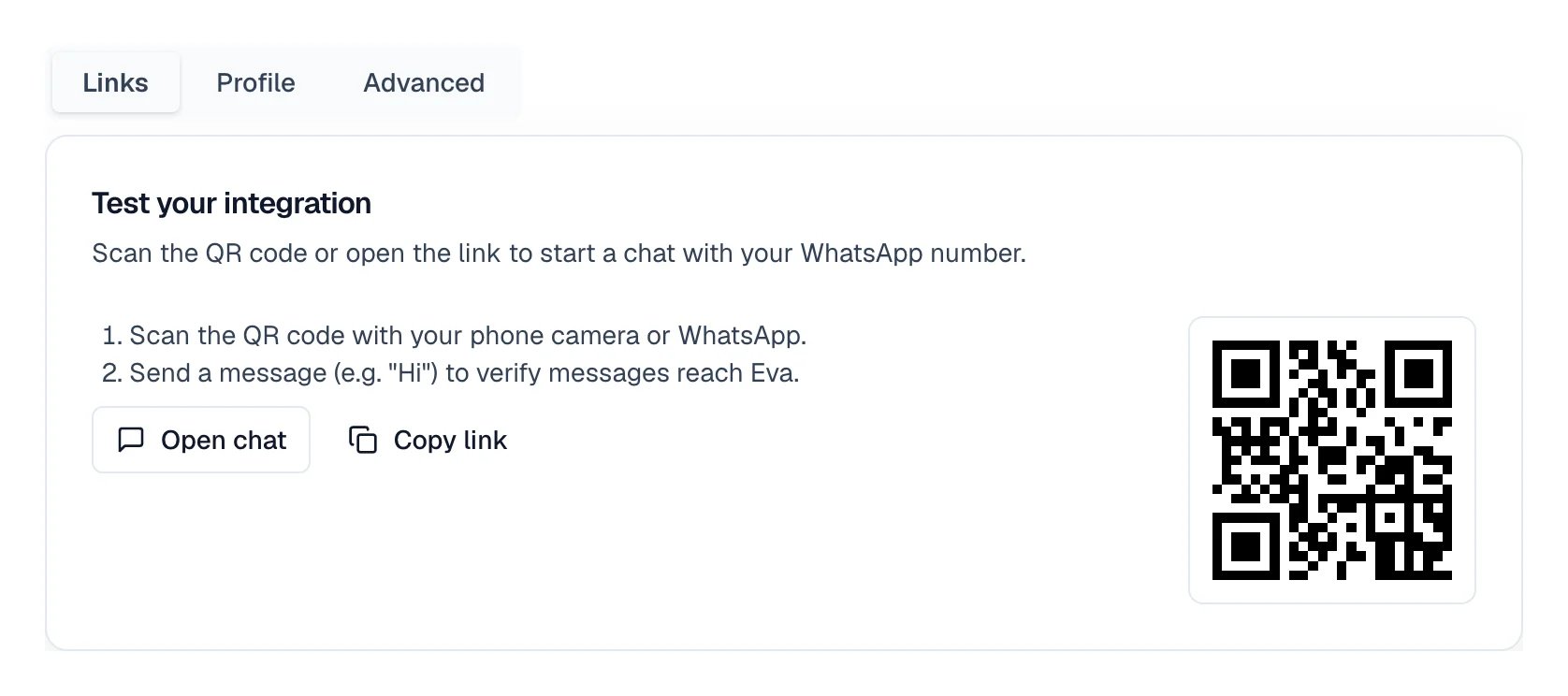
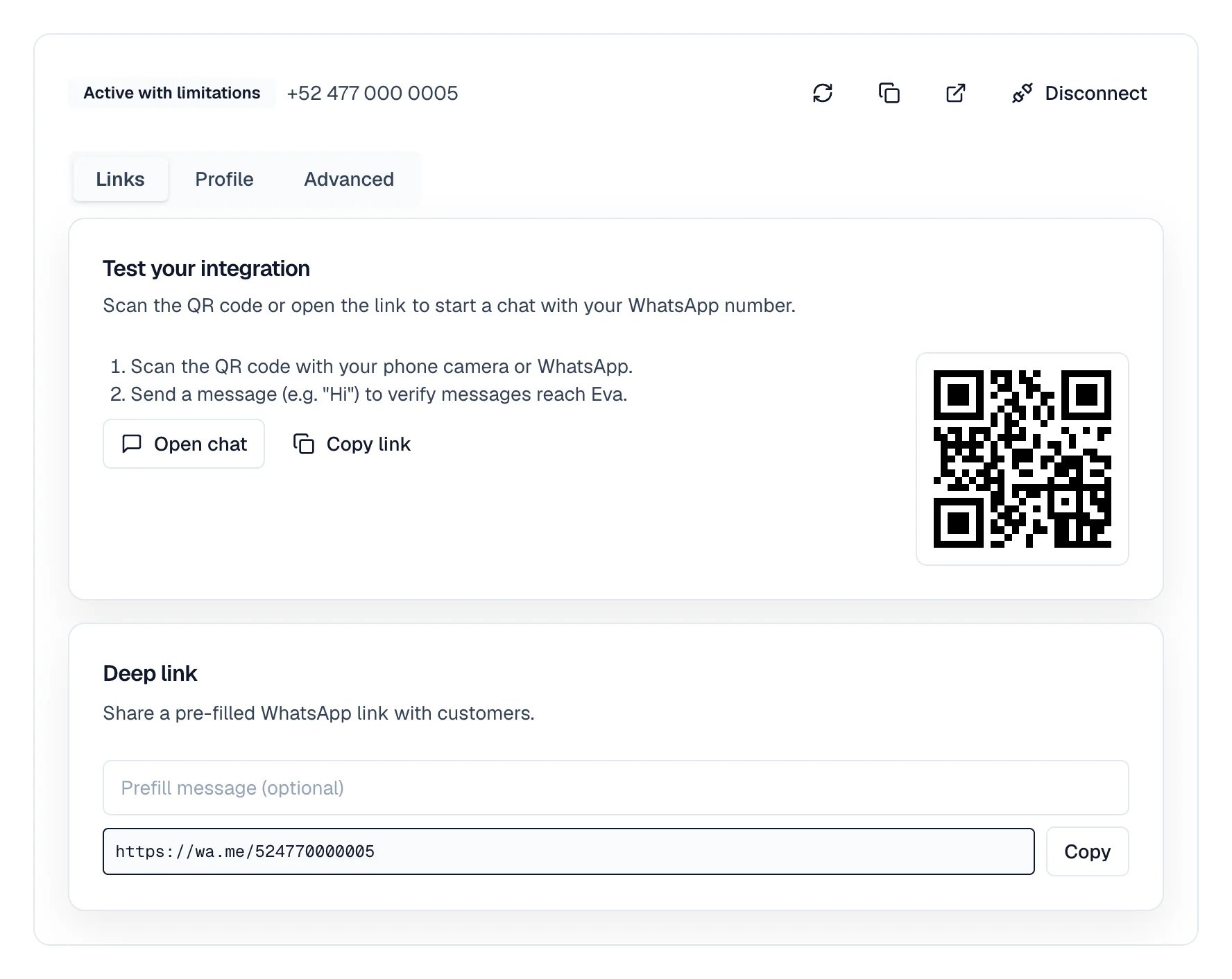
To try it, open the number's **Links** tab and use the **Test your integration** block: scan the QR code, or select **Open chat** or **Copy link**. Send a message and confirm the conversation reaches the [Inbox](/en/crm/inbox).
Meta can take a while to finish its part. Meanwhile, Eva shows a **Next action** block with what is missing and, when it knows, how long that usually takes.
## How to know it worked
The number appears on the WhatsApp card with the **WhatsApp Ready** label.
To try it, open the number's **Links** tab and use the **Test your integration** block: scan the QR code, or select **Open chat** or **Copy link**. Send a message and confirm the conversation reaches the [Inbox](/en/crm/inbox).
 ## Connected is not always ready to send
A number can be connected and still be unable to send messages. Eva tells them apart with the label it shows:
* **WhatsApp Ready**: Meta approved the business, the number is registered, and the display name is resolved. Sends and campaigns are available.
* **Active with limitations**: the number receives messages, but something is missing before it can send. It is usually the business review in Meta or the display name approval.
* **Action Needed**: something was rejected or is pending on your side. Eva describes the exact step.
* **WhatsApp Setup In Progress**: Meta is still finishing.
While any of those steps is missing, incoming messages do reach the Inbox, but templates and campaigns do not go out.
## Connected is not always ready to send
A number can be connected and still be unable to send messages. Eva tells them apart with the label it shows:
* **WhatsApp Ready**: Meta approved the business, the number is registered, and the display name is resolved. Sends and campaigns are available.
* **Active with limitations**: the number receives messages, but something is missing before it can send. It is usually the business review in Meta or the display name approval.
* **Action Needed**: something was rejected or is pending on your side. Eva describes the exact step.
* **WhatsApp Setup In Progress**: Meta is still finishing.
While any of those steps is missing, incoming messages do reach the Inbox, but templates and campaigns do not go out.
 If Meta asks for a payment method, Eva shows **Set up your payment method** with the **Set up payment method** button. After adding it in Meta, come back to Eva and select **I already set it up**.
## If something goes wrong
### Meta asks for a two-step verification PIN
That PIN belongs to the provider that runs the number today. Turn two-step verification off from that provider's panel and start again in Eva. If you already connected and Meta keeps asking for it, Eva shows the notice to turn it off without leaving the platform.
### The Meta window closed without connecting
Start again from Eva with **Connect**. Before retrying, check that the number is not registered with another WhatsApp API provider. If the Meta window closes again, [contact support](/en/help/contact) with the number and the approximate time.
* Meta does not register the number and mentions two-step verification. Turn it off on the phone where that number has WhatsApp, and use **Retry registration**.
* Meta answers that there were too many registration attempts: it locks the number for up to 72 hours. Eva shows the countdown; waiting is the safest way out.
* The number connected but no message arrives: Eva offers to register the number again from the same **Next action** block.
* Templates fail and everything else works: it is almost always a missing payment method or display name approval in Meta. See [Keep WhatsApp connected and recover it](/en/channels/whatsapp/maintain-and-recover).
* If your number is still in the app and Meta does not offer to connect it, see [what to do when Meta will not connect your WhatsApp Business app](/en/channels/whatsapp/meta-wont-connect-whatsapp-business-app).
## Next steps
* [What changes once the number is connected](/en/channels/whatsapp/after-connecting)
* [How to protect the connection and recover it](/en/channels/whatsapp/maintain-and-recover)
If Meta asks for a payment method, Eva shows **Set up your payment method** with the **Set up payment method** button. After adding it in Meta, come back to Eva and select **I already set it up**.
## If something goes wrong
### Meta asks for a two-step verification PIN
That PIN belongs to the provider that runs the number today. Turn two-step verification off from that provider's panel and start again in Eva. If you already connected and Meta keeps asking for it, Eva shows the notice to turn it off without leaving the platform.
### The Meta window closed without connecting
Start again from Eva with **Connect**. Before retrying, check that the number is not registered with another WhatsApp API provider. If the Meta window closes again, [contact support](/en/help/contact) with the number and the approximate time.
* Meta does not register the number and mentions two-step verification. Turn it off on the phone where that number has WhatsApp, and use **Retry registration**.
* Meta answers that there were too many registration attempts: it locks the number for up to 72 hours. Eva shows the countdown; waiting is the safest way out.
* The number connected but no message arrives: Eva offers to register the number again from the same **Next action** block.
* Templates fail and everything else works: it is almost always a missing payment method or display name approval in Meta. See [Keep WhatsApp connected and recover it](/en/channels/whatsapp/maintain-and-recover).
* If your number is still in the app and Meta does not offer to connect it, see [what to do when Meta will not connect your WhatsApp Business app](/en/channels/whatsapp/meta-wont-connect-whatsapp-business-app).
## Next steps
* [What changes once the number is connected](/en/channels/whatsapp/after-connecting)
* [How to protect the connection and recover it](/en/channels/whatsapp/maintain-and-recover)