> ## Documentation Index
> Fetch the complete documentation index at: https://docs.goeva.ai/llms.txt
> Use this file to discover all available pages before exploring further.
# How to import your contacts and history
> When you connect your number, Meta sends your contacts and up to 6 months of individual chats. What the phone asks, what arrives, and what if the window closes.
When you connect a WhatsApp Business number to Eva, Meta sends two separate things: your contact list and your history of individual chats. Both happen once, during the connection.
## What you will get
You will have your contacts with their names and your earlier conversations inside Eva, and you will know what to do if either one does not arrive.
## Requirements
* The number already connected, or in the middle of connecting.
* The phone at hand, with the WhatsApp Business app open and with internet.
## The two imports
They are independent: one can arrive complete and the other not, and each reports on its own.
| What is imported | What it brings | How long it takes |
| ---------------- | ------------------------------------------------------------ | -------------------------------- |
| Contact list | The contacts saved on the phone, with the name you gave them | Minutes after connecting |
| Chat history | Up to 6 months of individual chats, without groups | Arrives in parts, can take hours |
Names come from the phone's address book. A contact you rename inside Eva keeps the name you gave it.
## Confirm on the phone
Keep WhatsApp Business open on the phone while you connect.
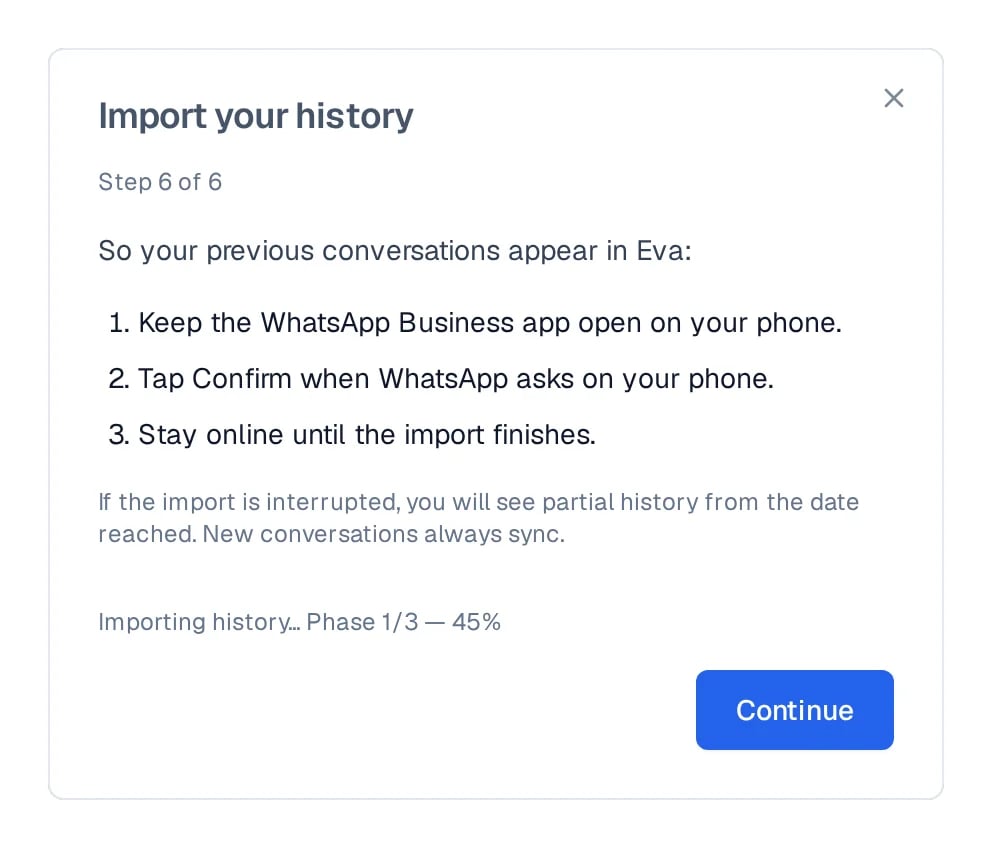
WhatsApp shows a prompt on the phone, not in Eva. Choose "Share chats". If the prompt does not appear, close the app completely and open it again.
Eva shows the progress while the messages arrive.
When you connect from **AI Agents** → **Channels**, that instruction appears as one line on the **Connected** screen, next to the number's status. When you connect from **Settings** → **Members**, it appears as the wizard's last step, with the import progress.
 ## How to know it worked
In **Settings** → **Members**, the **Team numbers** panel shows the number with the result of each import: how many messages and how many contacts arrived.
Open the [Inbox](/en/crm/inbox) and look for a conversation older than the connection. If it appears with its messages, the history arrived.
## If Meta closed the window
Meta only accepts the import request during the hours that follow the connection. After that it refuses, and Eva states it on the number: Meta's import window is closed.
## How to know it worked
In **Settings** → **Members**, the **Team numbers** panel shows the number with the result of each import: how many messages and how many contacts arrived.
Open the [Inbox](/en/crm/inbox) and look for a conversation older than the connection. If it appears with its messages, the history arrived.
## If Meta closed the window
Meta only accepts the import request during the hours that follow the connection. After that it refuses, and Eva states it on the number: Meta's import window is closed.
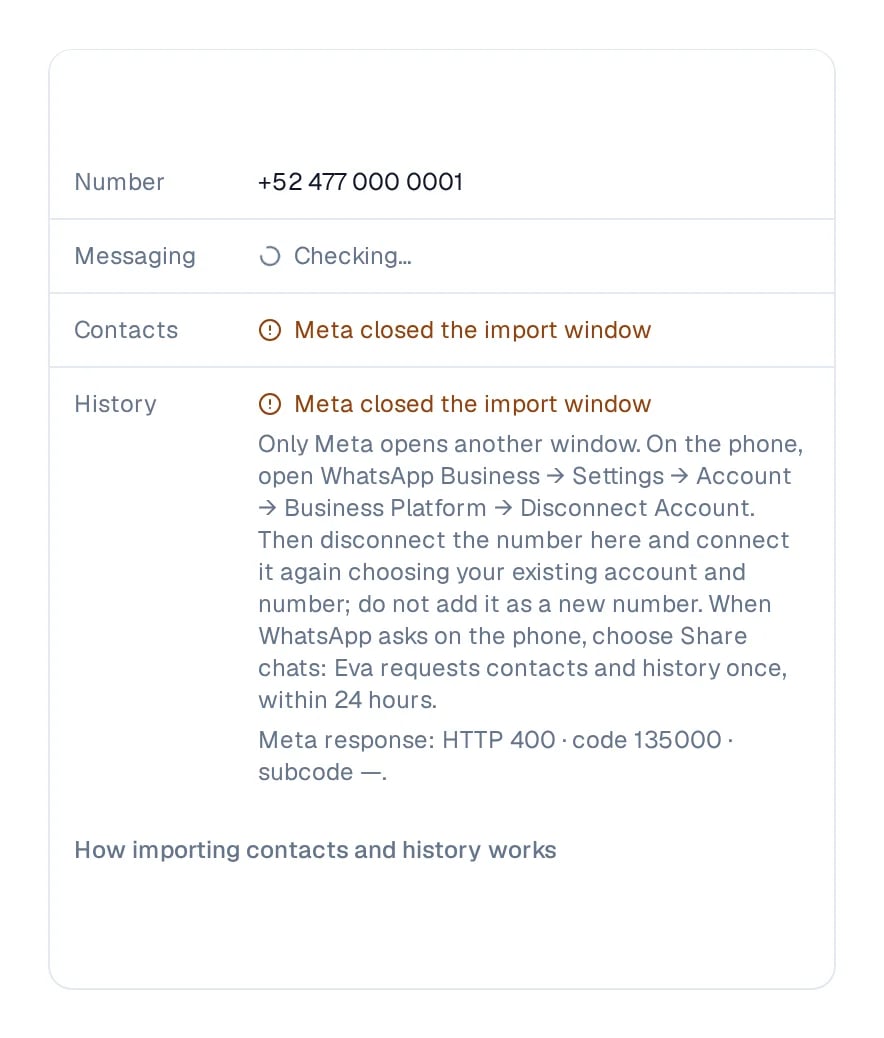 Nothing else is affected. The number stays connected, new conversations keep syncing, and your earlier messages stay on the phone, where they always were.
Meta opens another window only after the owner offboards the account from the
WhatsApp Business app and completes onboarding again with an **existing
number**. Disconnecting only in Eva does not release the number at Meta or
open another window.
In WhatsApp Business, open **Settings** → **Account** → **Business Platform** → **Disconnect Account**. This disconnects the Cloud API part; WhatsApp Business keeps working on the phone. Eva stops receiving messages until you connect it again.
In **Settings** → **Members**, on that number, select **Disconnect**. This step is required: without it, Eva reuses the previous connection and does not ask for the contacts or the history again.
In Eva, start that number's connection again. In Meta's window, choose your existing WhatsApp Business account and number; do not add it as a new number. Complete the prompt sent to the phone.
When WhatsApp asks, choose "Share chats". Eva requests contacts and history once each, within the first 24 hours of this new connection.
Eva cannot release this connection with a button or replay the import. If Meta still lists the number as connected after you disconnect it in the app, do not add it as new; ask Meta for help before connecting again. Meta can refuse the import once more. If your earlier messages are not essential, leave the number working as it is.
## If something goes wrong
* The import does not advance: it is almost always the app closed, the phone without internet, or the prompt unconfirmed on the phone.
* It arrived incomplete: Eva states the date from which history exists. Meta may leave out very old chats and message types it does not support.
* Contacts arrived without a name: on the phone those contacts have no saved name, only a number.
* Meta refused the import: it is usually an unverified business, a missing payment method, or chats not shared in the app. That is fixed in Meta Business.
## Next steps
* [Keep using your WhatsApp Business app](/en/channels/whatsapp/keep-using-whatsapp-business)
* [How to protect the connection and recover it](/en/channels/whatsapp/maintain-and-recover)
* [How leads are created](/en/crm/how-leads-are-created)
Nothing else is affected. The number stays connected, new conversations keep syncing, and your earlier messages stay on the phone, where they always were.
Meta opens another window only after the owner offboards the account from the
WhatsApp Business app and completes onboarding again with an **existing
number**. Disconnecting only in Eva does not release the number at Meta or
open another window.
In WhatsApp Business, open **Settings** → **Account** → **Business Platform** → **Disconnect Account**. This disconnects the Cloud API part; WhatsApp Business keeps working on the phone. Eva stops receiving messages until you connect it again.
In **Settings** → **Members**, on that number, select **Disconnect**. This step is required: without it, Eva reuses the previous connection and does not ask for the contacts or the history again.
In Eva, start that number's connection again. In Meta's window, choose your existing WhatsApp Business account and number; do not add it as a new number. Complete the prompt sent to the phone.
When WhatsApp asks, choose "Share chats". Eva requests contacts and history once each, within the first 24 hours of this new connection.
Eva cannot release this connection with a button or replay the import. If Meta still lists the number as connected after you disconnect it in the app, do not add it as new; ask Meta for help before connecting again. Meta can refuse the import once more. If your earlier messages are not essential, leave the number working as it is.
## If something goes wrong
* The import does not advance: it is almost always the app closed, the phone without internet, or the prompt unconfirmed on the phone.
* It arrived incomplete: Eva states the date from which history exists. Meta may leave out very old chats and message types it does not support.
* Contacts arrived without a name: on the phone those contacts have no saved name, only a number.
* Meta refused the import: it is usually an unverified business, a missing payment method, or chats not shared in the app. That is fixed in Meta Business.
## Next steps
* [Keep using your WhatsApp Business app](/en/channels/whatsapp/keep-using-whatsapp-business)
* [How to protect the connection and recover it](/en/channels/whatsapp/maintain-and-recover)
* [How leads are created](/en/crm/how-leads-are-created)