> ## Documentation Index
> Fetch the complete documentation index at: https://docs.goeva.ai/llms.txt
> Use this file to discover all available pages before exploring further.
# Troubleshoot email
> Read the new email states, reconnect after changing a password or provider, and restore incoming or outgoing email.
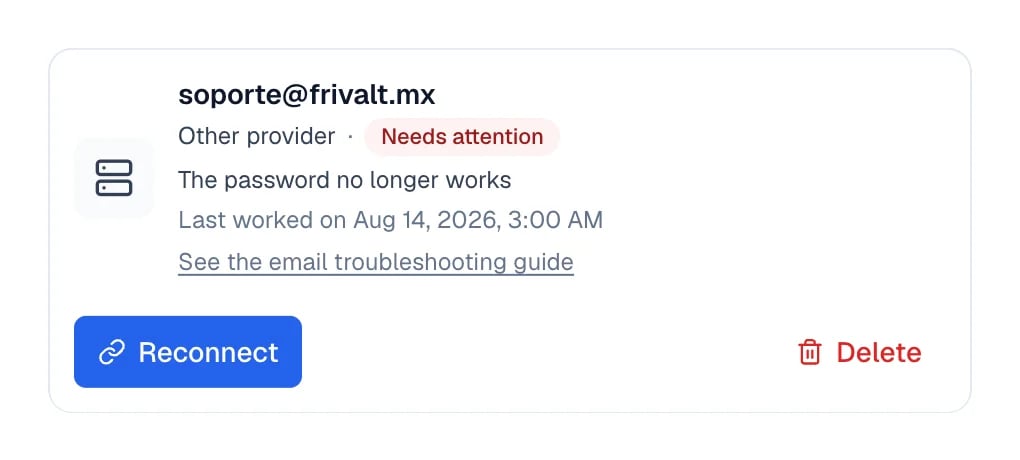
The email card tells you what happened and shows one action. Start there; do not delete the mailbox
to try to fix it.
## Read the card state
* **Connected**: Eva can use the email normally.
* **Needs attention**: something specific stopped working. The reason appears underneath in plain
language, such as **The password no longer works**.
* **Disconnected**: the connection was closed. Use **Reconnect** before receiving or sending again.
* **Review**: Eva does not yet have enough information to show a more precise state.
The card may also show **Last worked on…**. That time can connect the problem to a password,
permission, or provider change.
 ## Reconnect without starting over
Go to **Settings → Members** and select the address in the **Email** column.
For Google or Microsoft, Eva takes you to the provider to authorize access again. For IMAP,
Eva keeps the email address, usernames, and servers you already had.
In a normal IMAP reconnection, the form shows **New password**. You do not need to enter the
servers again.
## Reconnect without starting over
Go to **Settings → Members** and select the address in the **Email** column.
For Google or Microsoft, Eva takes you to the provider to authorize access again. For IMAP,
Eva keeps the email address, usernames, and servers you already had.
In a normal IMAP reconnection, the form shows **New password**. You do not need to enter the
servers again.
 Select **Reconnect email**. The card changes to **Connected** once Eva can sign in again.
Never send your password to support. Enter it only on Eva's connection screen or in Google or
Microsoft's authorization screen.
## You changed the password or provider
### You changed the password
1. If you use iCloud, Yahoo, or Zoho with two-factor authentication, generate a new app password.
2. On the card, select **Reconnect**.
3. Enter the new password and finish with **Reconnect email**.
### You moved email to another provider
The address can stay the same even though its servers changed. Wait until your provider confirms
the migration is complete. In this case, do not use **Reconnect** with the old configuration. In
the same window, go down to **Add another email** and choose the new provider:
* If it is now hosted by Google Workspace or Microsoft 365, use that provider's button.
* If it still uses IMAP, choose **Other provider**, enter the same address, and review the new
servers Eva detects before connecting.
Do not reuse the old host's settings. If you are unsure, ask the new provider for its secure IMAP
and SMTP servers and review [Connect another email provider](/en/channels/connect-other-provider).
## Why a mailbox can receive but not send
Receiving and sending use separate connections. Messages can keep arriving even when Eva shows
**The password no longer works for sending** or **Sending from this email is off for now**.
Check these in order:
1. Select **Reconnect** and authorize again or enter the new password.
2. For IMAP accounts, ask the provider whether SMTP is enabled and whether it uses the same username
or a separate one.
3. For Google or Microsoft, confirm that you accepted every permission during reconnection.
4. Try sending again from Eva. Do not send repeatedly while the card still shows **Needs attention**.
The Inbox keeps the history, but Eva does not allow sending from a mailbox it knows is not ready.
## The first import is slow or looks incomplete
When you connect, Eva brings in email from the last 5 days. It is not a copy of the entire history.
Older messages remain with your provider, and new messages keep arriving in Eva.
If the card says **Importing your email stopped**, select **Retry**. If it says **New email stopped
arriving**, use the action shown on the card.
## When to contact support
Contact support when a complete reconnection fails again, your provider confirms that IMAP and SMTP
are enabled, or the state does not change after a retry.
Include:
* The affected address
* The current provider and whether there was a migration
* The exact text on the card
* The approximate time of the last attempt
* A screenshot
Do not include passwords or verification codes. Use [How to contact support](/en/help/contact).
Learn why receiving and sending can have different states.
Select **Reconnect email**. The card changes to **Connected** once Eva can sign in again.
Never send your password to support. Enter it only on Eva's connection screen or in Google or
Microsoft's authorization screen.
## You changed the password or provider
### You changed the password
1. If you use iCloud, Yahoo, or Zoho with two-factor authentication, generate a new app password.
2. On the card, select **Reconnect**.
3. Enter the new password and finish with **Reconnect email**.
### You moved email to another provider
The address can stay the same even though its servers changed. Wait until your provider confirms
the migration is complete. In this case, do not use **Reconnect** with the old configuration. In
the same window, go down to **Add another email** and choose the new provider:
* If it is now hosted by Google Workspace or Microsoft 365, use that provider's button.
* If it still uses IMAP, choose **Other provider**, enter the same address, and review the new
servers Eva detects before connecting.
Do not reuse the old host's settings. If you are unsure, ask the new provider for its secure IMAP
and SMTP servers and review [Connect another email provider](/en/channels/connect-other-provider).
## Why a mailbox can receive but not send
Receiving and sending use separate connections. Messages can keep arriving even when Eva shows
**The password no longer works for sending** or **Sending from this email is off for now**.
Check these in order:
1. Select **Reconnect** and authorize again or enter the new password.
2. For IMAP accounts, ask the provider whether SMTP is enabled and whether it uses the same username
or a separate one.
3. For Google or Microsoft, confirm that you accepted every permission during reconnection.
4. Try sending again from Eva. Do not send repeatedly while the card still shows **Needs attention**.
The Inbox keeps the history, but Eva does not allow sending from a mailbox it knows is not ready.
## The first import is slow or looks incomplete
When you connect, Eva brings in email from the last 5 days. It is not a copy of the entire history.
Older messages remain with your provider, and new messages keep arriving in Eva.
If the card says **Importing your email stopped**, select **Retry**. If it says **New email stopped
arriving**, use the action shown on the card.
## When to contact support
Contact support when a complete reconnection fails again, your provider confirms that IMAP and SMTP
are enabled, or the state does not change after a retry.
Include:
* The affected address
* The current provider and whether there was a migration
* The exact text on the card
* The approximate time of the last attempt
* A screenshot
Do not include passwords or verification codes. Use [How to contact support](/en/help/contact).
Learn why receiving and sending can have different states.