> ## Documentation Index
> Fetch the complete documentation index at: https://docs.goeva.ai/llms.txt
> Use this file to discover all available pages before exploring further.
# How to connect TikTok
> Connect TikTok Ads to your agent, see exactly which TikTok capabilities are ready, and set up Instant Form or message leads so they land in your CRM.
Connect TikTok so your agent can work with your TikTok Ads account: replying to ad comments, receiving leads from Instant Forms and direct messages, and, once TikTok approves it, answering business messages.
## What you will get
One TikTok screen per agent that tells the truth per capability. Ads comments, messages, organic comments, mentions and leads each show their own status: connecting TikTok Ads never turns on a capability that TikTok has not approved.
Go to **AI Agents**, open the agent, then **Channels**.
Choose **TikTok**. The **Account** section shows whether TikTok Ads is connected for this agent.
Select **Connect TikTok Ads**, sign in to TikTok for Business, and choose the advertiser accounts this agent may use. Back in Eva, the **Permissions and health** section lists each connection with its status.
## Set up leads
Leads from Instant Forms and from direct messages reach your CRM through the **Leads** section. Each source is set up on its own and stays **Waiting on TikTok** until TikTok verifies it.
In **Leads**, select **Set up** next to **Instant Form leads** or **Message leads**. Pick the TikTok Ads connection (only when you have more than one), then whether the leads belong to an **Advertiser** or a **Form library**. Instant Form leads also need the **Page ID** of the form that collects them; both ids are in TikTok Ads Manager.
After **Save**, Eva shows the webhook address once. Select **Copy** and paste it in TikTok as the webhook for that lead source. If you lose the address, select **Change** to generate a new one.
Once TikTok has saved the webhook and approved lead access, select **Verify**. The row changes from **Waiting on TikTok** to **Ready**.
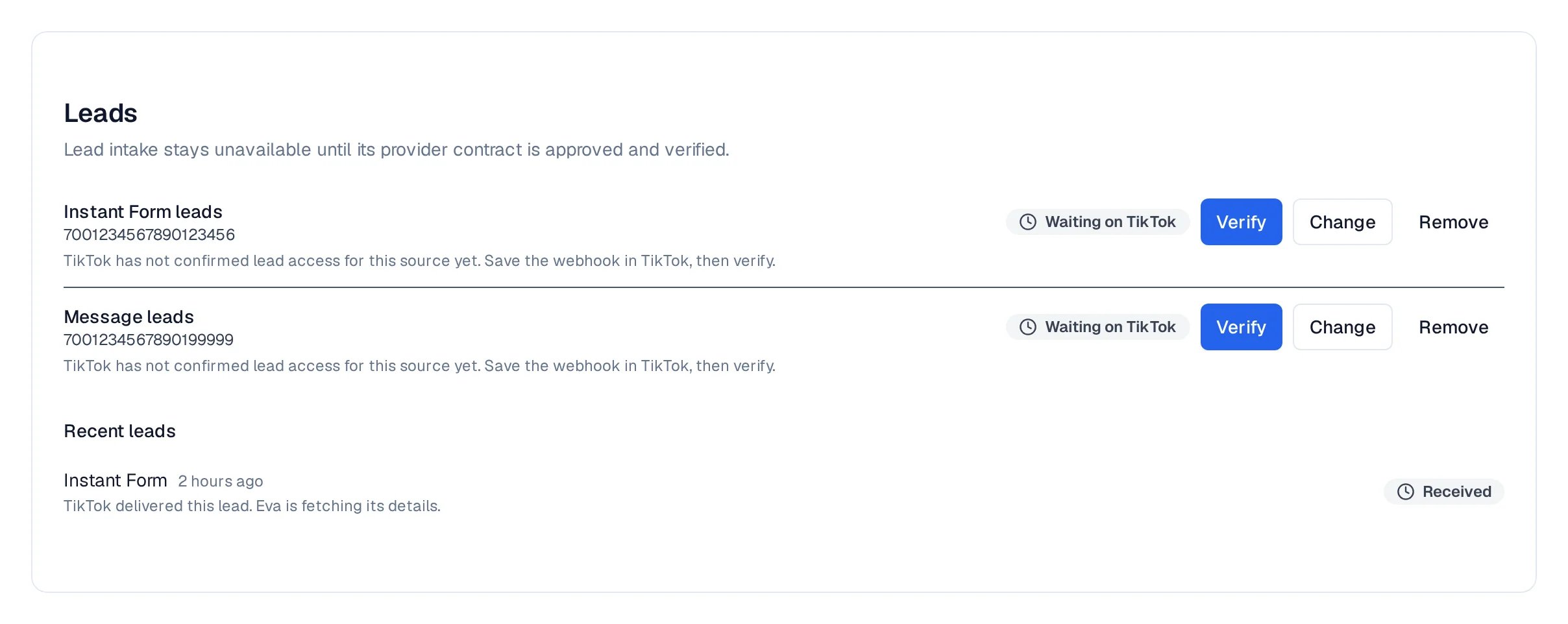 **Recent leads** lists what TikTok delivered. **In CRM** means the contact and, when a routing rule applies, the opportunity exist; **Open opportunity** takes you there. **No contact details** means the form had no usable email or phone, so Eva kept the lead visible without inventing a contact.
## Where leads go
Leads follow your routing rules: in **Pipelines**, then **Lead routing**, the TikTok source appears next to your other channels, and you choose the funnel that receives it. Without a rule, Eva creates the contact only.
## If something looks stuck
* The row says **Waiting on TikTok**: Eva has everything it needs; TikTok has not verified the source yet. Save the webhook in TikTok, wait for TikTok's approval, then select **Verify**.
* TikTok Ads is connected but messages are not available: business messages need a separate approval from TikTok and a TikTok Business account. The **Messages** section shows the exact state.
* To stop receiving leads from a source, select **Remove** on that row. Leads already in your CRM stay where they are.
**Recent leads** lists what TikTok delivered. **In CRM** means the contact and, when a routing rule applies, the opportunity exist; **Open opportunity** takes you there. **No contact details** means the form had no usable email or phone, so Eva kept the lead visible without inventing a contact.
## Where leads go
Leads follow your routing rules: in **Pipelines**, then **Lead routing**, the TikTok source appears next to your other channels, and you choose the funnel that receives it. Without a rule, Eva creates the contact only.
## If something looks stuck
* The row says **Waiting on TikTok**: Eva has everything it needs; TikTok has not verified the source yet. Save the webhook in TikTok, wait for TikTok's approval, then select **Verify**.
* TikTok Ads is connected but messages are not available: business messages need a separate approval from TikTok and a TikTok Business account. The **Messages** section shows the exact state.
* To stop receiving leads from a source, select **Remove** on that row. Leads already in your CRM stay where they are.