> ## Documentation Index
> Fetch the complete documentation index at: https://docs.goeva.ai/llms.txt
> Use this file to discover all available pages before exploring further.
# Understand email health
> Learn how Eva checks incoming and outgoing email separately, when it alerts you, and where to resolve email problems.
An email connection has two sides: receiving and sending. Eva checks them separately so it can tell
you what stopped without hiding what still works.
## Incoming and outgoing are not the same
* Incoming: Eva can sign in to the mailbox, read the inbox, and bring in new messages.
* Outgoing: Eva can send email from that address through the provider.
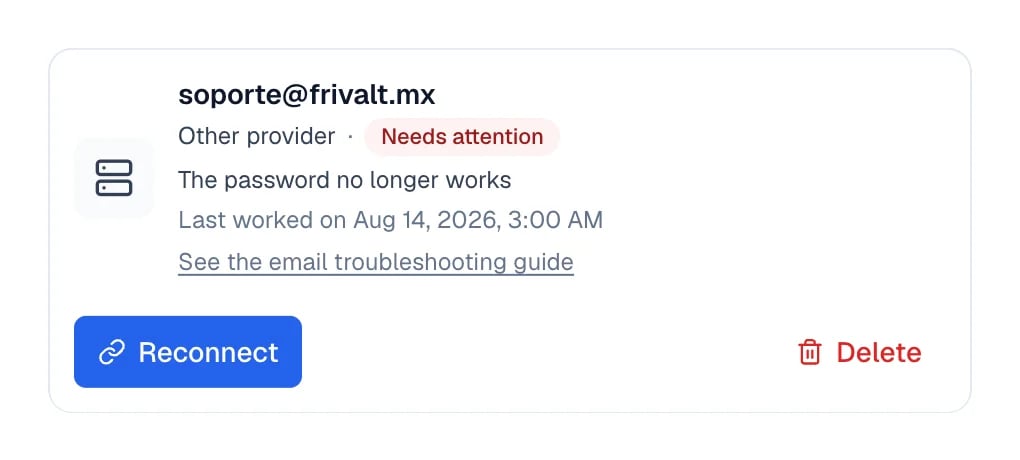
One side can fail while the other continues. For example, a server may still allow reading but
reject the password when sending. The card summarizes the problem as **Needs attention** and shows a
reason such as **The password no longer works for sending**.
 ## What Eva checks
Eva observes the connection while syncing or sending. It does not send test messages on its own.
It checks whether:
* It can authenticate with Google, Microsoft, or the IMAP server
* New email continues to arrive
* The first import is progressing
* The provider revoked permission or rejected the password
* The outgoing server accepted a real send
* A temporary failure recovers on retry
The first import covers the last 5 days. A message older than that not appearing does not mean
the connection is unhealthy.
## When we email you
Eva sends an email alert when the problem is definitive and **Reconnect** is the action that can
fix it. Examples include a password that stopped working or Google or Microsoft access being
removed.
Temporary failures do not generate an email every time. Eva retries automatically and shows them
in the app when they need visibility. You receive alerts that need your action, not noise for every
provider delay.
If several email accounts have the same problem, Eva may group them in one notice. Review every
card before considering the issue closed.
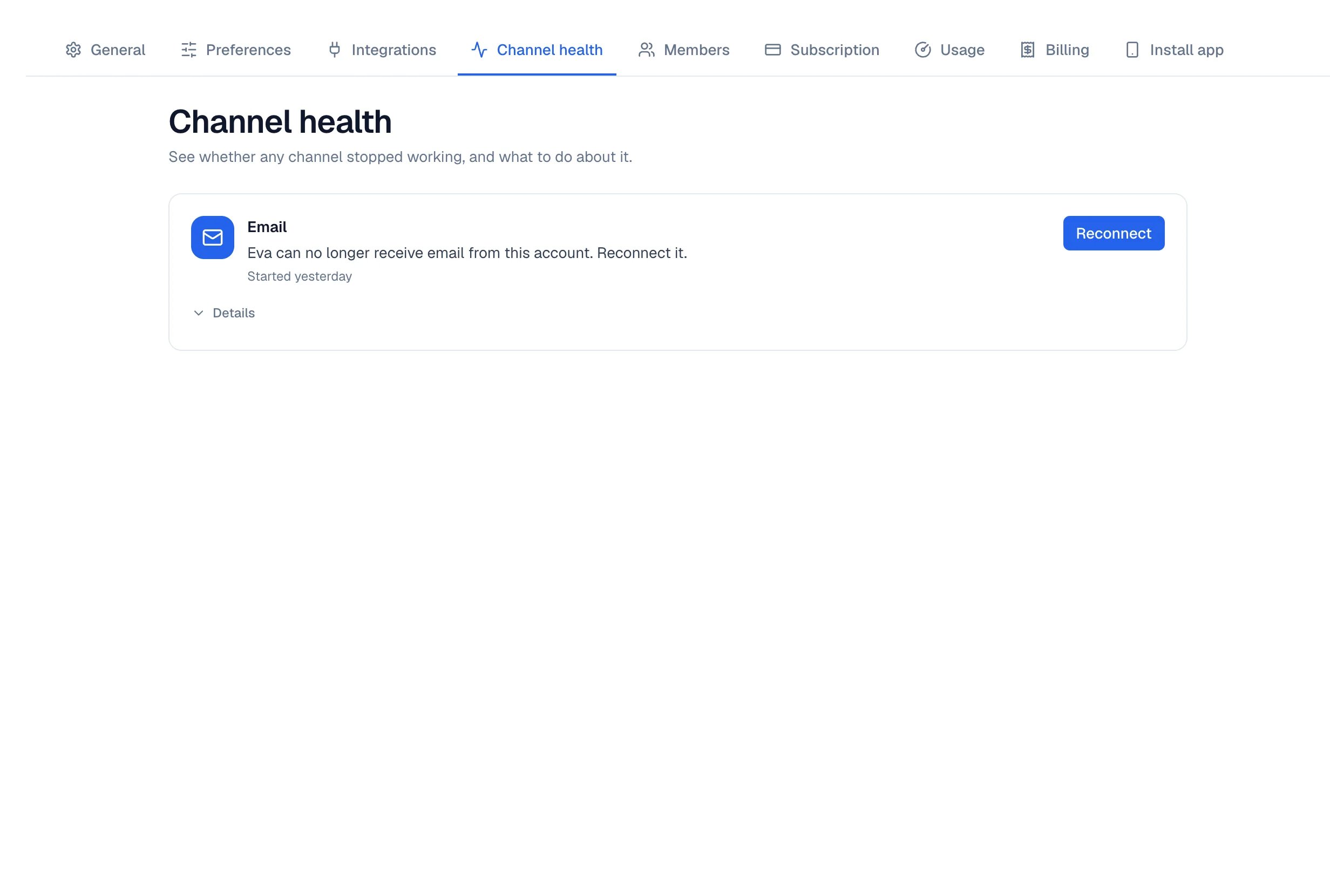
## Open Channel health
Go to **Settings → Channel health**. Open email problems appear there alongside WhatsApp,
Instagram, Messenger, and your other channels.
Each card shows:
* The channel and affected account
* The impact of the problem
* When it started
* The action that applies
## What Eva checks
Eva observes the connection while syncing or sending. It does not send test messages on its own.
It checks whether:
* It can authenticate with Google, Microsoft, or the IMAP server
* New email continues to arrive
* The first import is progressing
* The provider revoked permission or rejected the password
* The outgoing server accepted a real send
* A temporary failure recovers on retry
The first import covers the last 5 days. A message older than that not appearing does not mean
the connection is unhealthy.
## When we email you
Eva sends an email alert when the problem is definitive and **Reconnect** is the action that can
fix it. Examples include a password that stopped working or Google or Microsoft access being
removed.
Temporary failures do not generate an email every time. Eva retries automatically and shows them
in the app when they need visibility. You receive alerts that need your action, not noise for every
provider delay.
If several email accounts have the same problem, Eva may group them in one notice. Review every
card before considering the issue closed.
## Open Channel health
Go to **Settings → Channel health**. Open email problems appear there alongside WhatsApp,
Instagram, Messenger, and your other channels.
Each card shows:
* The channel and affected account
* The impact of the problem
* When it started
* The action that applies
 When everything is healthy, the screen says **Everything is working**. If you followed an alert
after the problem was fixed, it says **The problem you followed here is already fixed.**
## What to do when a problem appears
Open the card. The text distinguishes a rejected password, removed permission, stopped import,
or temporary failure.
Select **Reconnect** when Eva needs new access, or **Retry** when the connection and password
are still valid.
The issue leaves **Channel health** after a successful incoming connection. The member's card
returns to **Connected** when incoming and outgoing email are healthy.
Reconnect after changing a password or moving to another provider.
When everything is healthy, the screen says **Everything is working**. If you followed an alert
after the problem was fixed, it says **The problem you followed here is already fixed.**
## What to do when a problem appears
Open the card. The text distinguishes a rejected password, removed permission, stopped import,
or temporary failure.
Select **Reconnect** when Eva needs new access, or **Retry** when the connection and password
are still valid.
The issue leaves **Channel health** after a successful incoming connection. The member's card
returns to **Connected** when incoming and outgoing email are healthy.
Reconnect after changing a password or moving to another provider.