> ## Documentation Index
> Fetch the complete documentation index at: https://docs.goeva.ai/llms.txt
> Use this file to discover all available pages before exploring further.
# How to connect Google Calendar to Eva
> Connect your Google account so Eva sees your busy hours and books into your calendar, and understand what stays in Eva if you disconnect it.
Connecting Google Calendar does two things: your Google calendars appear inside Eva, and Eva stops
offering times when you are already busy.
## What you will get
Eva reads your primary Google calendar for busy times and sends the appointments it books to it.
The availability Eva offers a customer takes both agendas into account.
## Requirements
* A Google account with the calendars you want to use.
* Access to **Calendar setup →**. Owners and admins can connect another person's Google; each person
can connect their own.
* Pop-ups allowed in your browser. If the browser blocks the window, Eva takes you to Google in the
same tab.
## Connect your account
In the side menu, go to **Calendars** and select **Calendar setup →**.
In **Team**, find your row and select **Connect my Google**. An owner or admin can select
**Invite them to connect their Google** in another person's row and, inside it, **Connect it
yourself (shared inbox)**. Google's authorization screen opens.
Choose the Google account and accept the permissions it asks for.
Back in **Team**, the row shows **Connected**.
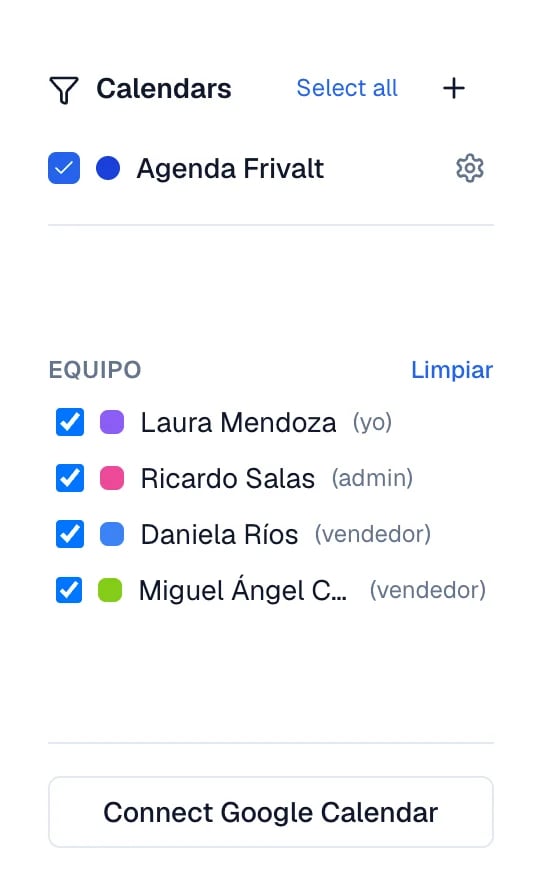 When it finishes, the person's Team row reads **Connected** and says when it was last updated.
## What syncs and what does not
Eva uses your primary Google calendar as your booking destination and as a busy source. If you have
another writable Google calendar that should also block appointments, open the row menu and select
**Also count another Google calendar as busy**. It blocks time but does not become the destination
for new appointments.
Google events appear in Eva as read-only. Appointments Eva books are created in your Google calendar
right away, and Eva refreshes Google calendars every 10 minutes. There is no manual refresh button.
Right after connecting, Eva checks whether you have all-day events marked as busy. Those block your
customers' bookings and appear in a notice above the calendar.
## What is managed from Google
Google events are read-only in Eva. Change them in Google and Eva refreshes them automatically.
Appointments Eva creates can be changed in Eva and are delivered to your primary Google calendar.
## When the connection drops
If Google revokes access, the person's Team row shows **Needs attention**. Select **Reconnect my
Google**, or **Reconnect their Google** for another person, and authorize again. Until it reconnects,
Eva cannot verify busy times from that Google calendar.
## Disconnecting keeps Eva appointments
**Disconnect Google** asks for confirmation. It stops Eva from reading that person's Google events.
When you disconnect, Google events disappear from Eva. Appointments Eva already booked stay in Eva,
and future appointments use Eva Calendar until that person connects Google again.
## How to know it worked
* Your Team row reads **Connected**.
* Busy events from your primary Google calendar show in Eva.
* Book a test appointment and check that it reaches your Google calendar.
## If something goes wrong
Open **Calendar setup →** and look in your Team row. An owner or admin can start the connection
for another person; otherwise, each person connects their own Google.
In your Team row, use the row menu and select **Also count another Google calendar as busy**.
Eva refreshes Google calendars every 10 minutes. If the Team row says **Needs attention**,
reconnect Google.
The permission expired or was revoked in Google. Use **Reconnect my Google** and authorize again
with the same account.
## Next steps
When it finishes, the person's Team row reads **Connected** and says when it was last updated.
## What syncs and what does not
Eva uses your primary Google calendar as your booking destination and as a busy source. If you have
another writable Google calendar that should also block appointments, open the row menu and select
**Also count another Google calendar as busy**. It blocks time but does not become the destination
for new appointments.
Google events appear in Eva as read-only. Appointments Eva books are created in your Google calendar
right away, and Eva refreshes Google calendars every 10 minutes. There is no manual refresh button.
Right after connecting, Eva checks whether you have all-day events marked as busy. Those block your
customers' bookings and appear in a notice above the calendar.
## What is managed from Google
Google events are read-only in Eva. Change them in Google and Eva refreshes them automatically.
Appointments Eva creates can be changed in Eva and are delivered to your primary Google calendar.
## When the connection drops
If Google revokes access, the person's Team row shows **Needs attention**. Select **Reconnect my
Google**, or **Reconnect their Google** for another person, and authorize again. Until it reconnects,
Eva cannot verify busy times from that Google calendar.
## Disconnecting keeps Eva appointments
**Disconnect Google** asks for confirmation. It stops Eva from reading that person's Google events.
When you disconnect, Google events disappear from Eva. Appointments Eva already booked stay in Eva,
and future appointments use Eva Calendar until that person connects Google again.
## How to know it worked
* Your Team row reads **Connected**.
* Busy events from your primary Google calendar show in Eva.
* Book a test appointment and check that it reaches your Google calendar.
## If something goes wrong
Open **Calendar setup →** and look in your Team row. An owner or admin can start the connection
for another person; otherwise, each person connects their own Google.
In your Team row, use the row menu and select **Also count another Google calendar as busy**.
Eva refreshes Google calendars every 10 minutes. If the Team row says **Needs attention**,
reconnect Google.
The permission expired or was revoked in Google. Use **Reconnect my Google** and authorize again
with the same account.
## Next steps