> ## Documentation Index
> Fetch the complete documentation index at: https://docs.goeva.ai/llms.txt
> Use this file to discover all available pages before exploring further.
# How to create and organize events in your calendar
> Create events and appointments, switch views, filter by person, and free up the hours that are blocking your customers from booking.
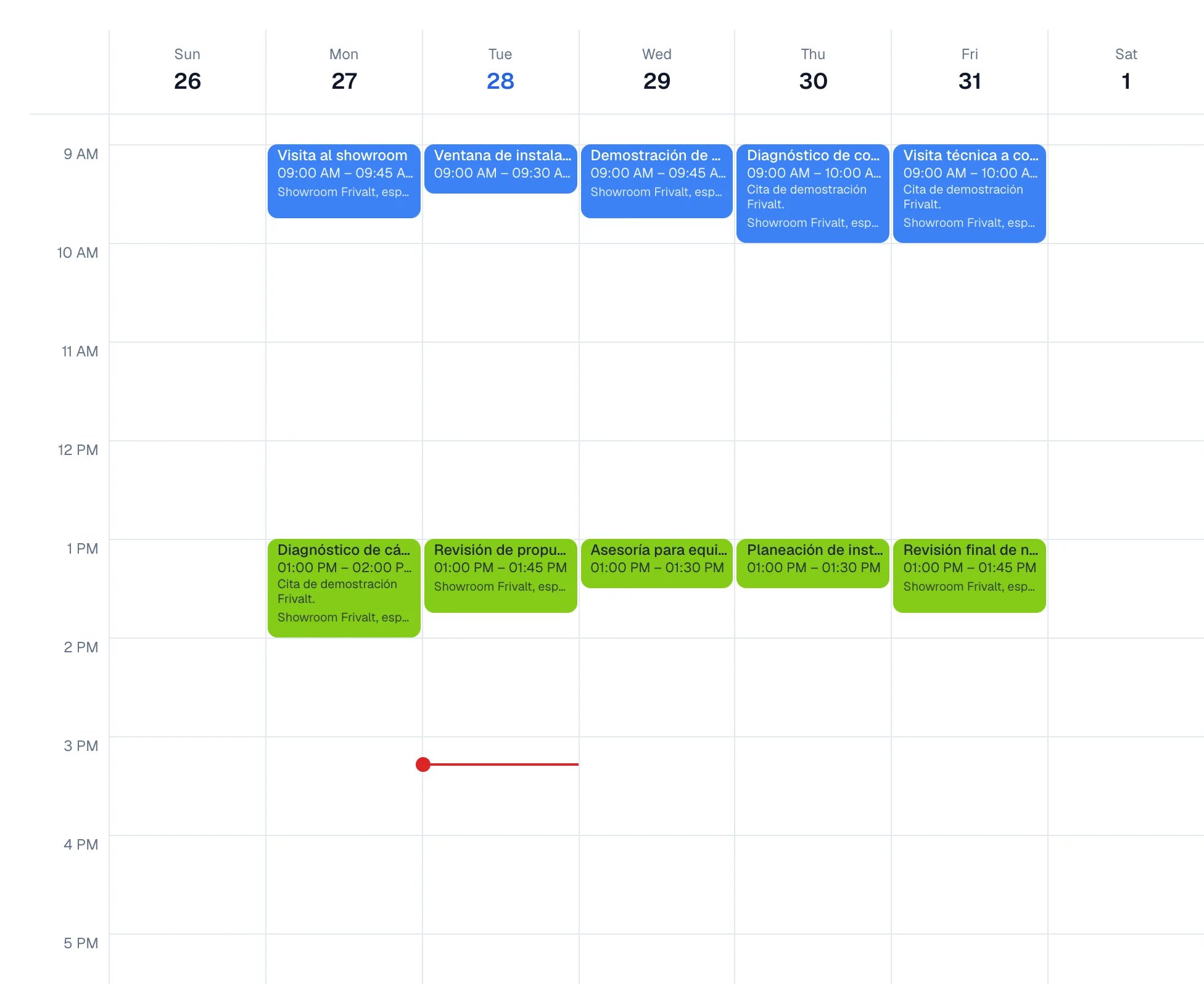
**Calendars**, in the side menu, is your business agenda: what you schedule, what your team
schedules, and the appointments Eva books with your customers.
 ## What you will get
You know how to create an event with its reminders, move between day, week, and month, and see only
your own work or the whole team's. You also know how to recognize when an event is stopping your
customers from booking.
## Requirements
* At least one calendar. Your workspace comes with one; you can create more.
* Access to the **Calendars** module. If it does not appear in the side menu, ask whoever
administers the account.
## Create an event
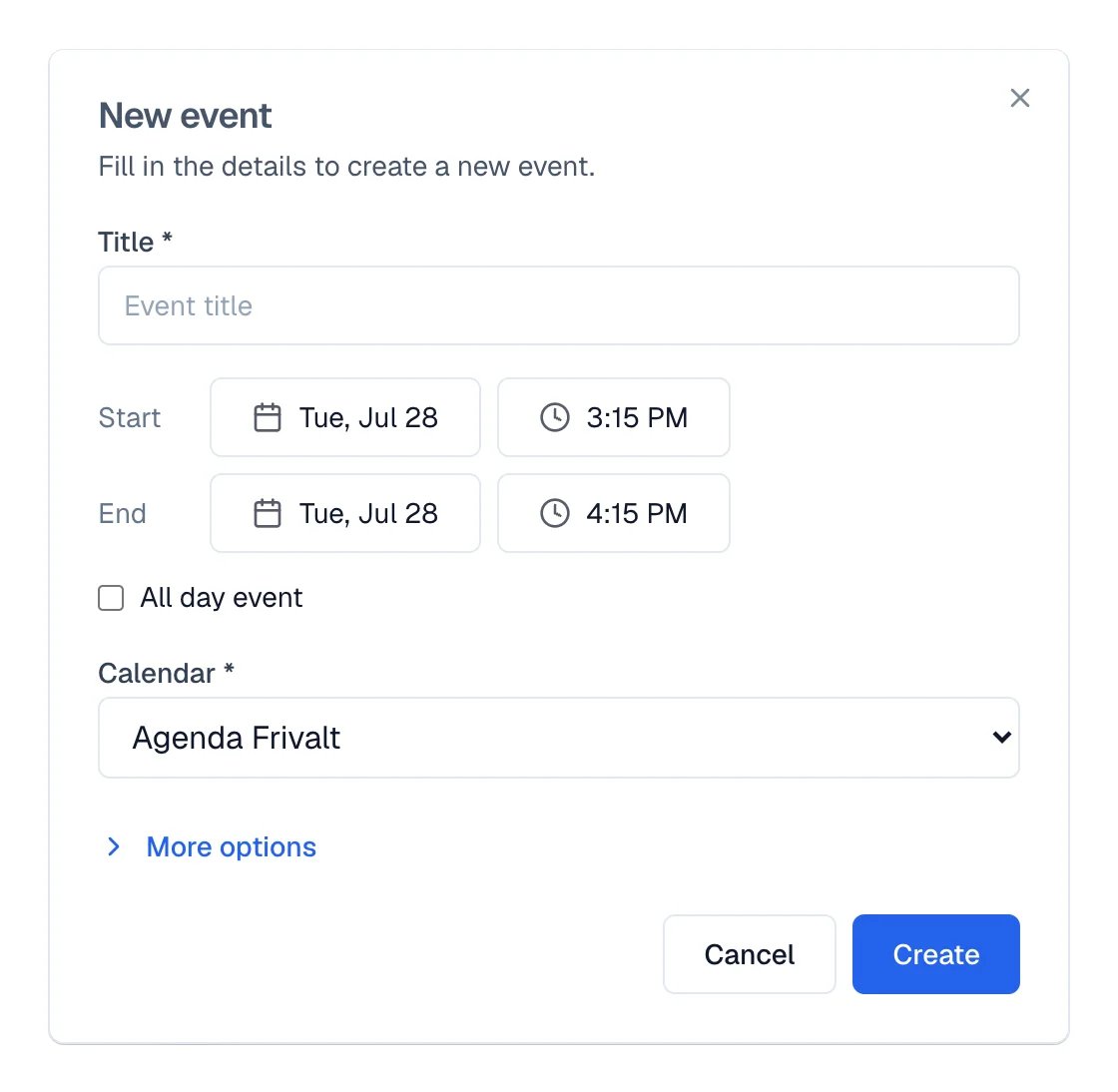
In **Calendars**, select **Create**. You can also select the day and hour directly on the grid.
Fill in **Title**, **Start time**, and **End time**.
Under **Calendar**, choose where the event lives. It is required.
**More options** opens **Location**, **Description**, **Guests**, **Remind the customer**, and
**Repeat**.
Under **Remind me**, choose a reminder time.
Select **Create**. The event appears on the grid.
## What you will get
You know how to create an event with its reminders, move between day, week, and month, and see only
your own work or the whole team's. You also know how to recognize when an event is stopping your
customers from booking.
## Requirements
* At least one calendar. Your workspace comes with one; you can create more.
* Access to the **Calendars** module. If it does not appear in the side menu, ask whoever
administers the account.
## Create an event
In **Calendars**, select **Create**. You can also select the day and hour directly on the grid.
Fill in **Title**, **Start time**, and **End time**.
Under **Calendar**, choose where the event lives. It is required.
**More options** opens **Location**, **Description**, **Guests**, **Remind the customer**, and
**Repeat**.
Under **Remind me**, choose a reminder time.
Select **Create**. The event appears on the grid.
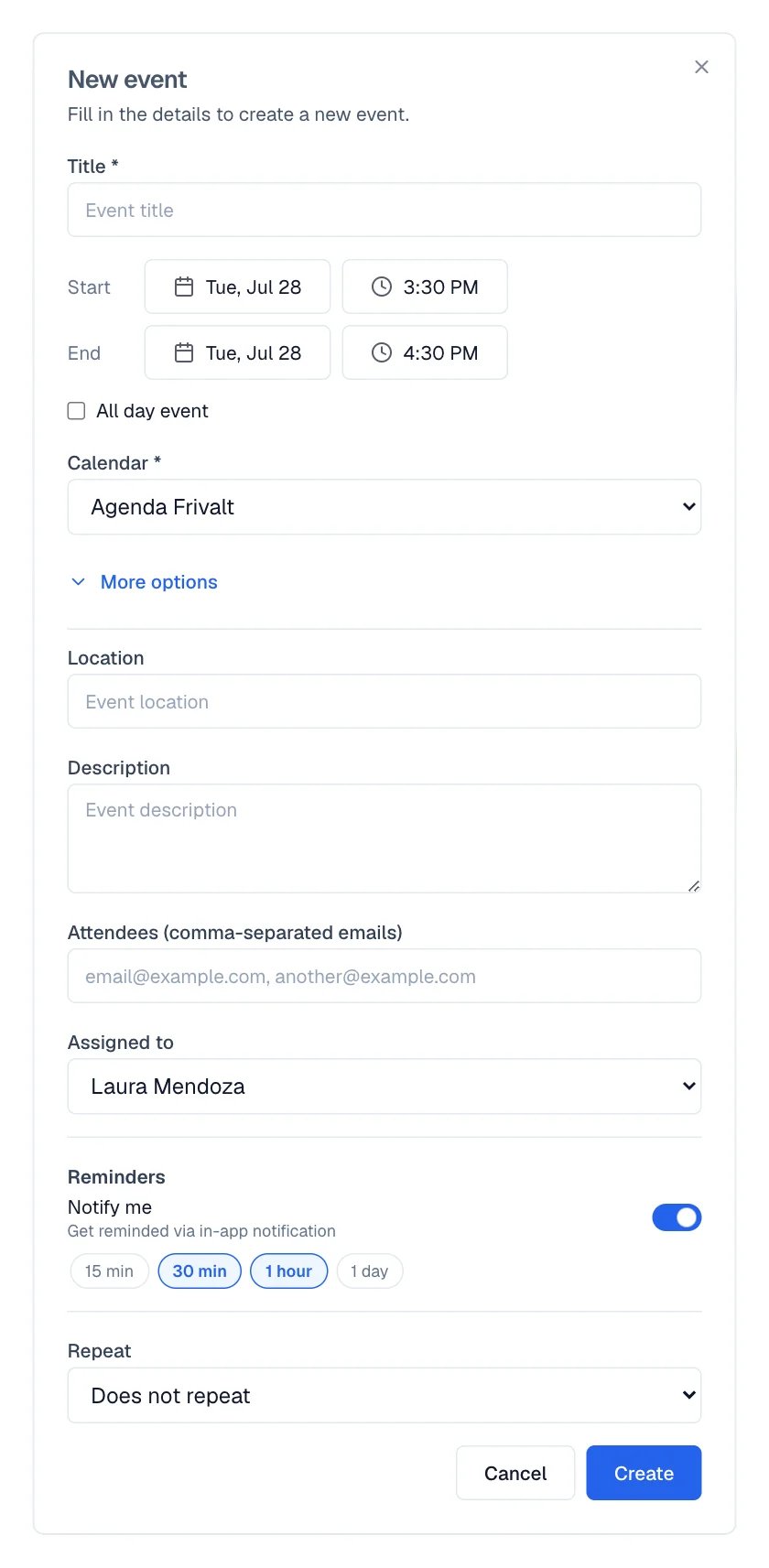 **Remind the customer** appears only when the event has a contact linked. It uses the reminder
policy your business already set up.
## Switch views and filter
At the top are **Day**, **Week**, and **Month**, and **Today** returns to the current date. The
mini calendar on the left jumps to any day.
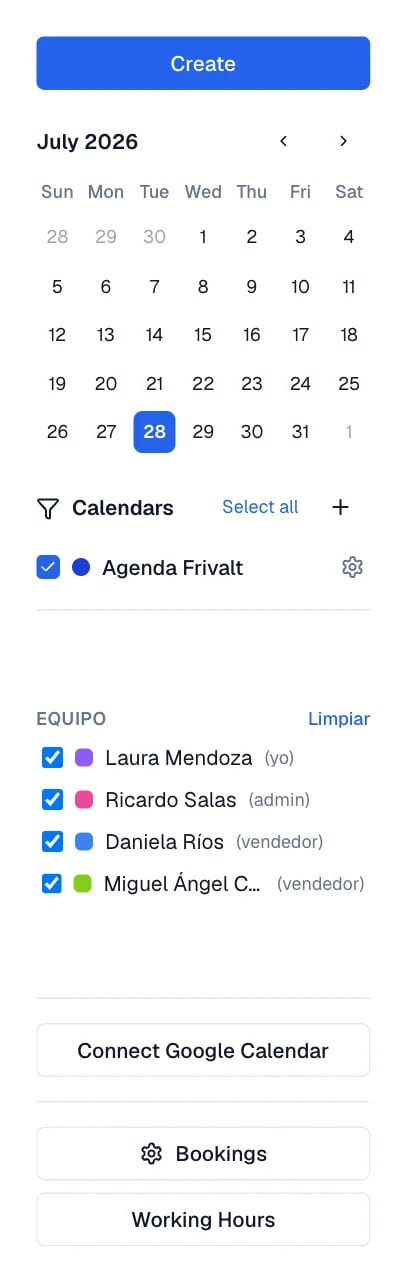
In the left column, **Team** lets you show or hide each person's events. You can also use
**Not confirmed (today and tomorrow)** to focus on appointments that still need a reply. On a
phone, the filters icon opens the same panel.
**Remind the customer** appears only when the event has a contact linked. It uses the reminder
policy your business already set up.
## Switch views and filter
At the top are **Day**, **Week**, and **Month**, and **Today** returns to the current date. The
mini calendar on the left jumps to any day.
In the left column, **Team** lets you show or hide each person's events. You can also use
**Not confirmed (today and tomorrow)** to focus on appointments that still need a reply. On a
phone, the filters icon opens the same panel.
 ## Recurring events
Inside the event, **Repeat** starts on **Does not repeat** and offers **Daily**, a weekly option
on the chosen day, **Monthly**, **Yearly**, or **Custom**, with how often it repeats, on which
days, and when it **Ends**.
When you open a recurrence to edit it, Eva opens the original series and warns that the changes
apply to the whole series. To drop a single date, use **Cancel this occurrence**. To end the whole
series, **Delete series**.
## When an event blocks your customers' appointments
If an all-day event is marked as busy in Google Calendar, your customers cannot book on those days.
It is the most common cause of "my agenda looks full and it is not".
When that happens, a notice appears above the calendar counting the events blocking availability,
with the line "Customers cannot book during these times."
In the notice, select **View**. **Events Blocking Availability** opens with the full list.
Select **Make Free** on each event, or use the button that marks all of them free at once.
The change is also made in Google Calendar: the event stays in your agenda but stops occupying the
slot. Events you do not have permission to edit in Google stay as they are and say so.
An event marked free no longer protects that slot. If you are genuinely unavailable, leave it busy
instead of freeing it.
## Create a new calendar
In the calendars panel, the create button opens **Create calendar**. It asks for **Name**,
**Color**, and **Timezone**; if you leave the time zone on the workspace value, it inherits your
account's.
**Calendar Settings** lets you change those same details later. Calendars brought in from Google
are edited in Google, not here.
## How to know it worked
* The event appears on the grid, in its calendar and with its color.
* When you open it, the title reads **Edit event** and the values are the ones you saved.
* If you freed up slots, the notice about events blocking availability disappears.
## If something goes wrong
There is an overlap with another event. Change the time, or look at that day's grid to see what
is occupying it.
The time you chose falls outside the windows configured in **Business hours**. Adjust the event
time or the working hours.
The workspace default calendar cannot be deleted, and neither can Google calendars: those are
removed by disconnecting Google.
Check the notice about events blocking availability, and then the **Business hours** and the
**Minimum notice (hours)** of the appointment type.
## Next steps
## Recurring events
Inside the event, **Repeat** starts on **Does not repeat** and offers **Daily**, a weekly option
on the chosen day, **Monthly**, **Yearly**, or **Custom**, with how often it repeats, on which
days, and when it **Ends**.
When you open a recurrence to edit it, Eva opens the original series and warns that the changes
apply to the whole series. To drop a single date, use **Cancel this occurrence**. To end the whole
series, **Delete series**.
## When an event blocks your customers' appointments
If an all-day event is marked as busy in Google Calendar, your customers cannot book on those days.
It is the most common cause of "my agenda looks full and it is not".
When that happens, a notice appears above the calendar counting the events blocking availability,
with the line "Customers cannot book during these times."
In the notice, select **View**. **Events Blocking Availability** opens with the full list.
Select **Make Free** on each event, or use the button that marks all of them free at once.
The change is also made in Google Calendar: the event stays in your agenda but stops occupying the
slot. Events you do not have permission to edit in Google stay as they are and say so.
An event marked free no longer protects that slot. If you are genuinely unavailable, leave it busy
instead of freeing it.
## Create a new calendar
In the calendars panel, the create button opens **Create calendar**. It asks for **Name**,
**Color**, and **Timezone**; if you leave the time zone on the workspace value, it inherits your
account's.
**Calendar Settings** lets you change those same details later. Calendars brought in from Google
are edited in Google, not here.
## How to know it worked
* The event appears on the grid, in its calendar and with its color.
* When you open it, the title reads **Edit event** and the values are the ones you saved.
* If you freed up slots, the notice about events blocking availability disappears.
## If something goes wrong
There is an overlap with another event. Change the time, or look at that day's grid to see what
is occupying it.
The time you chose falls outside the windows configured in **Business hours**. Adjust the event
time or the working hours.
The workspace default calendar cannot be deleted, and neither can Google calendars: those are
removed by disconnecting Google.
Check the notice about events blocking availability, and then the **Business hours** and the
**Minimum notice (hours)** of the appointment type.
## Next steps