> ## Documentation Index
> Fetch the complete documentation index at: https://docs.goeva.ai/llms.txt
> Use this file to discover all available pages before exploring further.
# How to let customers book an appointment with you
> Create bookable services with their duration and notice times, define who attends them, and set the hours in which customers can book.
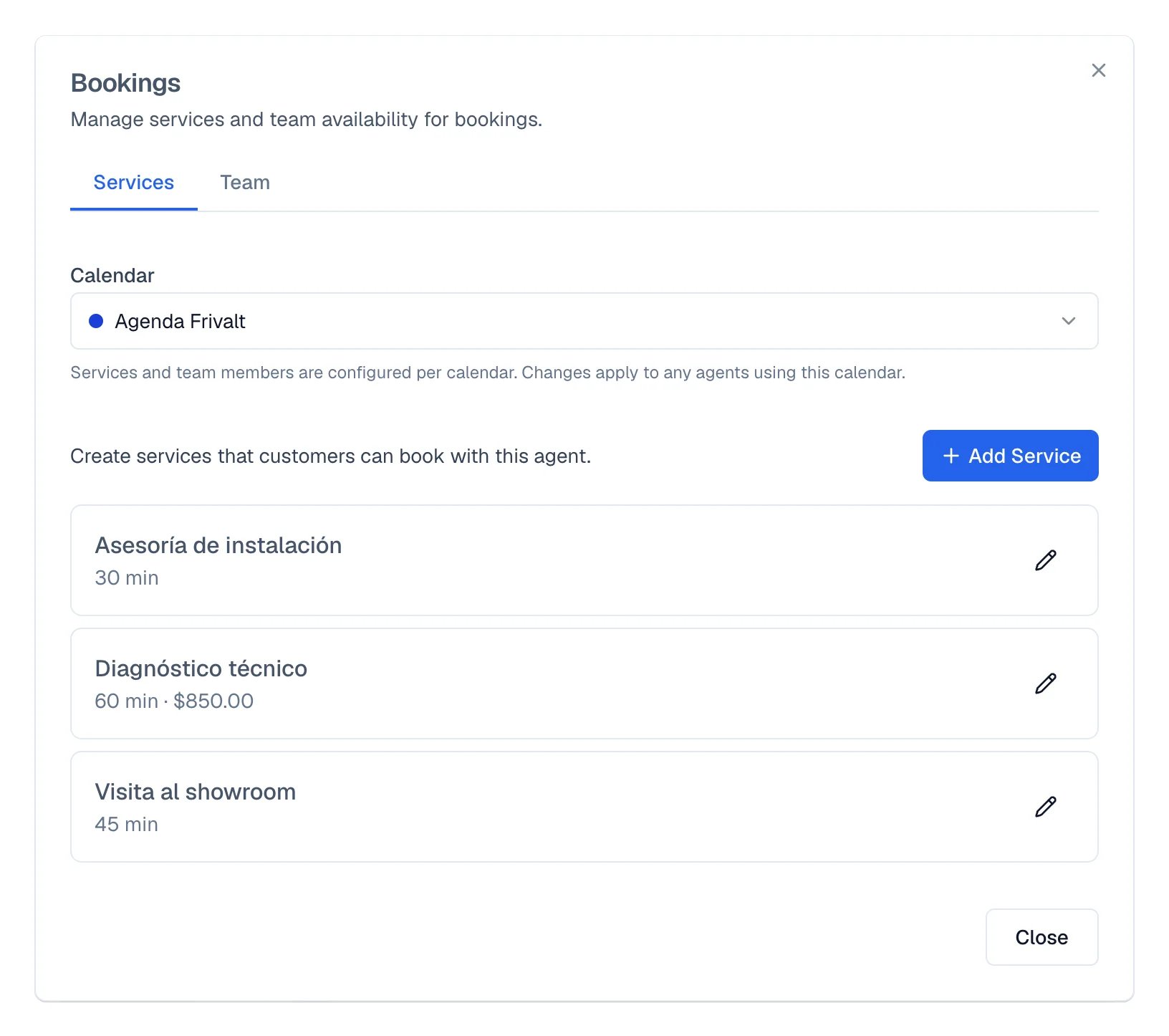
A bookable service is what your customers can schedule: a haircut, a consultation, a site visit. In
**Calendars**, select **Calendar setup →** and open **Appointment types**.
## What you will get
You have at least one service with its duration, its hours, and who attends it, ready for Eva to
book with your customers.
## Requirements
* At least one calendar in your workspace.
* Permission to manage the workspace calendar. Without it, **Calendar setup →** does not appear.
* For Eva to book on its own, the agent needs its calendar tool turned on.
## Services apply to the workspace
Services are shared across the workspace and are available to any agent that uses appointments.
 ## Create a service
In **Calendar setup**, go to **Appointment types**.
Select **New type**.
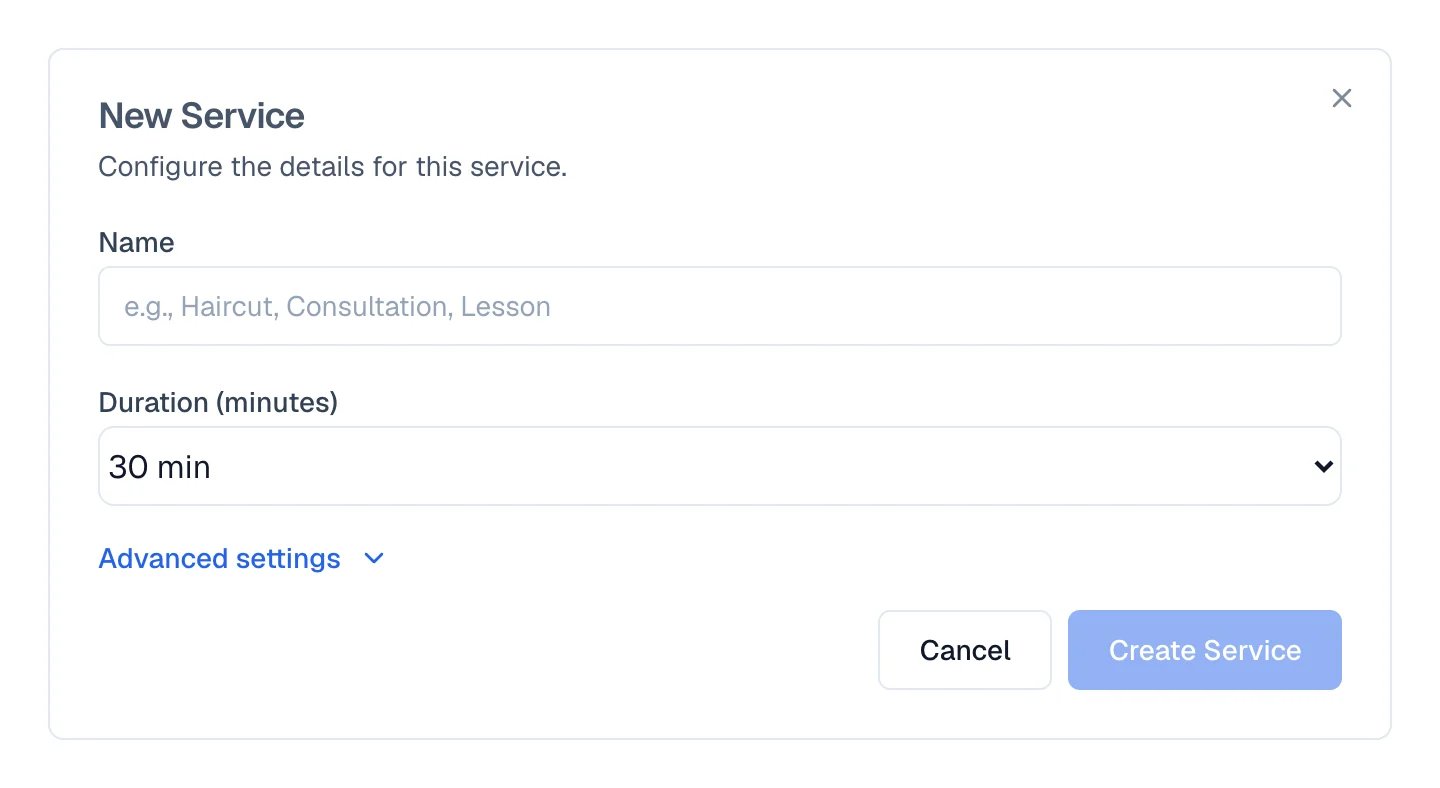
Under **Name**, write what your customer calls it: "Haircut", "Consultation", "Lesson".
**Duration** offers 15, 30, 45, 60, 90, and 120 minutes. You can also enter another duration.
Select **Save**.
## Create a service
In **Calendar setup**, go to **Appointment types**.
Select **New type**.
Under **Name**, write what your customer calls it: "Haircut", "Consultation", "Lesson".
**Duration** offers 15, 30, 45, 60, 90, and 120 minutes. You can also enter another duration.
Select **Save**.
 ## The fine settings of a service
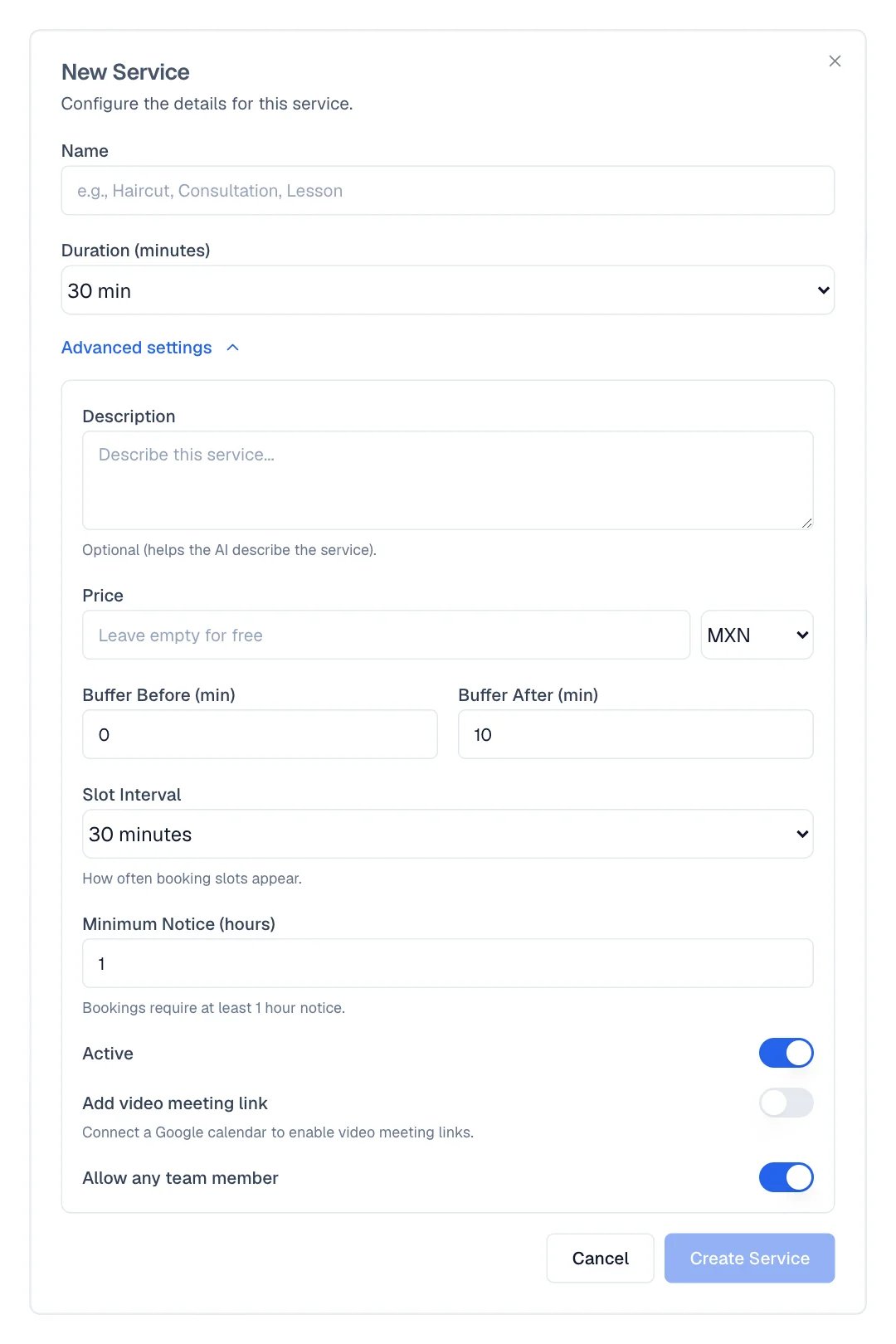
**Advanced**, inside the appointment type, opens the rest:
* **Price**. Leave it empty if it is free.
* **Free time before (min)** and **Free time after (min)** — minutes blocked around the appointment.
Useful for travel, cleaning, or preparation.
* **Show times every…** — how often an available time appears, in multiples of 5 minutes.
* **Minimum notice (hours)** — the least notice needed to book.
* **Active** — turn it off to stop offering the service without deleting it.
* **Add video call** — adds a video meeting to the appointment.
## The fine settings of a service
**Advanced**, inside the appointment type, opens the rest:
* **Price**. Leave it empty if it is free.
* **Free time before (min)** and **Free time after (min)** — minutes blocked around the appointment.
Useful for travel, cleaning, or preparation.
* **Show times every…** — how often an available time appears, in multiples of 5 minutes.
* **Minimum notice (hours)** — the least notice needed to book.
* **Active** — turn it off to stop offering the service without deleting it.
* **Add video call** — adds a video meeting to the appointment.
 **Show times every…** is not the same as the duration. A 45-minute service with a 15-minute interval
offers times at 9:00, 9:15, 9:30, and so on, even though each appointment occupies 45 minutes.
## Who attends appointments
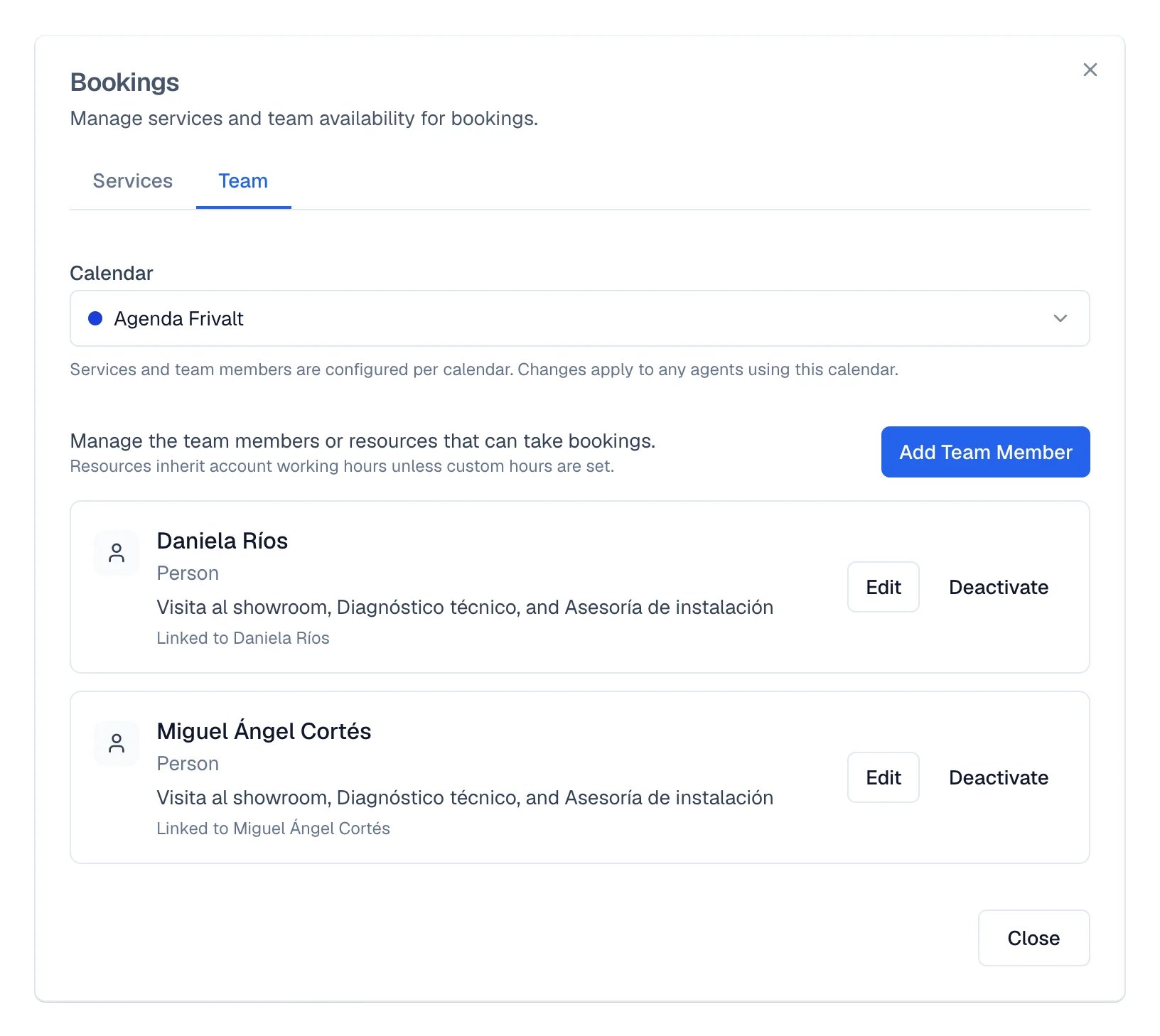
In **Team**, each person has a Google connection, their hours, and the appointment types they
attend. When you create or edit an appointment type, use **Who attends** to choose the people
who can take it. With more than one person selected, choose **Any of them** or **All together**.
**Show times every…** is not the same as the duration. A 45-minute service with a 15-minute interval
offers times at 9:00, 9:15, 9:30, and so on, even though each appointment occupies 45 minutes.
## Who attends appointments
In **Team**, each person has a Google connection, their hours, and the appointment types they
attend. When you create or edit an appointment type, use **Who attends** to choose the people
who can take it. With more than one person selected, choose **Any of them** or **All together**.
 ## The hours in which bookings can happen
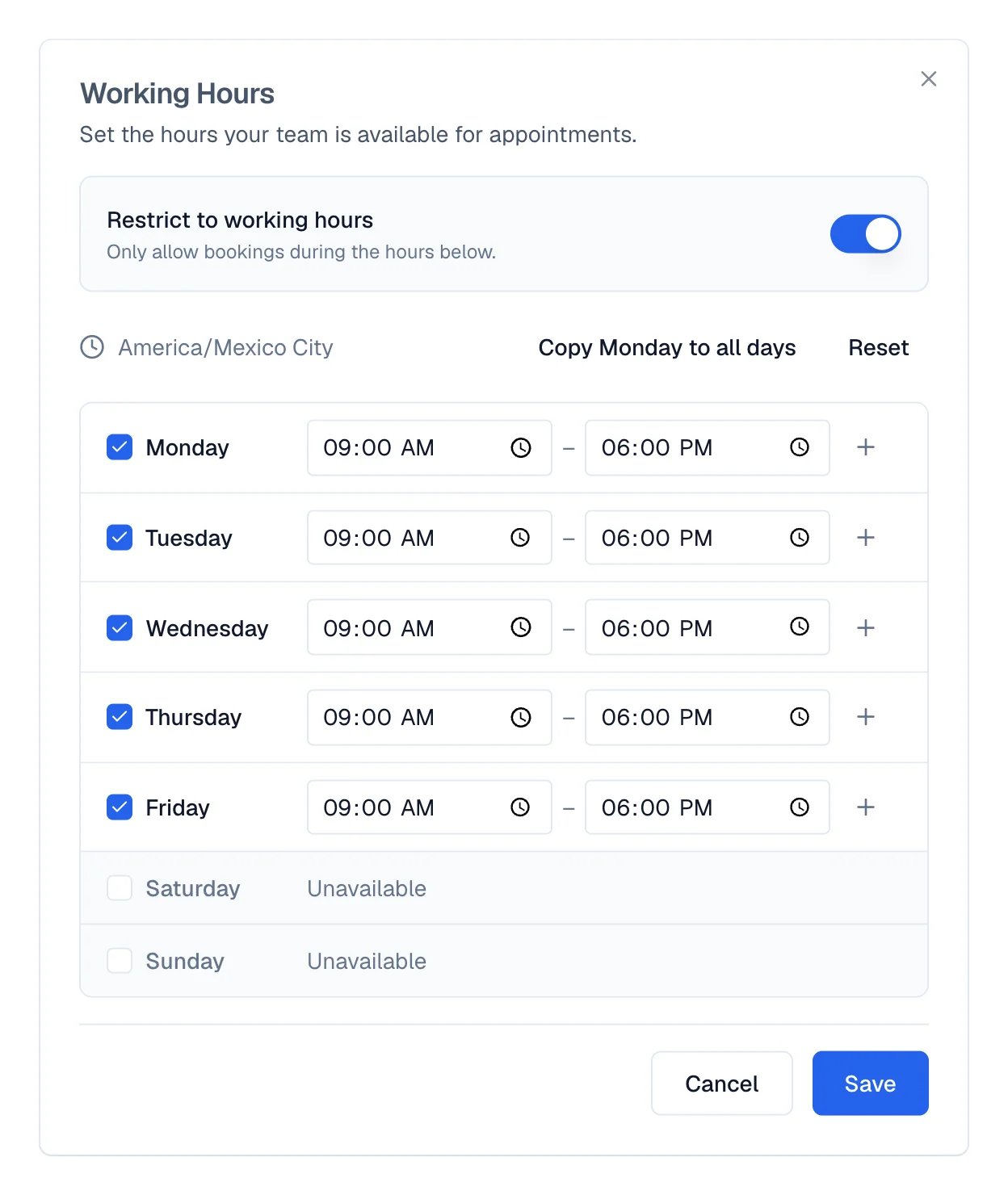
**Business hours** in **Calendar setup** defines the base hours in which customers can book. Select
**Edit** to choose the open days and hours. Each person uses these hours unless they choose **Own
hours** in their Team row; the Always available (24/7) option makes that person bookable at any hour.
## The hours in which bookings can happen
**Business hours** in **Calendar setup** defines the base hours in which customers can book. Select
**Edit** to choose the open days and hours. Each person uses these hours unless they choose **Own
hours** in their Team row; the Always available (24/7) option makes that person bookable at any hour.
 Even inside those hours, busy events, free-time buffers, minimum notice, the appointment duration,
and the availability of whoever attends it still apply.
## The reminders of each appointment
Use **Customer reminders** in **Calendar setup** to choose the timing and message Eva sends for
appointments in the workspace.
## How to know it worked
* The appointment type appears with its duration, and without the **inactive** label.
* On saving, the appointment type closes and its new details appear in the list.
* The real test: ask your agent for an appointment from **Test** and check that the times it offers
match your hours and your interval.
## If something goes wrong
That link is only seen by people who can manage the workspace calendar.
Video meeting links need Google Calendar connected. If Google is disconnected, the option stays
off until you reconnect it.
The service has to be created first. Members are linked to services that already exist.
An event on your calendar only blocks if it is marked as busy. Check the notice about events
blocking availability and the status of those events.
## Next steps
Even inside those hours, busy events, free-time buffers, minimum notice, the appointment duration,
and the availability of whoever attends it still apply.
## The reminders of each appointment
Use **Customer reminders** in **Calendar setup** to choose the timing and message Eva sends for
appointments in the workspace.
## How to know it worked
* The appointment type appears with its duration, and without the **inactive** label.
* On saving, the appointment type closes and its new details appear in the list.
* The real test: ask your agent for an appointment from **Test** and check that the times it offers
match your hours and your interval.
## If something goes wrong
That link is only seen by people who can manage the workspace calendar.
Video meeting links need Google Calendar connected. If Google is disconnected, the option stays
off until you reconnect it.
The service has to be created first. Members are linked to services that already exist.
An event on your calendar only blocks if it is marked as busy. Check the notice about events
blocking availability and the status of those events.
## Next steps